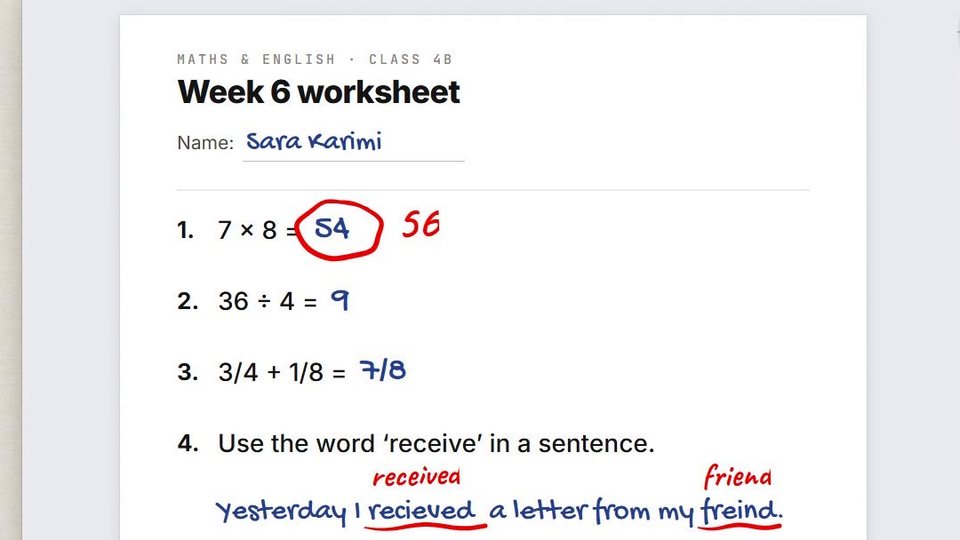
01 · Red
Correct. Right where it is.
Circle the wrong answer and write the right one over the student's PDF — or over any app on your screen. Pen pressure makes it feel like a real red pen.
Am_sketch is a drawing layer for Windows. Press a hotkey and draw straight over anything on your screen — slides, PDFs, the browser, a video call, a reference photo — with real pressure-sensitive brushes, a highlighter, shapes, text and measuring guides. Built for teachers who explain and artists who sketch.
Version 1.0.0 Windows 10 & 11 One-time $49 Pen pressure & tilt
[ EVERY COLOUR HAS A JOB ]
The film travels once round Am_sketch's hue ring. Each colour is something a teacher or an artist does all day — and each one is a tool on the same ring.

01 · Red
Circle the wrong answer and write the right one over the student's PDF — or over any app on your screen. Pen pressure makes it feel like a real red pen.

02 · Yellow
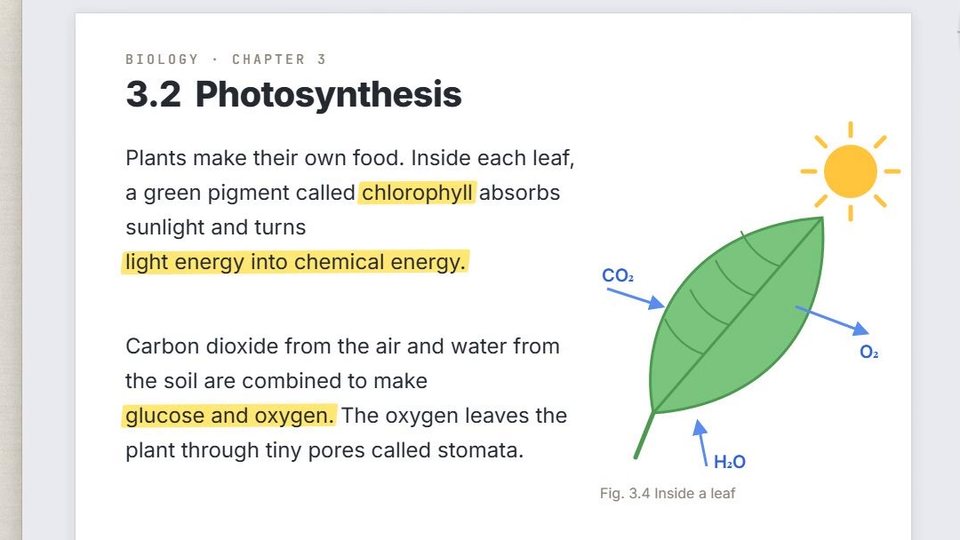
The highlighter never hides the text underneath, however often you go over it. Lay trace paper over the screen to write the equation on a clean sheet.
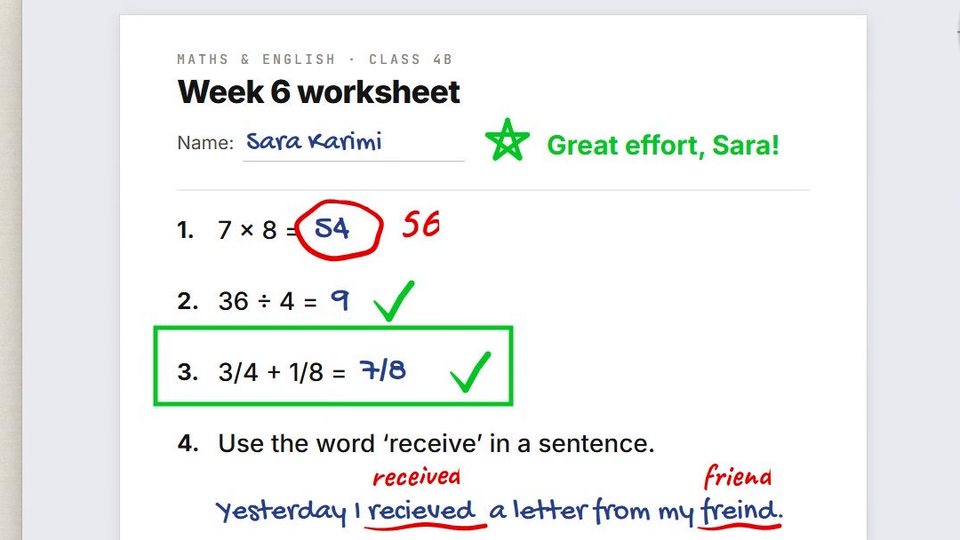
03 · Green
Ticks, stars and a typed note. The shapes and text you add stay editable — move, resize, recolour or retype them any time.
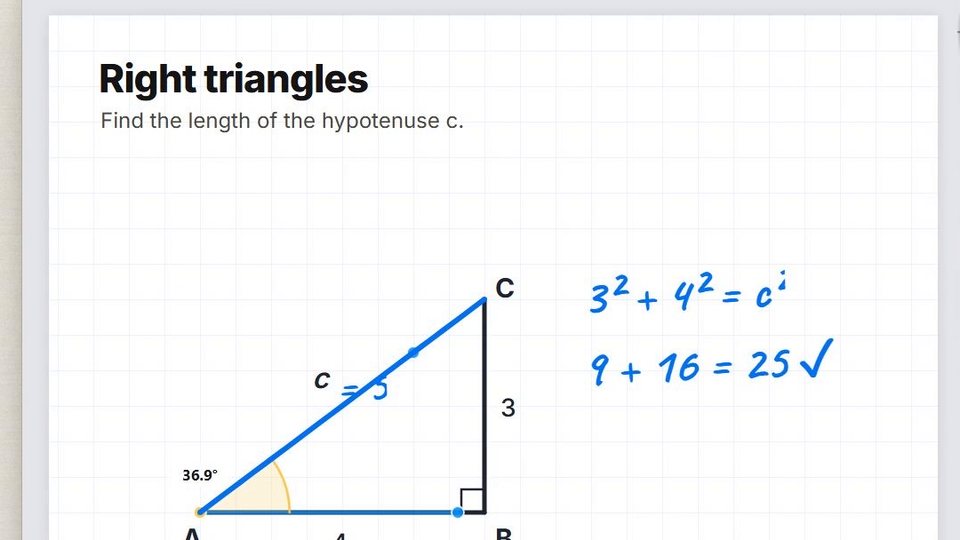
04 · Blue
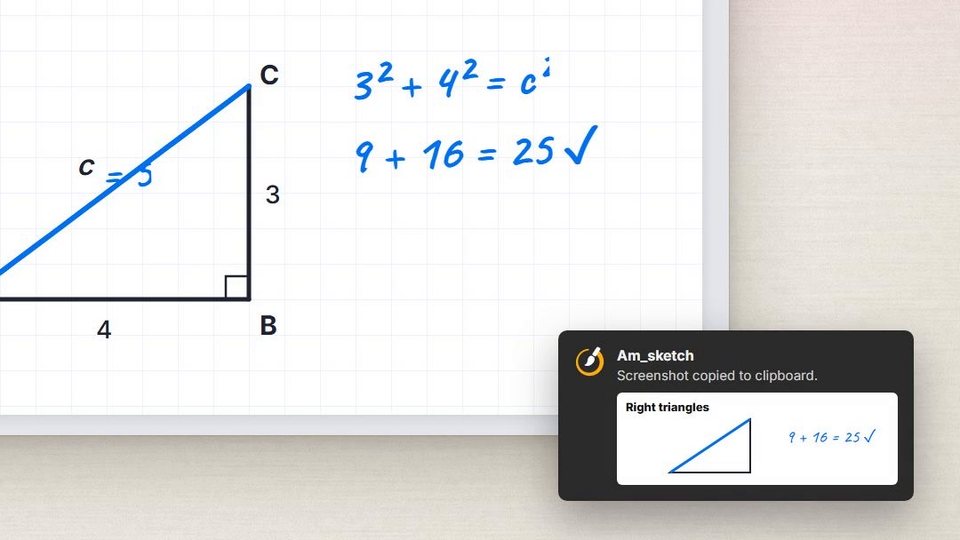
A ruler your strokes snap to and that reads the length, an angle guide that reads the angle, and the working written right beside them.
05 · Violet
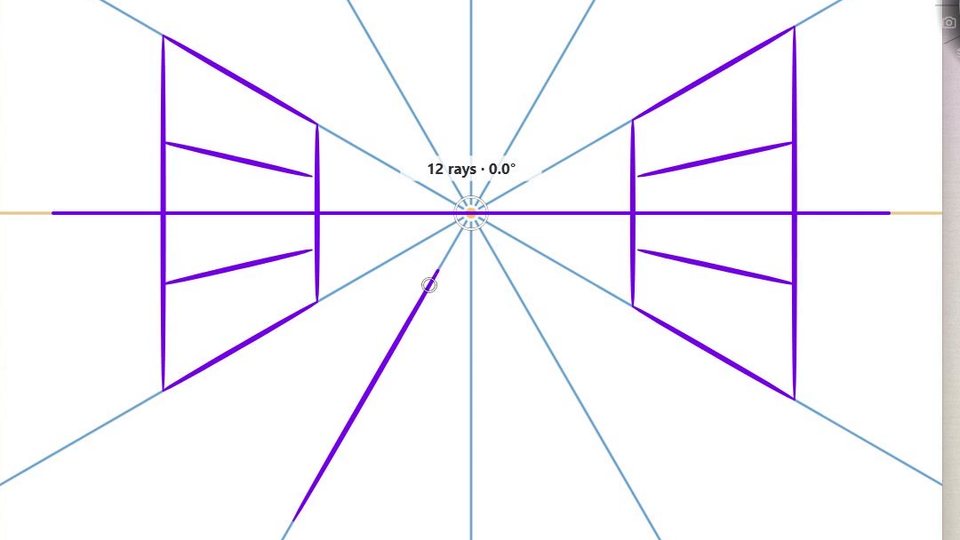
Pressure-sensitive brushes with paper grain, tilt and speed — from a hairline ink to a dry rake — and a perspective guide that keeps a street drawing true.
06 · Magenta
Give any stroke a new colour, keep work on separate layers, then capture the screen — notes and all — to the clipboard or a PNG.
[ THE PROBLEM ]
[ FEATURES ]
No add-ons, no tiers, no upsell. Hover a card to read what it does.
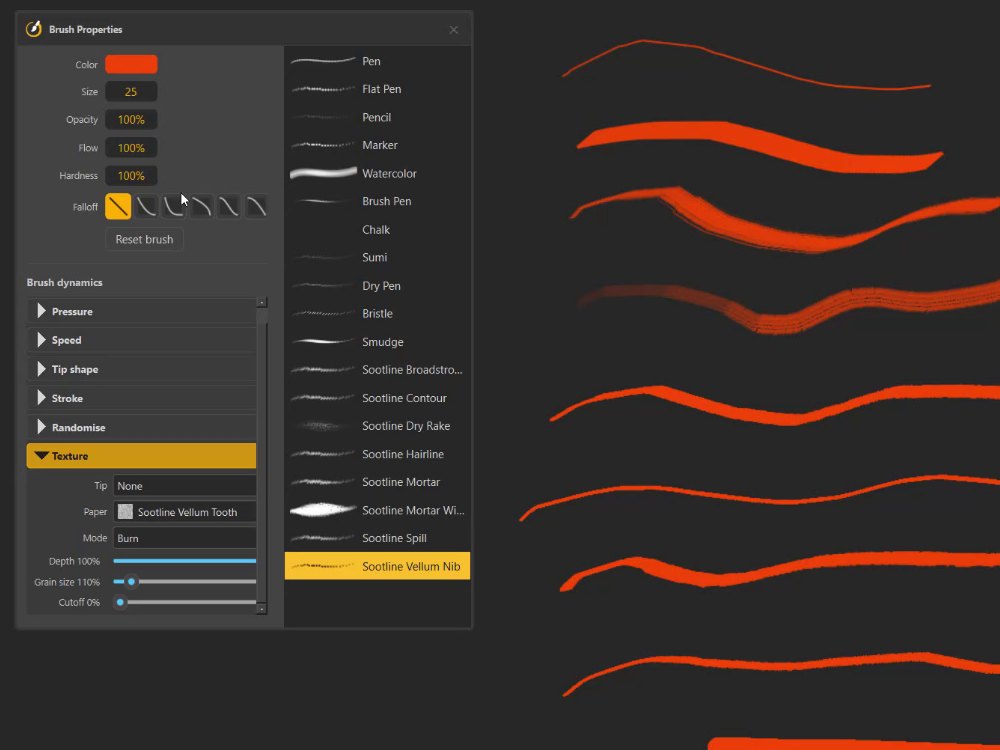
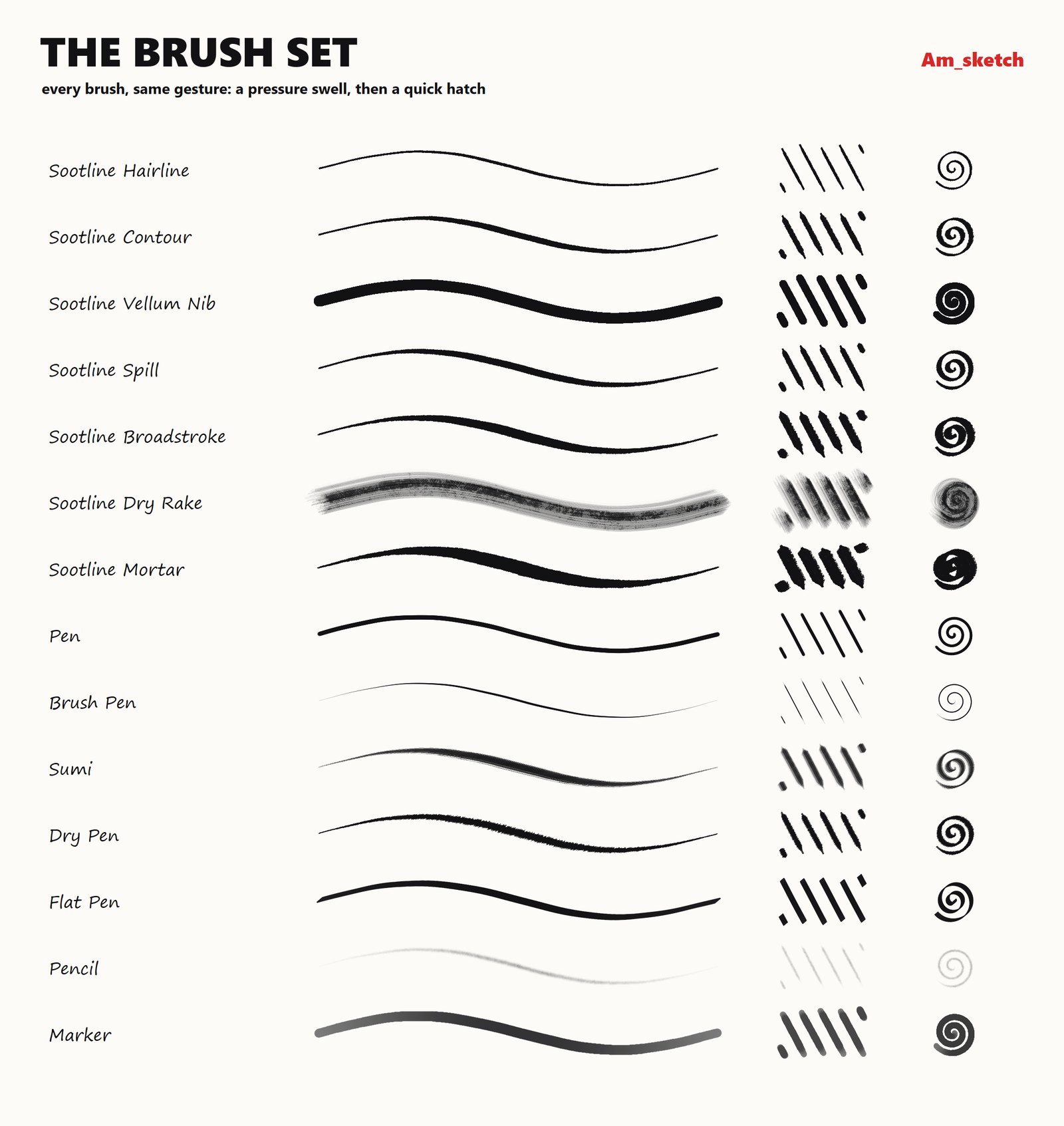
Pen, flat pen, pencil, marker, watercolour, brush pen, chalk, sumi, bristle and a family of Sootline inks — each with its own size, opacity, flow, hardness and falloff.
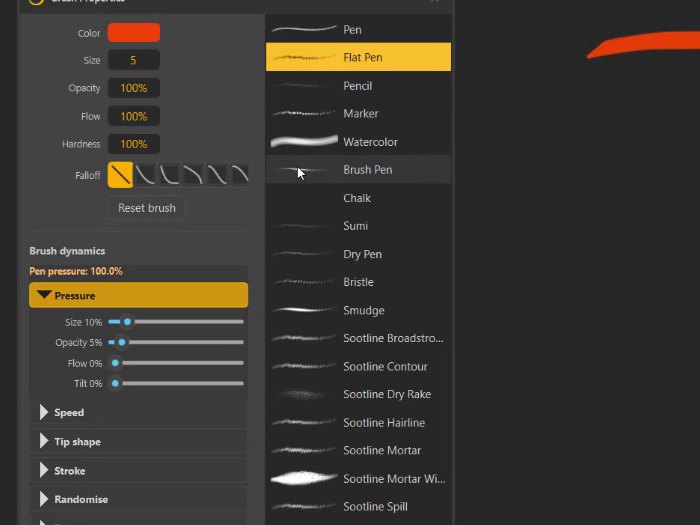
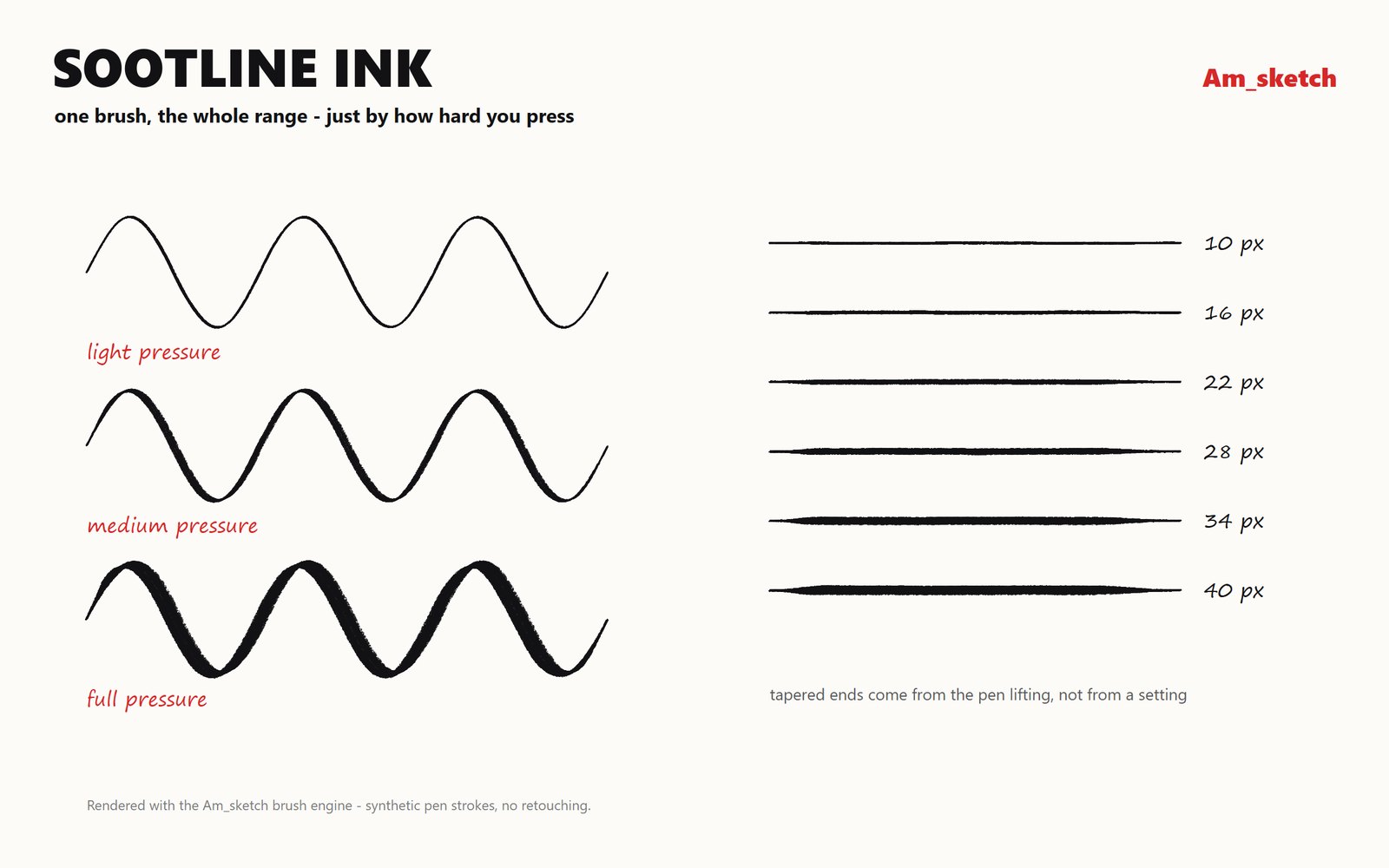
Pen pressure drives size, opacity and flow; tilt and speed shape the stroke too. A light touch for a hairline, full pressure for a heavy line.
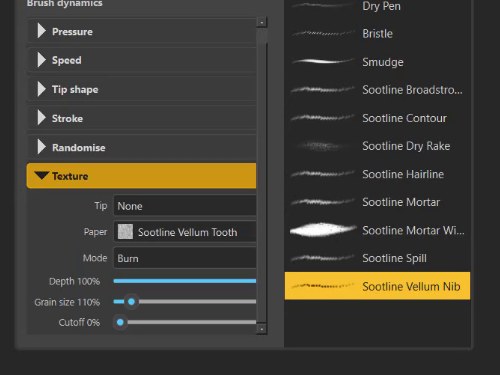
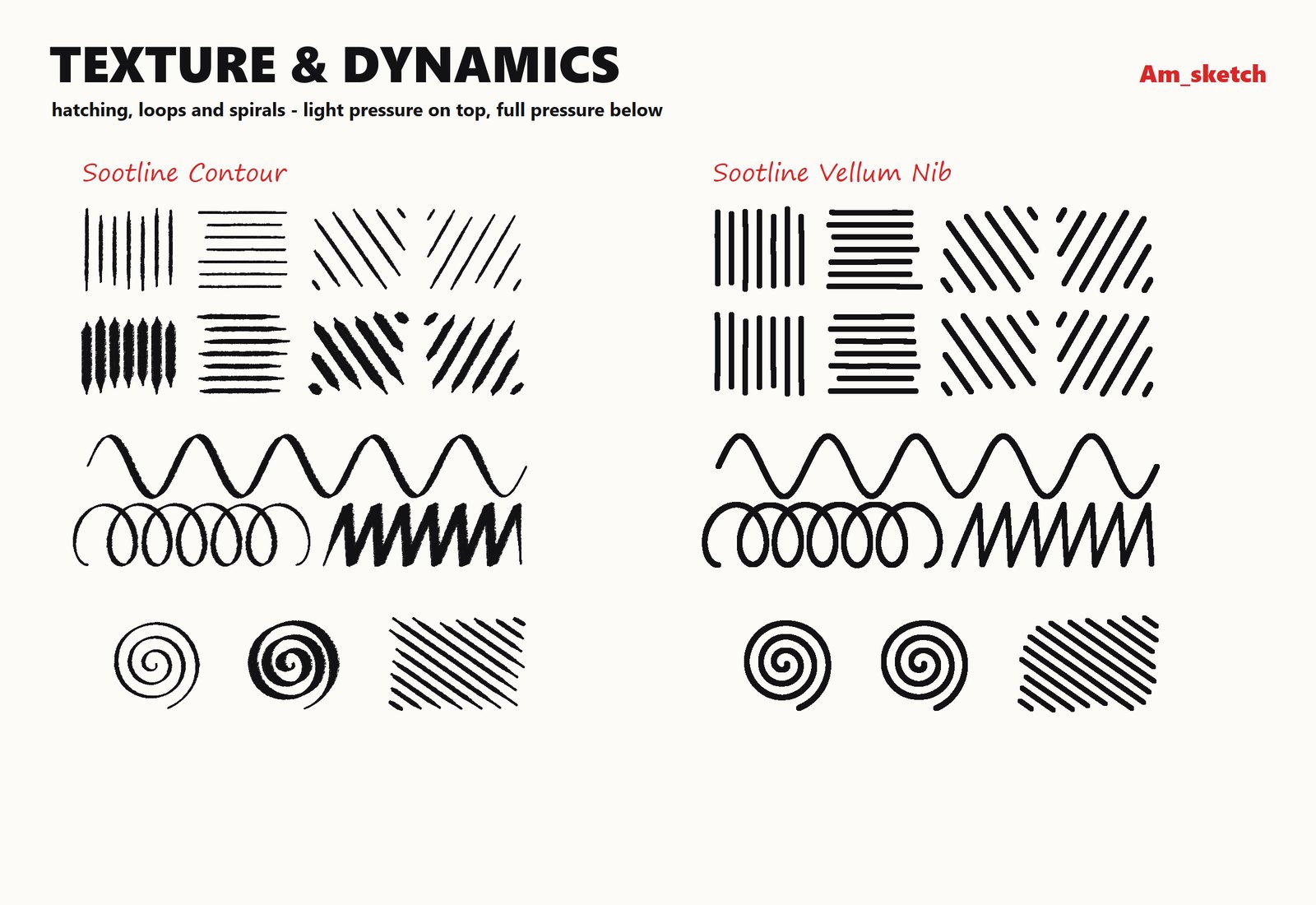
Give a brush a paper — vellum, stucco, tooth — with its depth and grain size, so a pencil reads as pencil. Add tips and grains of your own as image files.
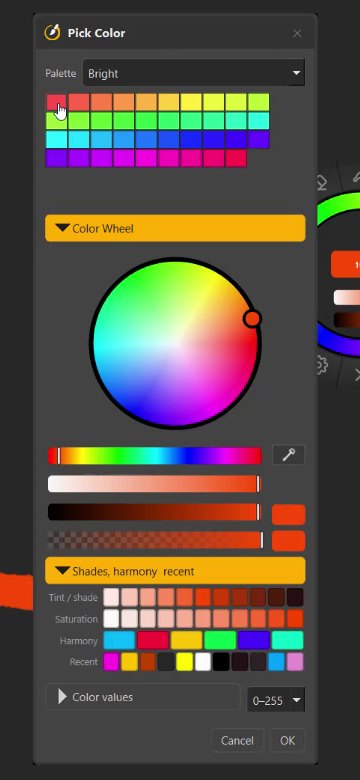
Fourteen palettes, a colour wheel with its sliders, shades and harmonies of the colour you have, your recent colours, and an eyedropper for anything on screen.
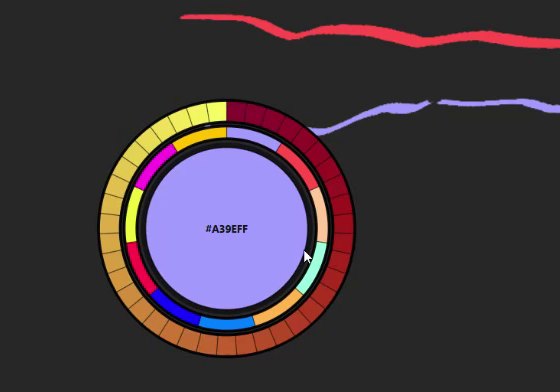
Hold Ctrl + Space with the brush: the palette opens round the pointer. Hover to preview, click to pick — Alt and Shift step through all fourteen palettes.
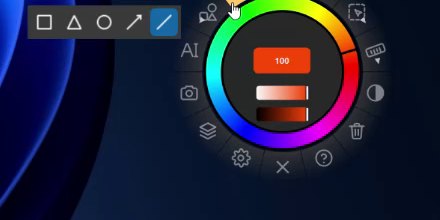
Rectangles, triangles, ellipses, arrows and lines, with their own outline and fill — Shift keeps them square or at 45°, and every one stays editable.
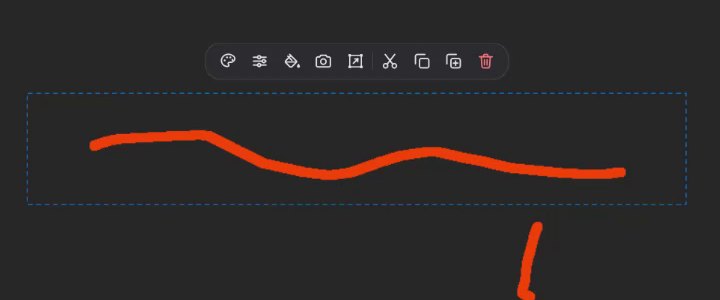
Draw a lasso, rectangle or circle round strokes, shapes or text and a toolbar appears: change colour, edit, fill, capture, free transform, cut, copy, duplicate, delete.
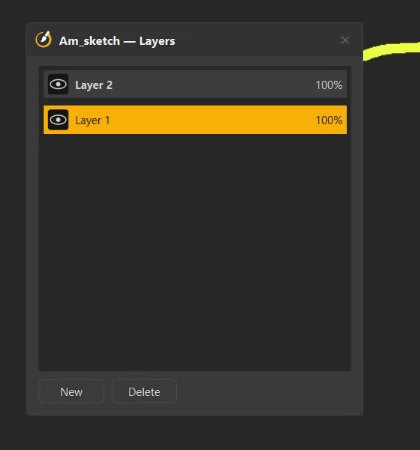
Keep the lesson on one layer and today's notes on another — rename, hide, fade or delete one without touching the rest.
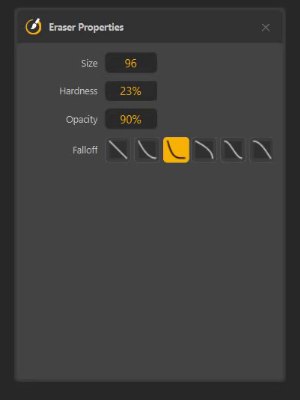
A soft or hard eraser of any size, with its own opacity and falloff — rub out a word, or half a stroke. Shapes and text it touches stay editable unless you say otherwise.
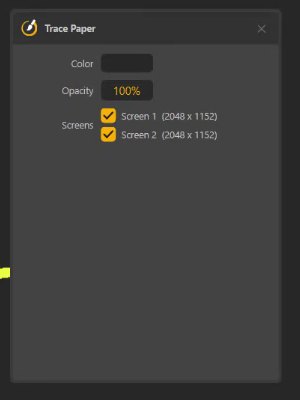
A sheet over the screen: opaque for a clean whiteboard, see-through to trace a reference underneath. Pick its colour and opacity, and which screens it covers.
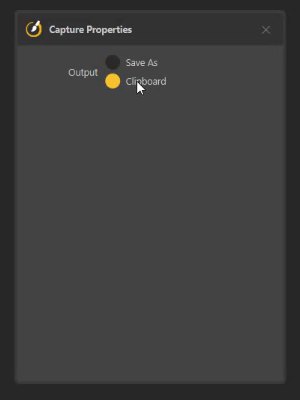
Drag out a region and keep it — the app underneath, your notes on top — on the clipboard, or saved as PNG, JPEG or BMP.
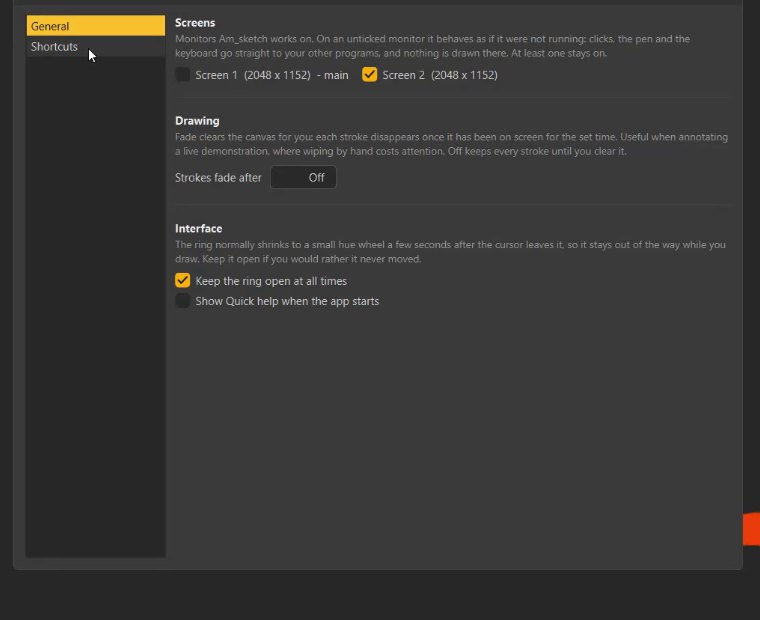
Let each stroke disappear a few seconds after you draw it — ideal for a live demo, where wiping by hand costs attention.
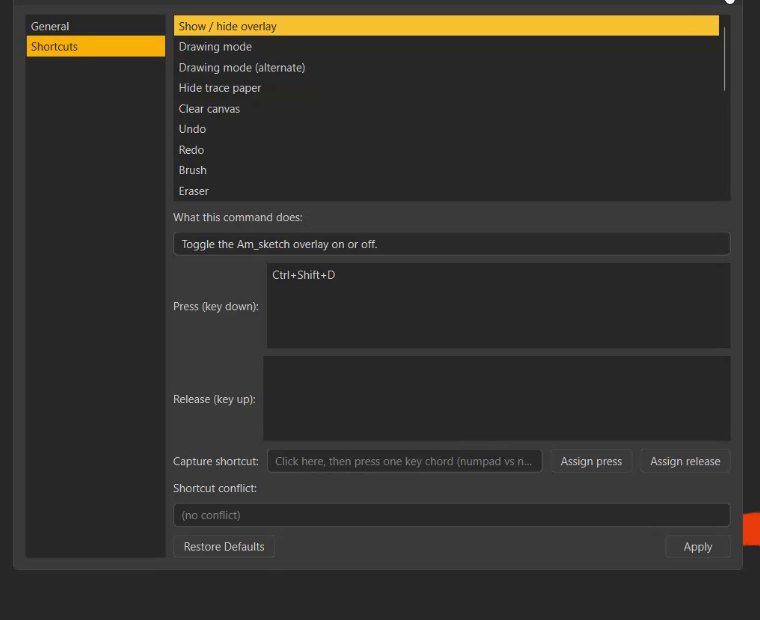
Show or hide, draw or pass through, clear, undo — every command on the key you choose, with a warning when a key is already taken.
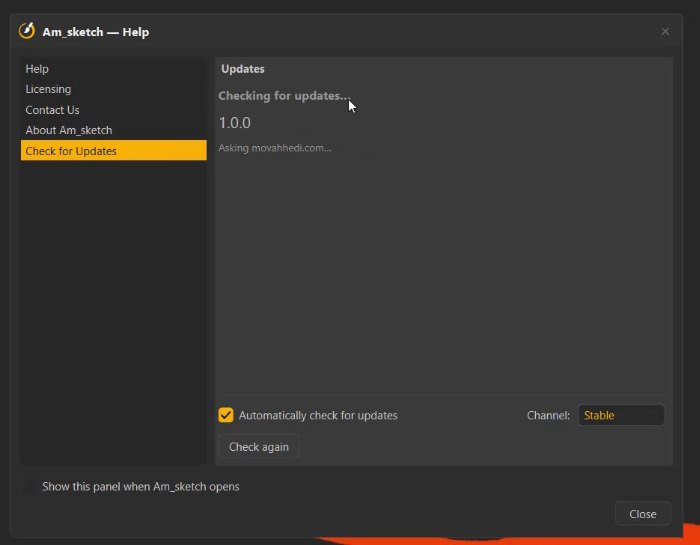
A quiet check once a day. When there is a release, it shows what changed since yours — skip it, be reminded tomorrow, or switch the checks off.
14 features · hover or tab through a card to read it
[ THE RING ]
This is the ring, drawn with the app's own proportions. Point at a tool to read what it does, and drag round the colours — the swatch and both sliders follow, as they do in the app.
The tool ring
Fourteen tools round a hue ring. Point at one to read what it does — or drag round the colours.
[ BRUSHES ]
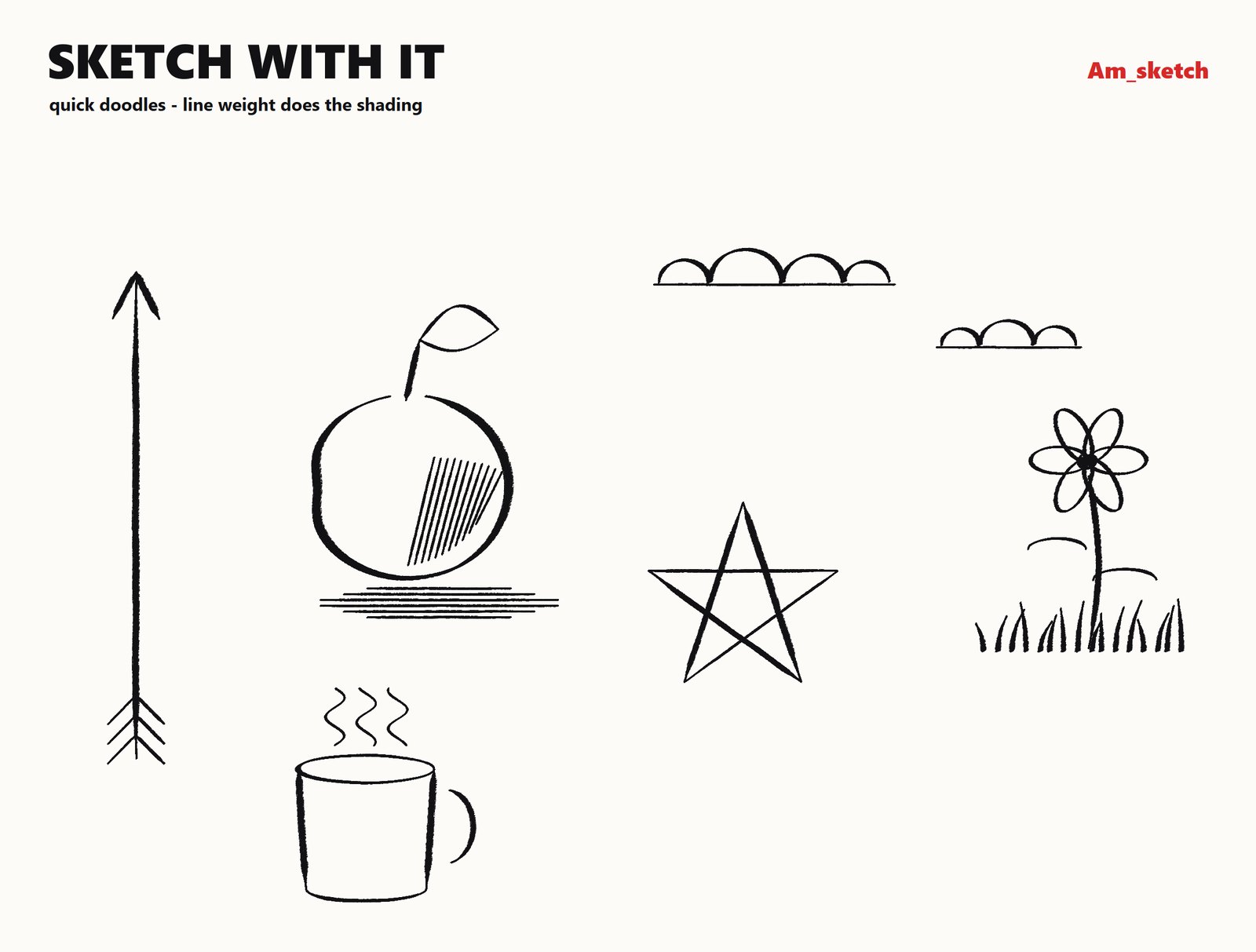
Every sheet below was drawn by Am_sketch's own brush engine — synthetic pen strokes, no retouching. What you see is what your pen gets.
[ GUIDES ]
Four guides under the ring's Measurement slot. They sit on the screen like real drawing instruments — drag their handles, move them with Alt, and draw along them.
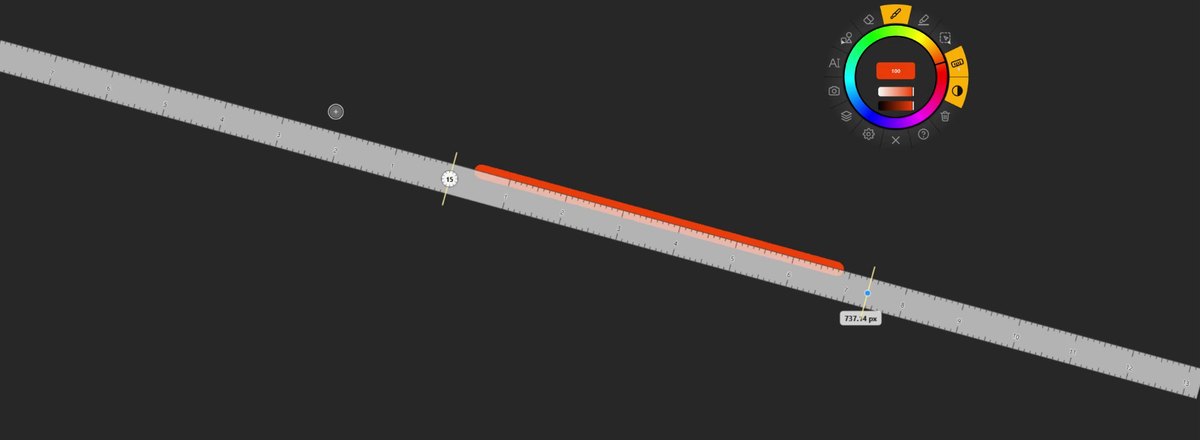
Lay it at any angle; strokes drawn near its edge snap to it, and it reads the length in pixels, millimetres or centimetres — make it infinite to rule right across the screen.
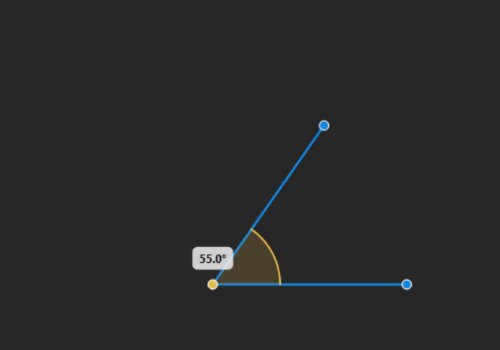
Two arms from one point and the angle between them — drag either arm and watch the number. Strokes snap to the arms, too.
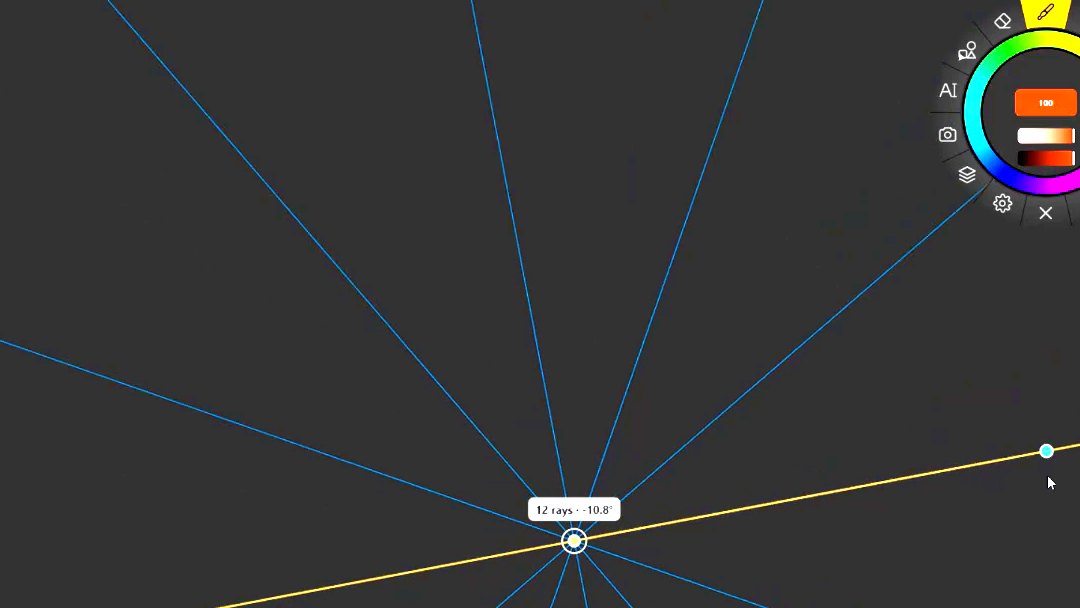
A vanishing point and a fan of rays to draw along — drag the point, turn the fan, and strokes snap to the rays. The quickest way to keep a street, a room or a box honest.
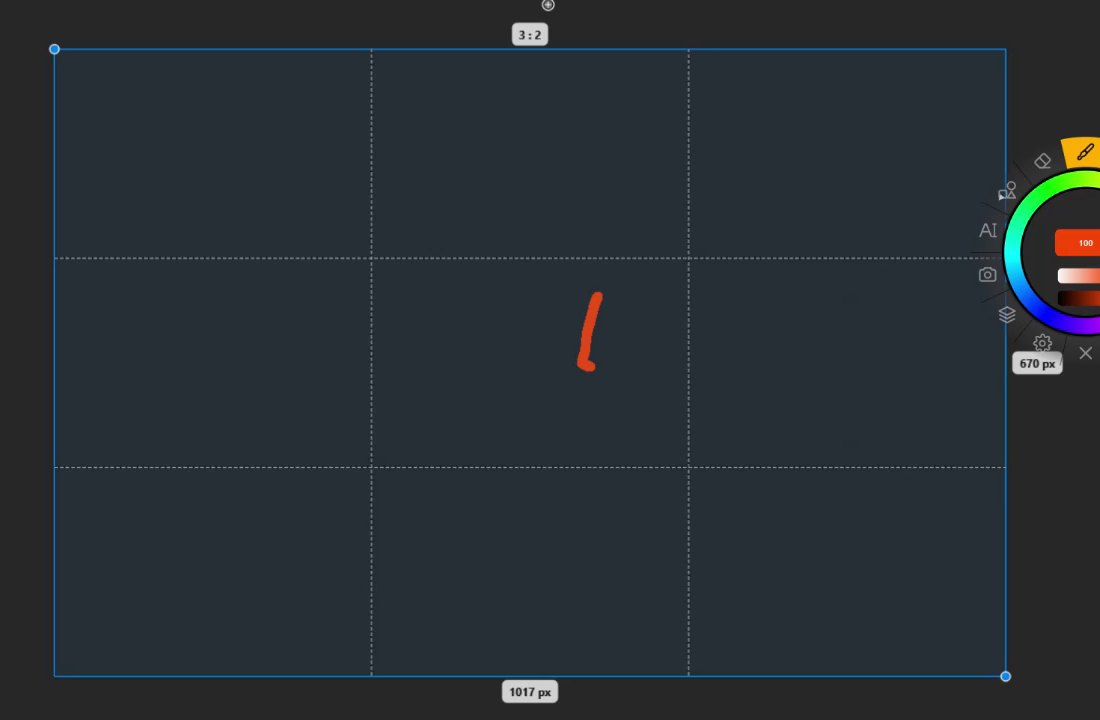
Frame a region and it names the ratio — 4 : 3, 16 : 9, 1 : φ — with thirds, golden-section or diagonal guides inside. Resize it by a corner; Shift keeps the ratio.
[ WHY IT WORKS ]
Am_sketch is a transparent layer above the windows on the monitors you pick — slides, PDFs, the browser, a video call, a reference image. If it is on your screen, you can draw on it, and nothing underneath is changed.
In pass-through mode every click reaches the app underneath while your drawing stays on screen; Ctrl + Shift + C brings the pen back. Drag the ring wherever it suits you — or let it shrink to a small hue wheel while you draw.
The hue ring is the toolbar; the colour library opens round the pen with Ctrl + Space; fourteen palettes, recent colours and an eyedropper for anything on screen. You pick a colour and keep talking.
One purchase, one licence file with your name on it, checked on your own PC — no account to sign in to, no server that has to be up, no subscription. The only time it goes online is a daily update check you can switch off.
[ WHO IT'S FOR ]
Mark work, explain a diagram and write the working beside it — live, over the slide, the PDF or the board app you already use.
Circle the number on the dashboard, arrow the bug in the build, then capture the screen with your notes on it for the follow-up.
Sketch over references with real brushes, trace paper and a perspective guide, and check proportions without leaving the image.
Annotate a lecture recording, mark up a layout, measure an angle on a screenshot — and keep only what you capture.
[ INSTALL ]
One installer, one licence file, one hotkey. Nothing to sign in to.
Run Am_sketch-Setup-1.0.0.exe. If Windows shows Windows protected your PC, click More info → Run anyway. Tick Start Am_sketch when I sign in if you want it ready every morning.
Your .lic file arrives by email as soon as you buy. In Am_sketch open Help → Licensing, press Import license… and pick it. Once is enough.
Ctrl + Shift + C switches between drawing and pass-through; Ctrl + Shift + D shows or hides everything. The ring holds the rest.
A complete guide from your first stroke: the ring, every tool and brush setting, colour and palettes, the guides, layers, capture, every shortcut and preference — and what to do when something does not work.
Version 1.0.0 · Windows 10 and 11, 64-bit. Buy it once; there is no subscription and no renewal.
$49one-time
What happens next. Payment is handled by Gumroad. Your licence file and the download arrive by email the moment the purchase clears. Lost the file later? Sign in on movahhedi.com with the same email and download it again from My Licenses.
[ THIS RELEASE ]
The first release — and the app tells you, in its Help window, when there is a newer one.
[ FAQ ]
The complete app, for $49, once. There is no higher tier holding a feature back, no subscription and no renewal date. Payment goes through Gumroad; your licence file and the download arrive by email straight away. The licence carries your name and email, which the app shows on its Licensing and About pages.
Yes — that is the point. Am_sketch is a transparent layer above the other windows, so it does not care which app is underneath, and it changes nothing in it. Share your screen in a call and people see your drawing too. Apps that take over the display in exclusive full-screen mode, mostly games, can sit above it.
No. Everything works with a mouse. A pen adds real pressure and tilt — Am_sketch reads them through Windows Ink, so on a Wacom tablet keep Windows Ink switched on in its driver. Drawing with a finger on a touch screen is not supported.
Windows 10 and Windows 11, 64-bit. It needs no particular graphics card, works with display scaling, and spans several monitors — choose which ones in Preferences → General → Screens.
Yes. Am_sketch has two modes: drawing, where the pen draws, and pass-through, where every click goes to the app underneath while your drawing stays on screen. Ctrl + Shift + C (or Ctrl + Alt + P) switches between them; Ctrl + Shift + D hides or shows everything. All of these can be changed in Preferences.
Am_sketch is a live layer, not a document editor: what you draw stays on screen until you clear it or quit, with undo and redo along the way. To keep something, capture it — a region or the screen, with your notes on it — to the clipboard or as a PNG, JPEG or BMP file. For a live demo there is even the opposite: strokes that fade by themselves after a few seconds.
Open Help → Licensing (the ? on the ring, or the tray icon) and press Import license…, then pick the .lic file from your email. The check happens on your PC; there is no account and no activation server. Until a licence is imported, the app runs locked and shows you where to import it.
Yes. The licence belongs to you, not to a machine: import the same file on the PCs you work on. Nothing needs deactivating when you move to a new computer — install, import, draw.
That is SmartScreen's message for an installer it has not seen many times yet. Click More info, check that it names Am_sketch-Setup-1.0.0.exe, and press Run anyway.
Once a day, when it starts, Am_sketch asks movahhedi.com whether there is a newer version, and stays silent unless there is. It sends the app's name and version, your update channel (Stable or Beta) and a random install ID — never your licence, your name or anything you drew. When there is an update it shows what changed and opens the download page; you can skip a version, be reminded tomorrow, or switch the checks off on the same page.
In Documents\Am_sketch: your preferences, your saved and custom brushes, your own tips and grains, and the imported licence. Uninstalling leaves that folder alone, so a reinstall picks up where you left off.