Am_Picker is the free animation picker for Autodesk Maya. Draw the control layout
once — in the shape of the character — and the whole team animates by clicking the
picture instead of hunting for curves in the viewport.
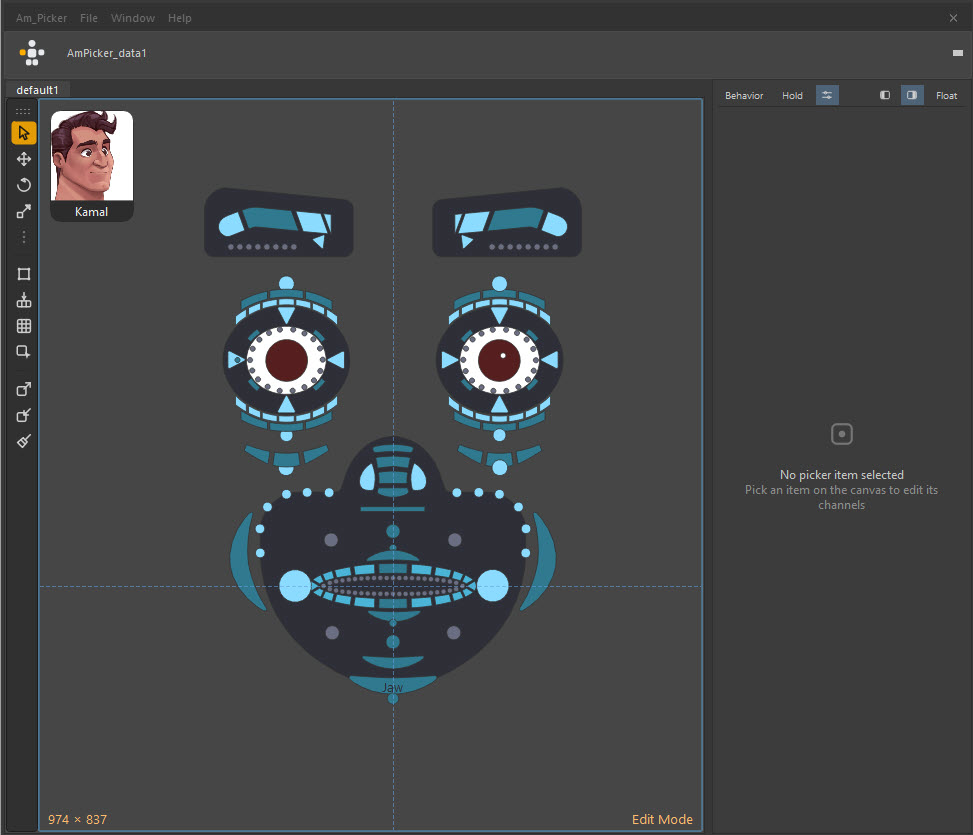
Almost every editing tool lives in Edit mode, so an animator cannot move the
furniture by accident. Same window, same picker — one keypress apart.
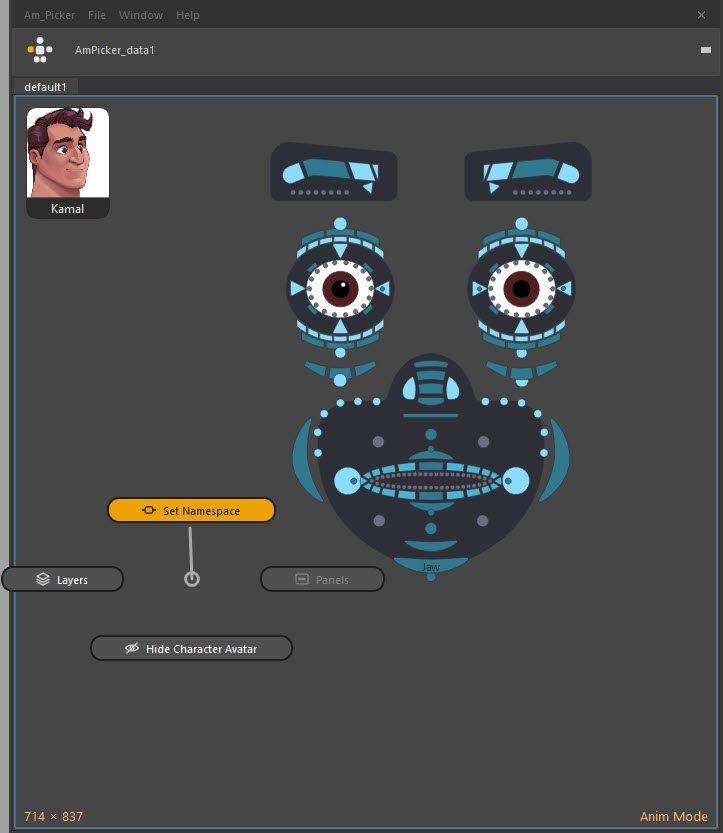
Am_Picker — Anim Mode
Am_Picker — Edit Mode
Anim mode is what the shot artist sees: click a shape, its controls select;
select a control in Maya, its shape lights up. No grid, no tool strip, nothing draggable.
Press Alt+W — or click the logo — to swap.
[ VIDEO TUTORIALS ]
Learn it in 12 minutes
Two videos, every shortcut on screen as it is used. Pick a chapter and it starts right there.
PART 1
Getting Started
From an empty canvas to a picker that drives the rig.
PART 2
Power Tools
Layers, wires, panels, widgets, images — everything beyond the basics.
Prefer to read?
The documentation covers every menu, every default key and every feature in the videos — written for the person using it.
Items store their controls without a namespace, so one picker drives any referenced instance of the character. Pointing it at the right one is a single dialog.
It lives with the scene
The picker is a node inside the Maya file, so it travels with the shot. Export a self-contained .ampkr package, images included, to share it.
Safe in an animator's hands
Every editing tool is gated behind Edit mode. In Anim mode there is nothing to drag and nothing to break — clicking around only ever selects.
Not only a selector
Widgets drive attributes directly — IK/FK blends, space switches, eye aims on a 2D slider — and any item can run your own Python or MEL.
Build one side, get two
Mirroring swaps names and bound controls, and live mirror keeps the pair matched while you edit. Undo always takes back both sides.
It keeps getting better
A daily background check tells you when there is a new version and what changed in every release you skipped. Stable or beta — your call.
[ WHO IT'S FOR ]
Made for the people who open Maya every day
Animators
You were handed a picker. Open it, point it at your rig, and start selecting by clicking. Nothing to build and nothing to configure.
Riggers
You build it. Draw, bind, mirror, layer and colour — and hand over something that survives being used every day.
Technical artists
Per-item Python and MEL, widgets that drive attributes, and an API for opening the window from your own tools.
Small studios
One picker per character, stored in the scene, working across every referenced copy. No licence server, no seat count.
[ INSTALL ]
Running in about thirty seconds
No installer to run as administrator, no folders to move, no environment variables.
Unzip it anywhere
Downloads, the desktop, a network share — it does not matter. Nothing reads from where you left it.
Drag one file into Maya
Drop Drag_me_into_maya_for_install.py into a viewport and press Install. Tick NumPy or OpenCV if you want the fast image tools.
Click your new shelf button
It offers Anim Picker or Edit Picker. Removing Am_Picker later leaves your other AM tools exactly where they are.
★ Free & MIT licensed
Download Am_Picker
Version 1.0.0-beta.1 · Maya 2022–2026 on Windows, macOS and Linux.
No account, no licence key, no payment — now or later.
Check your inbox
We sent the download link to . It works for 7 days, on as many machines as you like.
Nothing after a minute or two? Check spam — then
Current version 1.0.0-beta.1 · 1.9 MB
[ WHAT'S NEW ]
Still being built
Am_Picker tells you when there is a new version, and what it added — combining the notes
of every release you skipped, not only the newest.
1.0.0-beta.1beta
Live mirror — link a left and right item; reshape one side and the other follows. Hold M to pair, tap to unlink.
Shape symmetry — drag one vertex and its twin on the same shape follows, about the grid or the pivot.
Widgets panel — sliders, dials, switches, number fields, 2D sliders, notes and backdrops, live both ways.
Layer transforms — move, rotate and scale a whole layer around one pivot; Ctrl+G makes one.
Duplicate + Mirror Options — choose what is mirrored, and how names and controls are swapped.
Toolbar menus — Shape, Mirror, Duplicate and Align on the edit toolbar, each one tear-off.
Pen tool, Vector to Picker, Check for Updates and the drag-and-drop installer.
[ FAQ ]
Questions worth answering
Yes, and there isn't one. Am_Picker is MIT licensed: use it on paid work, change it, pass it on — just keep the notice, and expect no warranty. There is no paid tier, no seat count and no licence server. If it saves you time and you want to support the work, there is a donation link, and that is the entire business model.
Maya 2022 through 2026, on Windows, macOS and Linux. Both PySide2 and PySide6 are supported — whichever your Maya ships — and it runs on whatever Python that build embeds, 2.7 and 3.x alike.
With the two video tutorials — twelve minutes between them, every shortcut on screen. Inside the tool, Help → Quick start walks you from an empty canvas to a saved picker in seven steps, and F1 shows the keys of whatever tool is in your hand. The documentation covers the rest.
Yes, three ways. Duplicate + mirror (Ctrl+Shift+D) creates the other side with names and bound controls swapped — L_hand_ctrl becomes R_hand_ctrl. Live mirror keeps a pair matched while you keep editing. Shape symmetry keeps a single shape symmetric in itself.
No. Both are optional, and the installer can fetch them for you with one tick box. NumPy speeds up image tracing, colour grading, the chroma key and the colour wheel; OpenCV adds extra edge-detection modes to Image to Picker. Everything works without them — some things are just slower.
Inside your Maya scene, as a node — AmPicker_data1 by default — so it travels with the shot and nothing needs re-linking. A scene can hold several, one per character. You can also export a picker as a self-contained .ampkr package with its images included, for sharing between scenes and artists.
Yes — that is the point of how binding works. Items store their controls without a namespace, so a single picker file drives any referenced instance of the character. Pointing it at the right one is a single Set Namespace dialog.
No. Am_Picker tags its own picker nodes, so AnimPicker no longer lists them — and Am_Picker can still open AnimPicker's .pkr files and scene nodes, so an existing picker is a starting point rather than a rebuild.
Almost every editing tool is gated behind Edit mode — gizmos, drawing, alignment, grids, the outliner, the channel box and the whole Window menu. In Anim mode there is no tool strip and nothing is draggable, so clicking around only ever selects.
Am_Picker checks once a day in the background and stays silent when there is nothing to say or no connection. When there is an update it shows what changed across every release you skipped. You can skip a version or ask to be reminded later, and the decision sticks. A Stable / Beta switch picks the channel.
Two honest reasons: so the download link belongs to you rather than being a permanent public file URL, and so we can reach you if a release turns out to break something. You get one message now and release notes when there is a release. No account is created, and you can unsubscribe from any message.
Help → Report a Bug or Suggestion inside the tool opens the contact form on this site. The About window has a one-click copy of the build information worth attaching — version, channel, Maya, Python, Qt and install path.
 Am_Picker — the film · 1:59
● playing