Keyboard shortcuts
All 94 actions, with the key each one ships with. Every single one can be rebound.
These are the defaults, not necessarily yours
Preferences → Keyboard rebinds anything, and the tool's own
Window → Quick start help panel always shows your keymap rather than
this list. If a key here does nothing, check there first.
How keys are dispatched
Am_Picker binds nothing in Maya itself. Every shortcut on this page only exists
while an Am_Picker window has keyboard focus, so the tool can never fight your
studio's hotkeys or another plugin's.
That has one consequence worth knowing: click the picker before using a
shortcut. A key pressed with the Maya viewport focused goes to Maya.
Some actions are hold actions — they do something while the key is down and
stop when you let go. They are marked below.
Conflicts in the defaults
Two actions ship on I: Picker Behavior and Quick start help. On the
canvas the first one wins, because the canvas is offered the key first — so in
practice I opens Picker Behavior, and Quick start help is reached from the
Window menu. Rebind one of them in Preferences → Keyboard if you want both on
keys.
Ctrl+D is deliberately doubled: Duplicate in place on the canvas, and
duplicate line inside the script editor. They can never both be in scope, so
there is nothing to resolve.
The full list
Window and file
| Key |
Action |
What it does |
| Alt+W |
Edit / View mode |
Switch between editing the picker layout and using it to pick controls in the scene. |
| F5 |
Refresh |
Reload the character / picker data from the data node and refresh the UI. |
| Ctrl+N |
New Picker Data |
Create a new picker data node for another character or layout. |
| Ctrl+S |
Save Data |
Save the current picker to the active data node (and to the linked .ampkr file if one is set). |
| Ctrl+Shift+S |
Save Data As |
Open the save dialog to choose node and/or file destinations. |
| Ctrl+O |
Open Data |
Open the import window to load a layout from an .ampkr (or legacy .pkr) file into a new data node. |
| K |
Preferences |
Open Am_Picker preferences (General, Keyboard, Fonts, Tabs). |
| I |
Quick start help |
Open the quick-start shortcut reference (Am_Picker). |
| Space |
Minimal UI |
Hide the character bar under the menus; keep menus, close button, tabs, and canvas (Space toggles). |
| Ctrl+0 |
Reset window size |
Resize the main Am_Picker window to its default width and height. |
| Ctrl+M |
Strip menu |
In edit mode: show or hide the strip menu (align tools). It docks to any edge of the canvas — left by default — or floats free. Visibility is saved for the next picker session. |
| (unbound) |
Performance HUD (dev) |
Developer tool: show or hide the canvas performance overlay (frame time, FPS, and per-second counts of paints, scene scans and geometry rebuilds). Unbound by default; assign a chord here to use it. |
View and camera
| Key |
Action |
What it does |
| F |
Frame / reset view |
With picker items selected: frame them in the view. With nothing selected: reset to default zoom; center on the origin grid (+) when shown, otherwise on the active grid from the edit strip. |
| 0 |
Reset camera (0) |
Reset this view’s camera to the default origin-centered framing (same as a new tab), without fitting to items. |
| B |
Camera Bookmarks |
Edit mode: open the Camera Bookmarks dialog for this view (saved camera poses and shortcuts). |
Panels
| Key |
Action |
What it does |
| O |
Picker Outliner |
Edit mode: open the Picker Outliner to organize picker items, link wires, and mute shapes. |
| I |
Picker Behavior |
Edit mode: open or focus Picker Behavior for the primary selected item (Maya objects, annotation, custom menus, scripts). |
| Ctrl+A |
Channel box |
Edit mode: open or close the picker channel box (name, translate, rotate, scale, visibility). Ctrl+A toggles. When docked (Window layout left/right), closing hides the strip (window narrows so tab width stays the same; reopen widens again). |
| Ctrl+Space |
Shape library |
Open the shape library at the cursor (place a shape in edit mode). |
Creating items
| Key |
Action |
What it does |
| A |
Add item (A) |
Edit mode: start add-item mode — hold A and LMB-drag to draw, tap to place at cursor, or release A after a stroke. |
| N |
Pen tool (N) |
Edit mode: arm or put away the pen — click to place anchors, drag to curve them, Shift while dragging for a corner with two different curves. Click the first anchor or press Enter to close the outline into an item; Backspace takes back one anchor, Esc drops the outline and then the tool. Alt is left alone throughout, so it still moves the window and drives the camera while you draw. |
| (unbound) |
Add with Maya selection |
Edit mode: add one picker item and bind it to the current Maya selection. |
| Ctrl+Shift+A |
Add per Maya object |
Edit mode: add one picker item for each object in the current Maya selection. |
| U |
Assign Maya selection to item |
Edit mode: replace the selected picker item's object list with the current Maya selection (same as Picker Behavior → Set to selection). With several picker items selected, uses the last item in the selection list. |
| F1 |
Tool shortcuts (F1) |
Show or hide the shortcut list for the tool currently in your hand — pen, move, rotate, scale, free transform, add item or vertex editing. It sits under the character avatar and follows the tool as you switch. Picking a tool also names it on the canvas; that notice can be turned off in Preferences ▸ Canvas. |
Editing items
| Key |
Action |
What it does |
| Ctrl+C |
Copy item |
Edit mode: copy the first selected picker item into the internal copy buffer. |
| Ctrl+Shift+C |
Copy UUIDs |
Edit mode: copy UUIDs of selected picker items to the system clipboard. |
| Ctrl+V |
Paste item |
Edit mode: paste picker geometry/data from the copy buffer onto the first selected item. |
| Ctrl+Shift+V |
Paste options |
Edit mode: open paste-options for the first selected picker item. |
| Del |
Remove items |
Edit mode: Delete removes selected vertex handles, mute shapes, then picker items. |
| Shift+D |
Duplicate |
Edit mode: duplicate the selected picker items. |
| Ctrl+D |
Duplicate in place |
Edit mode: duplicate selected items at the same positions, deselect originals, and select only the new copies. |
| Ctrl+Shift+D |
Dup + mirror |
Edit mode: duplicate selected items and mirror them using mirror preferences. |
| Ctrl+Alt+Shift+D |
Dup + mirror options |
Edit mode: open Duplicate + Mirror Options — choose colour, position, shape, rotation, item-name and Maya-object renaming — then mirror the selected items with them. |
| Ctrl+Z |
Undo |
Edit mode: undo the last edit (selection, Picker Outliner, move, handles, or delete). |
| Ctrl+Y |
Redo |
Edit mode: redo the last undone edit. |
| C |
Set item color |
Edit mode: open the color palette (C). Adjust the color, then select picker items to apply it — selection can happen before or after opening the palette. |
| L (hold) |
Hold: link wires |
Edit mode: hold L with source item(s) selected — preview wires follow the cursor; click a gold-highlighted target to connect; release L to exit. |
| Key |
Action |
What it does |
| W |
Move tool |
Edit mode: activate the move tool (no selection required). Selected pickers show the move manipulator; new picks use the active tool. |
| E |
Rotation tool |
Edit mode: activate the rotation tool (no selection required). Selected pickers show the rotation arm; new picks use the active tool. |
| R |
Scale tool |
Edit mode: activate the scale tool (no selection required). Selected pickers show the scale manipulator; new picks use the active tool. |
| Ctrl+T |
Free transform |
Edit mode: Photoshop-style free transform (vertices only; channel box unchanged). Drag corners/edges to scale; drag center pivot to move rotate origin; drag inside box to move; move cursor outside near a corner to rotate (box rotates with shape). Shift = uniform scale / 15° rotate snap; Ctrl + scale = from pivot. Esc cancels; Enter commits. |
| Q |
Hide all manipulators |
Edit mode: turn off move, rotate, and scale tools on every picker if any are on, and hide vertex handles on every item if any are shown. |
| S (hold) |
Manipulator space |
Edit mode: tap S to switch move/rotate/scale between Local and Global space. Hold S and click a vertex handle to toggle that vertex between linear (square) and spline (circle) with tangent handles. |
| D (hold) |
Hold: move edit pivot |
Edit mode: hold D to show the rotation/scale pivot on selected items or active transform handles; drag to move it; release D to hide. |
| X (hold) |
Hold: grid snap (move) |
Edit mode while moving: hold X to snap position to the local grid (Maya-style). |
| V (hold) |
Hold: point snap (move) |
Edit mode while moving: hold V to snap pivot to other pivots or vertex handles (including hidden). |
| = |
Manipulator arm longer |
Edit mode: lengthen the rotation, scale, and move tool arms (Maya pref); requires one of those tools on a selected item. Persists across sessions. |
| - |
Manipulator arm shorter |
Edit mode: shorten the rotation, scale, and move tool arms (Maya pref); requires one of those tools on a selected item. Persists across sessions. |
Display
| Key |
Action |
What it does |
| H |
Toggle visibility |
Edit mode: show or hide selected picker items on the canvas (same as Picker Outliner H). |
| P |
Toggle handles |
Edit mode: show or hide vertex handles on selected picker items. |
| Shift+H |
Toggle vertex index labels |
Edit mode: show or hide vertex index numbers on handles for selected picker items. |
| 1 |
Round corners: off |
Edit mode: turn off Round corners on selected picker items (3+ vertices). |
| 2 |
Round corners: on, radius 4 |
Edit mode: enable Round corners and set corner radius to 4 on selected polygons. |
| 3 |
Round corners: on, radius 8 |
Edit mode: enable Round corners and set corner radius to 8 on selected polygons. |
| 4 |
Round corners: on, radius 16 |
Edit mode: enable Round corners and set corner radius to 16 on selected polygons. |
Hierarchy
| Key |
Action |
What it does |
| (unbound) |
Parent under last selected |
Edit mode: parent other selected items under the transform anchor (last Ctrl+Shift additive pick or last click). Picker Outliner uses P when that window has focus. |
| Shift+P |
Unparent selected |
Edit mode: detach selected items from their picker parent (same as Picker Outliner Shift+P). |
| Ctrl+G |
New layer from selection |
Edit mode: move the selected picker items into a new layer (Maya's Ctrl+G). Nested under their layer when they all share one. |
| Page Up |
Select parent |
Edit mode: select one step up the hierarchy — the picker an item is parented under, else the item's layer; with a layer selected, its parent layer. |
| Page Down |
Select children |
Edit mode: select one step down — an item's picker children; with a layer selected, the items in it (or its first child layer when it holds none). |
Nudge
| Key |
Action |
What it does |
| Up |
Nudge up (1 px) |
Edit mode: move selected items up one screen pixel; Shift+Up uses a larger step (5 px by default). |
| Down |
Nudge down (1 px) |
Edit mode: move selected items down one screen pixel; Shift+Down uses a larger step (5 px by default). |
| Left |
Nudge left (1 px) |
Edit mode: move selected items left one screen pixel; Shift+Left uses a larger step (5 px by default). |
| Right |
Nudge right (1 px) |
Edit mode: move selected items right one screen pixel; Shift+Right uses a larger step (5 px by default). |
Align
| Key |
Action |
What it does |
| ++num+4++ |
Align left sides |
Edit mode: 2+ vtx — align handle left edges. Else 2+ pickers — align positions (min X). |
| ++num+6++ |
Align right sides |
Edit mode: 2+ vtx — align handle right edges. Else 2+ pickers — align positions (max X). |
| ++num+8++ |
Align tops |
Edit mode: 2+ selected vtx — align handle tops. Else 2+ pickers — align positions (max Y). |
| ++num+2++ |
Align bottoms |
Edit mode: 2+ vtx — align handle bottoms. Else 2+ pickers — align positions (min Y). |
| ++num+5++ |
Match last transform |
Edit mode: copy scene position and rotation from the anchor (last in selection / last picked) to all other selected pickers. |
| ++num+0++ |
Set position to origin |
Edit mode: move selected picker items to scene position (0, 0). |
Mirror
| Key |
Action |
What it does |
| ++num+7++ |
Mirror ID (L→R) |
Edit mode: run mirror side-ID snap for counterparts, preferring L→R then R→L (no shape mirror). |
| ++num+9++ |
Mirror ID (R→L) |
Edit mode: run mirror side-ID snap preferring R→L then L→R (no shape mirror). |
| ++ctrl+num+7++ |
Mirror ID + shape (L→R) |
Edit mode: same as Num+7 but also mirrors polygon shape and rotation for the counterpart pass. |
| ++ctrl+num+9++ |
Mirror ID + shape (R→L) |
Edit mode: same as Num+9 but also mirrors polygon shape and rotation. |
| ++num+1++ |
Mirror by X (→L) |
Edit mode: exactly two pickers — move the left-by-X item to mirror the right across X=0. Ctrl+Num+1: shape + rotation; Shift+Num+1: mirrored right fill color → left item. |
| ++num+3++ |
Mirror by X (→R) |
Edit mode: exactly two pickers selected — left/right by X; move the right-by-X item to mirror the left across X=0 (like Num+7/9 position). Ctrl+Num+3: shape + rotation; Shift+Num+3: mirrored left fill color → right item. |
| ++ctrl+num+1++ |
Mirror by X + shape (→L) |
Edit mode: same as Num+1 but also mirrors polygon handles and rotation from the right-by-X item. |
| ++ctrl+num+3++ |
Mirror by X + shape (→R) |
Edit mode: same as Num+3 but also mirrors polygon handles and rotation from the left-by-X item. |
| ++alt+num+1++ |
Mirror color only (→L) |
Edit mode: two pickers — take the right-by-X item's fill color, apply mirror color (R/B swap), set it on the left-by-X item (no position or shape). |
| M (tap / hold) |
Live mirror link |
Edit mode, one picker selected: tap M to unlink it from its live-mirror partner, tap again to link the same pair back. Hold M, click the mirror item, release M to link the two as a live-mirror pair. |
| Shift+M |
Live mirror unlink |
Edit mode: unlink every selected picker from its live-mirror partner. Tap M afterwards on one of them to link the pair back. |
| ++alt+num+3++ |
Mirror color only (→R) |
Edit mode: two pickers — take the left-by-X item's fill color, apply mirror color (R/B swap), set it on the right-by-X item (no position or shape). |
Script editor
| Key |
Action |
What it does |
| Ctrl+/ |
Code: toggle comment |
Script editor (Picker Behavior): toggle line comment on the touched lines (# for Python, // for MEL) at column 0. |
| Alt+Up |
Code: move line up |
Script editor (Picker Behavior): move the current line or selection up one line. |
| Alt+Down |
Code: move line down |
Script editor (Picker Behavior): move the current line or selection down one line. |
| Ctrl+D |
Code: duplicate line |
Script editor (Picker Behavior): duplicate the current line or selection on the line below. |
| Ctrl+Shift+K |
Code: delete line |
Script editor (Picker Behavior): delete the current line (or all touched lines if selection spans multiple lines). |
| ++num+enter++ |
Code: execute |
Script editor (Picker Behavior): run the selected lines, or the whole script when nothing is selected (same as the Test button). |
| Alt+` |
Code: execute current line |
Script editor (Picker Behavior): run only the line the caret is on. |
| Ctrl+F |
Code: find |
Script editor (Picker Behavior): open the Find and Replace dialog with the Find field focused. |
| Ctrl+H |
Code: find and replace |
Script editor (Picker Behavior): open the Find and Replace dialog with the Replace field focused. |
| F3 |
Code: find next |
Script editor (Picker Behavior): jump to the next match using the last search term (or the current selection if no search has been run). |
| Shift+F3 |
Code: find previous |
Script editor (Picker Behavior): jump to the previous match using the last search term (or the current selection if no search has been run). |
Mouse
| Input |
Does |
| LMB |
Select — the item in Edit mode, its controls in Anim mode |
| LMB drag on empty canvas |
Marquee select |
| MMB drag |
Pan the canvas |
| Wheel |
Zoom |
| Alt + RMB drag |
Zoom |
| RMB |
Context menu — radial by default |
| Alt + LMB drag |
Move the window |
| Ctrl+Alt + LMB drag |
Resize the window |
| MMB drag on a channel label |
Scrub that value in the Channel Box |
| MMB drag, with a gizmo or vertex handles active |
Drive the last-clicked axis (yellow) from anywhere on the canvas; Shift picks the axis from the drag direction |
| Ctrl+Tab / Ctrl+Shift+Tab |
The tab and bookmark switcher — most recent first |
Selection modifiers, Anim mode
| Click |
Selection |
| LMB |
Replace |
| Shift + LMB |
Toggle |
| Ctrl + LMB |
Remove |
| Ctrl+Shift + LMB |
Add |
Rebinding
Preferences → Keyboard
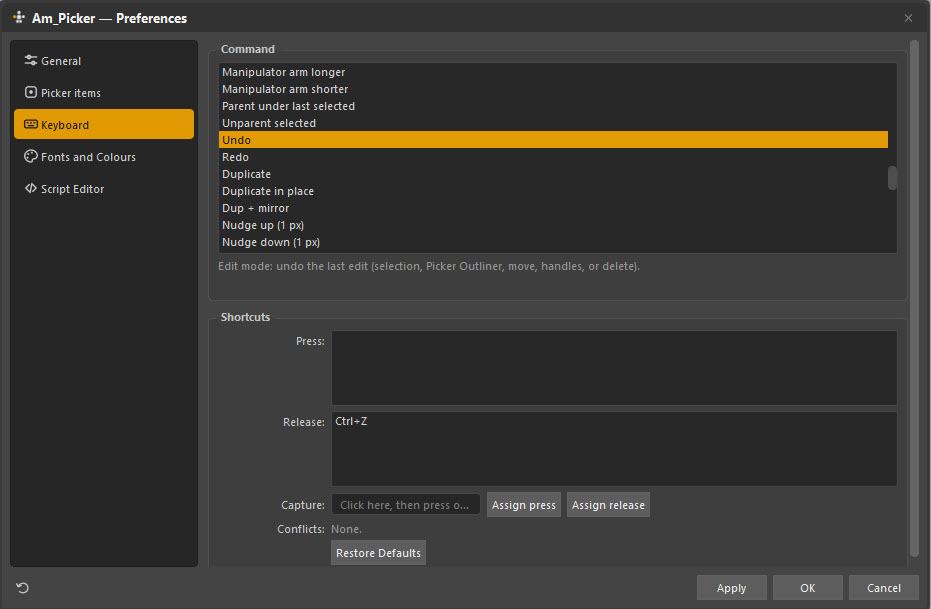
Pick a command, click Capture, and press the chord you want. Assign press
binds it to the key going down, Assign release to it coming up — which is
what makes hold-style actions possible.
The Conflicts line tells you if the chord is already taken before you commit,
and Restore Defaults puts everything back.
Your overrides are stored in Maya's optionVars, so they follow your Maya
preferences rather than the install and survive updating the tool.