Install
Drag one file into a Maya viewport. It installs into AM_Tools — the module every AM tool shares — and puts a button on your shelf.
Drag and drop
- Unzip the download somewhere. You get an
Am_landmarkfolder withDrag_me_into_maya_for_install.pybeside it. - Start Maya.
- Drag
Drag_me_into_maya_for_install.pyfrom your file browser into a Maya viewport.
The installer opens.
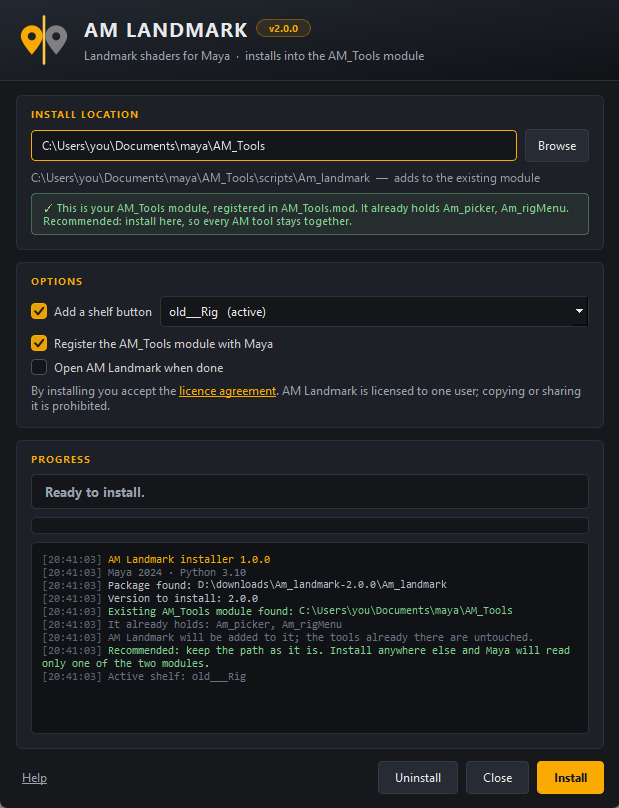
The install location is filled in for you, and the lines under it say what pressing Install will do. If you already have an AM_Tools module, it recommends that one.
Press Install. When it finishes, click the new shelf button.
Keep the two together
Drag_me_into_maya_for_install.py looks for the Am_landmark folder next to itself.
Dragging the script on its own gives you "the Am_landmark package was not
found" — move it back beside the folder and drop it again.
What it does
<install root>/                    e.g. C:\Users\you\Documents\maya\AM_Tools
├── scripts/
│   ├── AM_Tools/                  the umbrella package: registry + shelf menus
│   ├── Am_picker/                 another AM tool, if you have it
│   └── Am_landmark/               this one
├── icons/
└── plug-ins/
and writes <Documents>/maya/modules/AM_Tools.mod, which is what puts scripts
on PYTHONPATH and icons on XBMLANGPATH at every launch, for every Maya
version you run.
It also loads everything into the session you are in, so the shelf button works straight away — no restart.
One module for every AM tool
Every tool you get from us installs into the same AM_Tools module — Am_Picker,
AM Landmark, and whatever comes next. That is not a tidiness preference. Maya
honours the first enabled definition of a module name it finds and drops
every later one without a word, so a second AM_Tools does not sit beside the
first: it hides it, and every tool inside the hidden one stops loading.
So the first thing the installer does is look for an AM_Tools that is already
here. If it finds one, that folder is the answer, and the Install location field
opens on it, and recommends installing there:
| What it finds | What the Install location card says |
|---|---|
| Nothing | No AM_Tools module on this machine yet, so anywhere is fine. Pick any folder. |
| A module, and you are installing into it | ✓ This is your AM_Tools module. Recommended: install here. It names the tools already inside, which are left alone. |
| A module whose declaration is switched off | The same, and installing here switches it back on. |
| Anywhere else, while a module exists | An amber warning recommending that module, and a Use it button that puts the path back in one click. |
The warning is not decoration. Installing elsewhere is allowed — you may be building a studio layout, or moving the module on purpose — but it asks once more before it starts, because nothing about it fails at install time. It fails on the next Maya launch, in a different tool.
Why a switched-off declaration still counts
A .mod line beginning - means Maya is not reading it. It does not mean
the module is gone: the folder is still there, still full of tools. An
earlier install that went somewhere else may well have switched that very
line off on its way past.
Treating that as "no module here" is exactly how a machine ends up with two
AM_Tools, one of them invisible — so the installer looks at the folder,
not only at the +. Installing back into it turns the line on again.
Why a leftover .mod file breaks everything
A .mod left behind by an install that has since moved is not harmless
clutter — it hides the real install, and every tool inside it comes back
as No module named 'AM_Tools' however healthy the files on disk are.
The installer reads every .mod file in every module folder, not just
AM_Tools.mod, because the module name comes from inside the file —
renaming AM_Tools.mod to __AM_Tools.mod does not switch it off, however
much it looks like it should. Switching one off changes its + to a -,
which is Maya's own skip marker, and keeps a .bak beside it.
When one of those rivals points at a module that is really there and really holds tools, the prompt says so and names them. Switching that one off does not tidy anything up — it stops those tools loading, and the fix is to install into that module instead.
The options
| Option | Default | Does |
|---|---|---|
| Install location | The AM_Tools already on this machine, or <Documents>/maya/AM_Tools |
The module root. The line underneath says whether that creates, adds to or replaces something; the band under that says whether it is the right folder at all. |
| Add a shelf button | On | Which shelf tab to build on. New shelf: AM_Tools makes a dedicated tab. |
| Register the AM_Tools module with Maya | On | Writes the .mod. Clearing it installs the files but leaves Maya unaware of them — for a pipeline that manages module files itself. |
| Open AM Landmark when done | Off | Opens the window as soon as the install finishes. |
The shelf button
Clicking it raises the AM_Tools menu:
| Entry | Does |
|---|---|
| Open AM Landmark | The window. |
| Coverage Audit | Reports how many faces already carry a landmark, in the Script Editor. |
| Select Unassigned Faces | Selects every face with no landmark on it. |
The same entries are reachable from anywhere — a marking menu, a hotkey, another tool:
import AM_Tools.am_landmark as am_landmark
am_landmark.open_window()
am_landmark.menu()          # what the shelf button runs
Installing by hand
If you would rather not use the installer, the package is plain Python — put the
Am_landmark folder on any path Maya imports from and run:
You lose the shelf button, the AM_Tools menu entries and the module registration; nothing else changes.
Updating
AM Landmark tells you when a new release is out. Drop the
new Drag_me_into_maya_for_install.py and press Install. It closes any open
window, replaces scripts/Am_landmark and rebuilds the shelf button. Landmarks
already in your scenes are not affected — they are ordinary Maya shaders.
Uninstalling
Drop the installer and press Uninstall. It removes:
scripts/Am_landmarkscripts/AM_Tools/am_landmark.py— this tool's entry points- the shelf button, on whichever shelf it ended up
icons/AM_am_landmark.png
Other tools in AM_Tools are left alone. If nothing else is installed
there, it offers to remove the module and its .mod file as well.
Landmarks already in your scenes are untouched: they are Maya shaders, and reinstalling picks them up exactly as they were.
The reload button
If you are going to change anything in the source — and this tool is built to be extended — make a second shelf button now:
Maya caches Python modules for the life of the session, so editing a file changes nothing until the package is imported again. This closes the window, drops every module, deletes their cached bytecode and imports the package again — then reopens the window if one was open.
Why not importlib.reload
importlib.reload re-executes a module in place. That is right for
from . import kit (a module object, updated in place) and quietly wrong for
from .undo import undo_chunk (a function, bound once at import time). With
both styles in one package, an in-place reload lands some of your edits and
not others — which is worse than not reloading at all, because it looks like
the edit did not work.
It also deletes the cached .pyc files. Python treats cached bytecode as
valid when the source's whole-second timestamp and byte size are
unchanged — so changing a colour from 170 to 171 and hitting reload
immediately would otherwise load the old code and swallow your edit.
Where your settings live
Preferences are stored in one Maya optionVar called AM_landmark_state_json:
window position and size, the page you were on, and every field on every page.
They follow your Maya user preferences, not the scene, and are not touched by
installing or uninstalling.
Settings → Reset Preferences clears it. So does this:
Requirements
| Maya | 2020 or newer. PySide2 or PySide6, Python 2.7 or 3.x — the tool works out which it is running on. |
| Plug-ins | None. Nothing is loaded at start-up. |
| Libraries | None. No NumPy, no downloads, no network access at any point. |
Next
Your first landmark pass walks a head from empty to a mirrored, audited, saved pass.