First steps
Choose your hotkey
The marking menu has no key until you give it one. Click the AM Rig Menu shelf button and choose Set Marking Menu Hotkey:
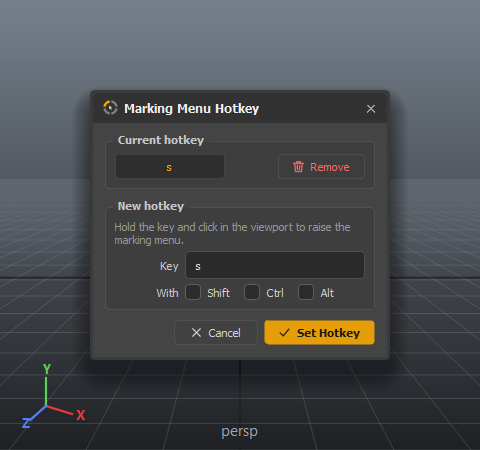
- Type a key into Key — usually a single letter you can reach without looking.
- Tick Shift, Ctrl or Alt if you want the menu on a combination rather than the bare key.
- Press Set Hotkey.
Current hotkey shows the key in use; Remove takes it off again, so the key goes back to doing whatever Maya had it do.
Why your hotkey set may change
Maya's own Maya_Default hotkey set is locked. If it is the one in use, AM Rig Menu switches to an editable copy — Maya_Default_Duplicate, created the first time — before binding the key. Every other Maya key stays as it was.
Pick a key you do not use for something else: while you hold it over a viewport, it belongs to the menu. Common choices are S with Ctrl or Alt, or a key from the rarely-used side of the keyboard.
Open the menu
- Select a control. The menu is built around the first control in your selection, and shows only what applies to it.
- Hold your hotkey, move the pointer over the viewport, and press the left mouse button.
- The menu opens around the pointer. Drag towards a command — a line follows you from the click point — and release over it.
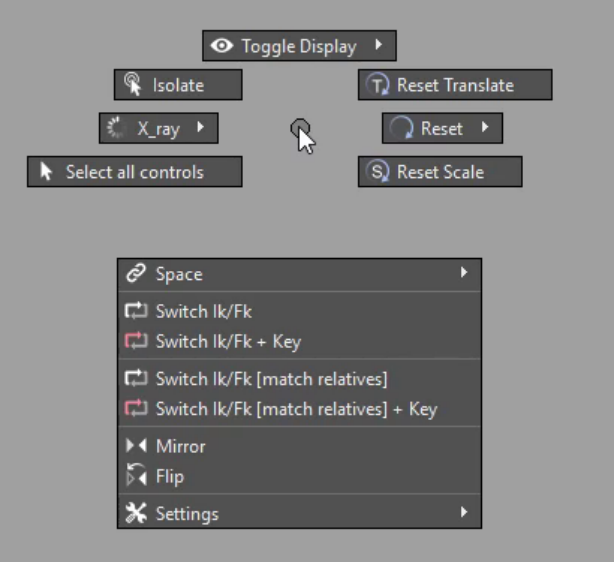
That drag-and-release is a flick. Once your hand knows where a command sits, you no longer need to read the menu at all — which is the whole point of a marking menu.
Items with a ▶ open a submenu. Drag onto them and keep going; the submenu opens around the pointer the same way.
Your first flick
Select a control you have moved, open the menu, and flick right-and-up to Reset Translate. The control snaps back to its default position. Now try the Reset submenu on the right for rotation, scale, everything at once, or only the channels selected in the Channel Box.
Next: see everything in the menu.