Install
AM Rig Menu installs with one file. There is nothing to copy by hand, no environment variable to set and no need to run anything as administrator.
1. Unzip the download
Unzip it anywhere — Downloads, the desktop, a network share. The installer copies what it needs, so the folder you unzipped can be deleted afterwards.
Keep drag_n_drop_install.py next to the scripts, icons and plug-ins
folders it came with: that is where it looks for them.
2. Drag the installer into Maya
Open Maya, and drag drag_n_drop_install.py from the unzipped folder onto
any viewport. The installer window opens.
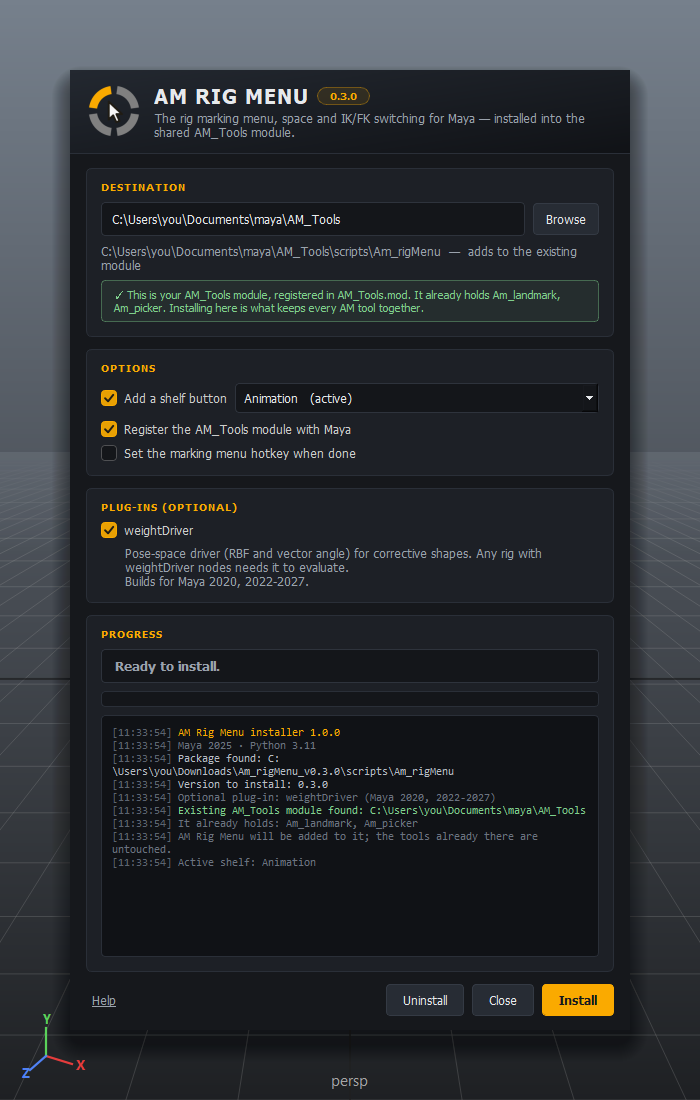
Destination
AM Rig Menu installs into AM_Tools, the one Maya module every AM tool shares.
A single module means a single folder on Maya's paths, one .mod file, and
tools that never hide each other.
- If you already have AM_Tools — from Am_Picker or AM Landmark — the
installer finds it and proposes it, with a green note naming the tools
already inside. Keep it. It finds it even if its
.modfile has gone missing, from your AM shelf buttons. - If you do not, it proposes
Documents/maya/AM_Tools. Any folder works.
You can type or browse to the folder you want AM_Tools in: choosing
D:\tools installs into D:\tools\AM_Tools, and choosing a folder that already
holds an AM_Tools uses that one. The line under the field always shows exactly
where the tool will land before you press anything.
Keep every AM tool in one AM_Tools
Maya reads the first declaration of a module name and silently drops the rest, so a second AM_Tools elsewhere does not sit beside the first — it can hide it. If you point the installer somewhere else while one exists, it warns you, offers a Use it button, and asks again before installing.
Options
| Option | What it does |
|---|---|
| Add a shelf button | Puts the AM Rig Menu button on the shelf you choose, or on a new AM_Tools shelf. |
| Register the AM_Tools module | Writes AM_Tools.mod, so Maya finds the tools at every launch. Leave it on. |
| Set the marking menu hotkey when done | Opens the hotkey dialog straight after installing. Skip it if you already have a key — it is kept. |
Plug-ins (optional)
Every plug-in in the package gets its own check box, with what it is for and the Maya versions it is built for. Tick the ones you want. This release ships one:
- weightDriver — a pose-space driver (RBF and vector angle) for corrective shapes. Any rig with weightDriver nodes needs it to evaluate.
The installer remembers your choice: run it again and the boxes start the way you left them. Untick a plug-in you installed before, and reinstalling removes it. See Plug-ins for how they are loaded.
3. Press Install
The log shows each step. When it is done the button turns green, and AM Rig Menu is already running — no restart:
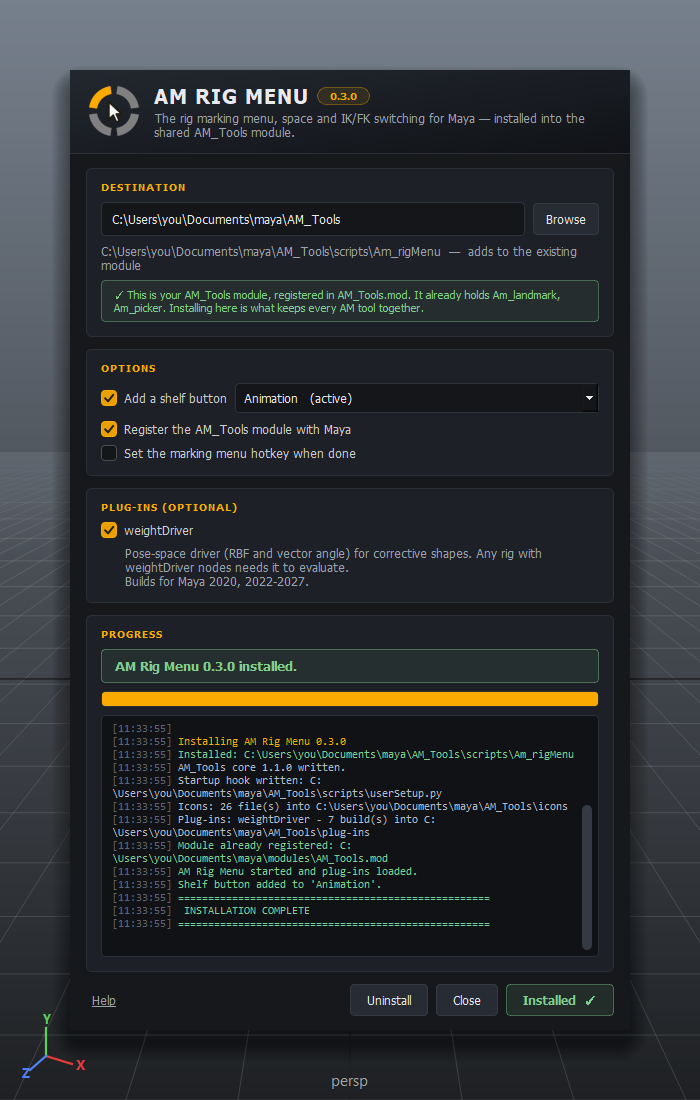
What went where:
AM_Tools/
├── scripts/
│   ├── Am_rigMenu/            the tool
│   ├── AM_Tools/              shared entry points and shelf menus
│   └── userSetup.py           starts every AM tool that needs it with Maya
├── icons/                     the menu's icons
└── plug-ins/<platform>/<Maya version>/
                               the plug-ins you chose
Next: First steps — choosing your hotkey.
Upgrading from 0.2.x
Versions up to 0.2.3 installed as a module of their own (Am_rigMenu.mod, with an
AM_MENU folder inside). The installer finds that install in any Maya version's
modules folder and offers to switch it off — so Maya does not load two copies
— and carries your marking menu hotkey over. Nothing of the old install is
deleted; once the new one works, delete the old folder yourself.
The AM Tools menu older versions put in Maya's menu bar is gone. Its commands are on the shelf button now.
Uninstalling
Drag the installer into Maya again and press Uninstall. It removes AM Rig Menu, its shelf button, its icons and its plug-ins — and nothing else: the other tools in AM_Tools are left exactly where they are.
If it was the last tool in AM_Tools, it offers to remove the module too. Even then it only removes what AM_Tools put there; any file of your own in that folder stays.
A plug-in Maya has loaded is locked on Windows
If weightDriver is loaded in the session you uninstall from, its file cannot be deleted yet. The installer says so and names the file; delete it once Maya is closed.