The menu
The menu has two parts: a ring of commands around the click point, which you flick to, and a list under it for everything else. It is rebuilt every time it opens, from the first selected control, so it never offers something that cannot work on what you have selected.
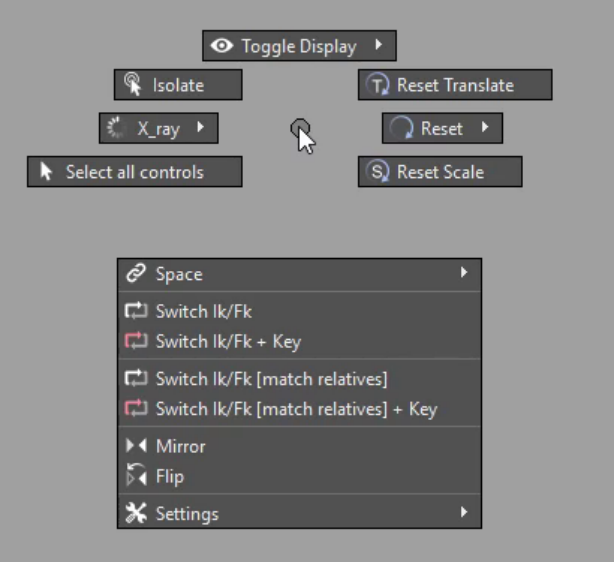
The ring
The positions are fixed, so your hand learns them.
| Direction | Item | On |
|---|---|---|
| ↑ North | Toggle Display ▶ — what this viewport shows | any rig |
| ↗ North-east | Reset Translate | any rig |
| → East | Reset ▶ — rotate, SRT, the Channel Box, all below | any rig |
| ↘ South-east | Reset Scale | any rig |
| ↓ South | Select child controls | AM_Rig, with child controls |
| ↙ South-west | Select all controls | AM_Rig |
| ← West | X-Ray ▶ — X-ray, joint X-ray | any rig |
| ↖ North-west | Isolate | any rig |
The list
| Item | On |
|---|---|
| Space ▶ — the control's spaces, plus Add New Space, Space Renamer, Add Space Group | any rig |
| Switch IK/FK / Switch IK/FK + Key | AM_Rig limbs |
| Switch IK/FK [match relatives] / … + Key | AM_Rig limbs with related parts |
| Mirror / Mirror all below | AM_Rig |
| Flip / Flip all below | AM_Rig |
| Settings ▶ — component setting, switch pose | AM_Rig |
What makes a control "AM_Rig"
A control built by AM_Rig carries an AmCtrl attribute, and that is what the menu
checks. The extra items then appear only when the rig has what they need: IK/FK
items on a control that knows its match nodes, all below items when the control
has child controls, and so on.
Building rigs of your own? Making a rig work with it lists every attribute the menu looks for.
Two controls with the same name
If a selected control's short name is not unique in the scene, the menu still opens, and says so in the Script Editor: some commands work by name, and would not know which of the two you meant.
The pages in this section
- Reset — back to defaults, one channel or the whole branch
- Selecting controls — children, and the whole rig
- Display and viewport — what the viewport shows, X-ray, isolate
- Space switching — switch, add and rename spaces
- IK/FK switching — matched, and keyed if you ask
- Mirror and flip — poses across the rig
- Settings and poses — the component's settings, stored poses