Space switching
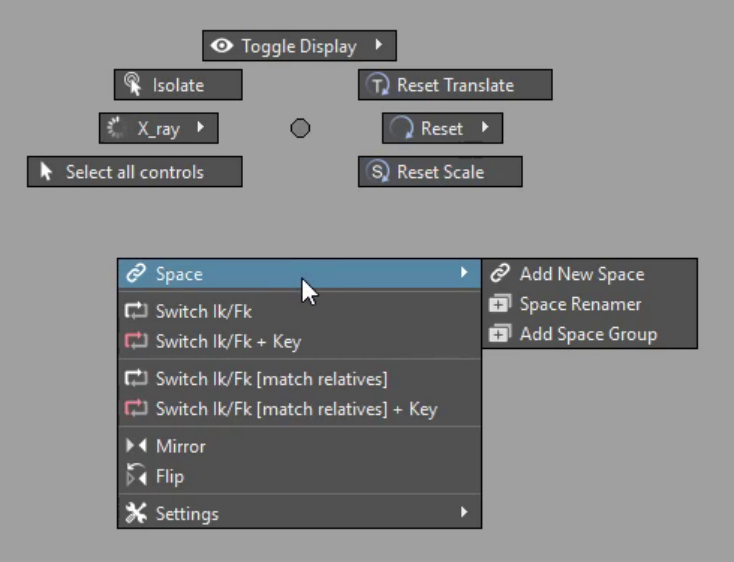
A space is what a control follows: the world, the chest, the head, a prop. The Space ▶ submenu at the top of the list switches between a control's spaces — and builds them, if the control has none yet. It works on any rig.
Switching
When the selected control has spaces, the submenu lists them first, with a dot on the current one. Flick to another to switch.
The control does not jump. Its world position and orientation are read before the switch and put back after it, so the hand stays exactly where it is — only what it will follow from now on changes.
On an animated switch, both frames are keyed. If the control's space
attribute already has animation, AM Rig Menu keys the control on the frame
before the switch, switches, and keys it again on the current frame. The
switch then happens cleanly between two frames instead of drifting across the
whole interval.
Auto clavicle
An arm control connected to an auto-clavicle (hasAutoClav) keeps the
clavicle where it was too, and keys it alongside the arm when the switch is
animated.
Adding spaces to a control
Three commands under the list of spaces build and manage the setup.
1. Add Space Group
Select the control and flick Space ▶ Add Space Group. A group named
<control>_space_cons is inserted above the control, at the control's own
position. The spaces will drive this group, so the control keeps its own
channels free for animation.
Do this once per control.
On a referenced rig
You cannot parent inside a reference, so on a referenced control the group
is added in the rig's own file, by a background mayapy process, and the
reference is reloaded. Save your scene first; the rig file itself is
changed.
2. Add New Space
Select the object(s) to follow first, then the control last, and flick Space ▶ Add New Space. Each object you selected becomes a new space, named after it.
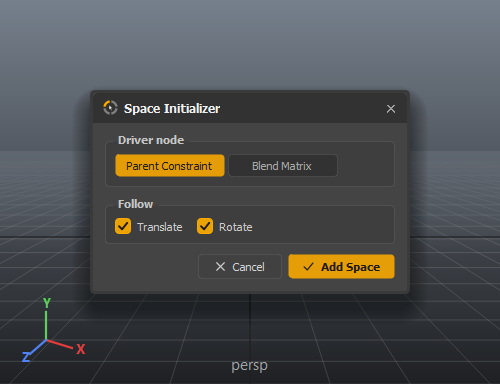
The first time a control gets a space, AM Rig Menu asks how the spaces should be driven:
| Option | Meaning |
|---|---|
| Parent Constraint | The classic setup: a parent constraint on the space group, one target per space. Works in every Maya. |
| Blend Matrix | A blendMatrix node driving the group's offset parent matrix — no constraint in the hierarchy, cheaper to evaluate. Maya 2020 and later. |
| Translate / Rotate | Which of the two the spaces drive. Clear Rotate for a control that should follow position only. |
The choice is stored with the setup, so later spaces on the same control are added the same way without asking. Either way the control gets a keyable enum attribute, space, which is what the submenu switches.
3. Space Renamer
Spaces are named after the objects they follow — spine_03_jnt is honest, but
chest reads better in a menu. Select the control and flick Space ▶ Space
Renamer:
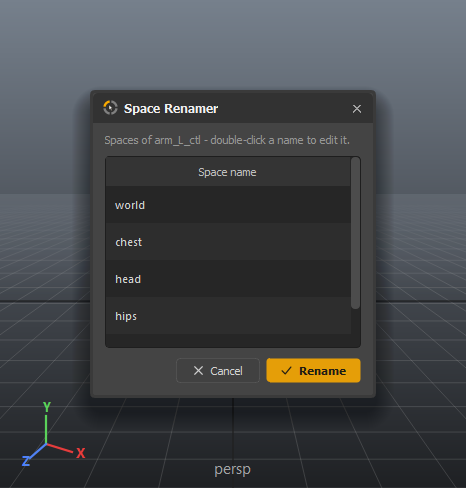
Double-click a name, type, and press Rename. Only the names change; the setup behind them does not.