The colour library
Hold Ctrl+Space while you draw and your palette opens round the pen — pick a colour without moving your hand or your eyes.
Open, pick, carry on
- With the Brush active in drawing mode, point where you are drawing and hold Ctrl+Space.
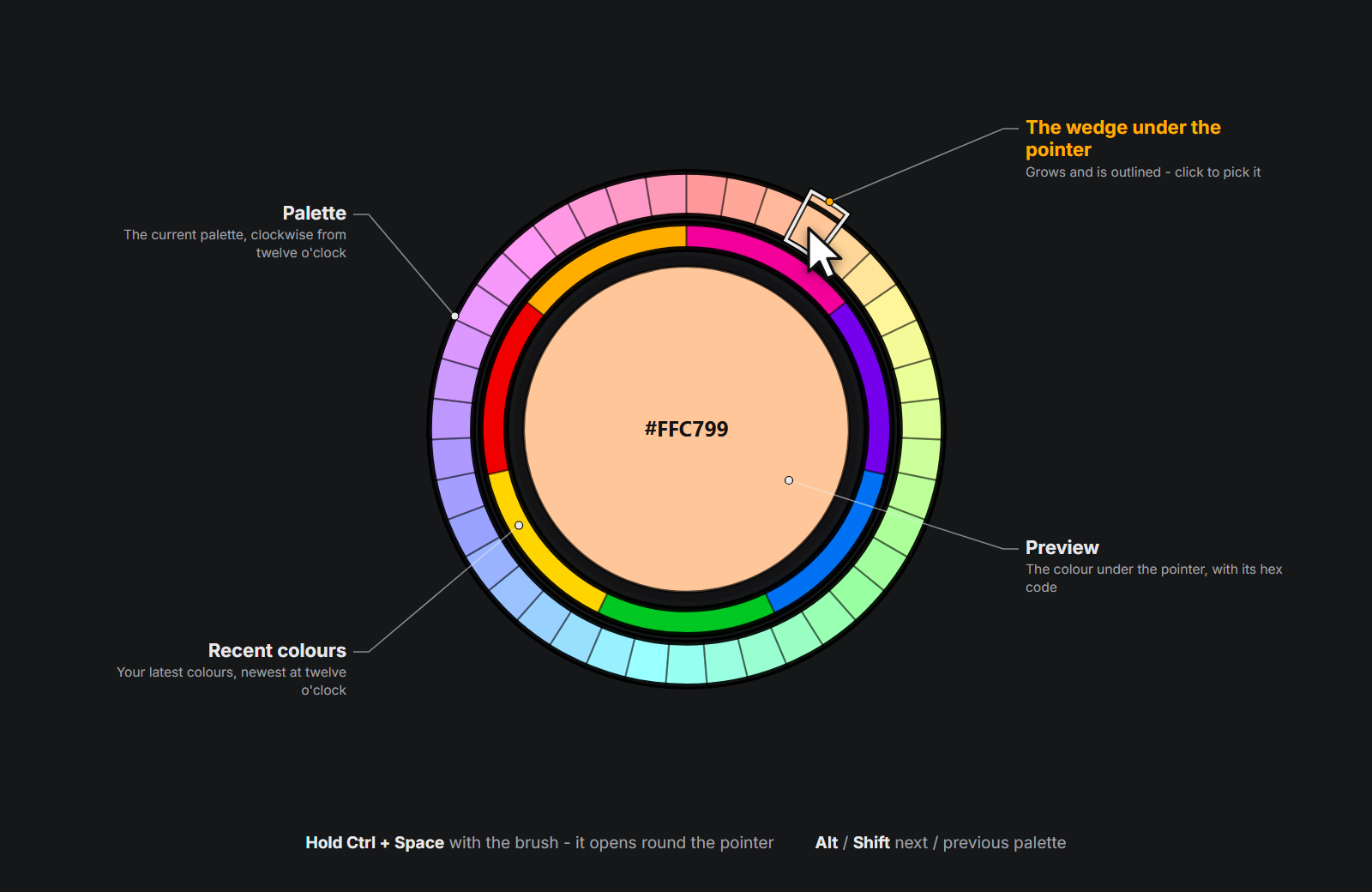
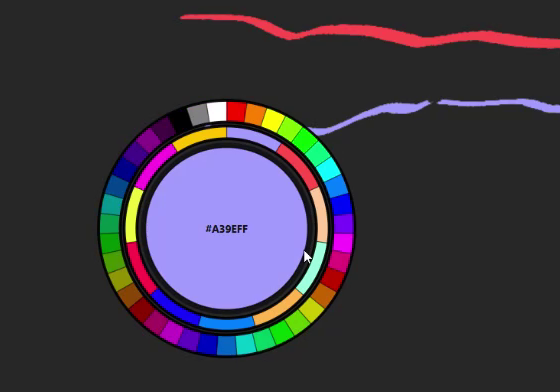
- The library opens centred on the pointer. Move over the wedges: the one under the pointer grows, and the middle shows its colour and hex code.
- Click a wedge. That is your brush colour now, and it joins your recent colours. The library stays open while you hold the keys, so you can try another.
- Let go of Ctrl or Space — the library closes — and draw on.
What is in it
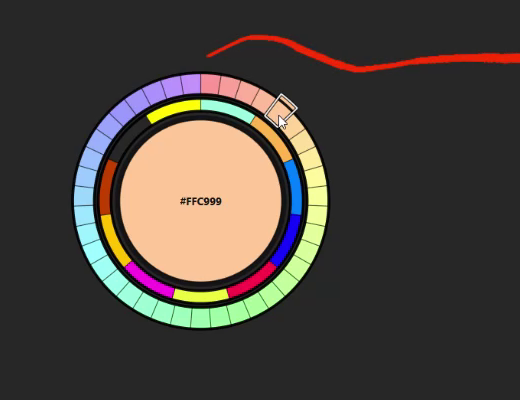
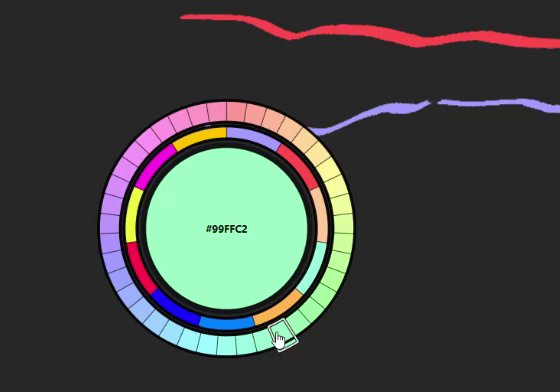
- The outer ring — every colour of the current palette, clockwise from twelve o'clock, including colours you added to it.
- The inner ring — your recent colours, newest at twelve o'clock.
- The middle — the colour under the pointer and its hex code; when the pointer is on neither ring, the brush's current colour.
Hovering only previews: nothing changes until you click.
Change palette while it is open
Still holding Ctrl+Space:
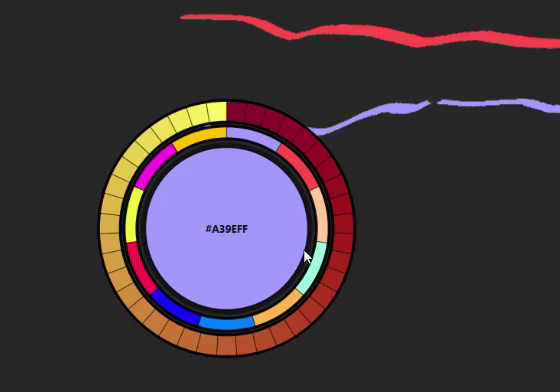
- tap Alt for the next palette,
- tap Shift for the previous one.
One step per tap, through all fourteen palettes in this order: Saturated, Middle, Faded, Saturated Full, Middle Full, Faded Full, Soft, Bright, Acid, Warm, Cool, Signal, Grayscale, Custom. The library does not print the palette's name — the colours tell you where you are — and the palette you land on is remembered, in Pick Color too.
Good to know
- The library works with the Brush only, in drawing mode, while the overlay is showing. With another tool active, Ctrl+Space does nothing.
- Drawing pauses while it is open, so a click never leaves a dot behind.
- An empty Custom palette shows Middle in its place.
- The same palette is also on the toolbar ring: press Tab with the pointer over the colour ring.