Eraser
Rub out part of a stroke, or all of it, on the layer you are working on.
Using it
Click the Eraser slot (just left of the Brush) and drag over what you want to remove. The eraser works like a real one: it removes the pixels it passes over, so it can cut a stroke in two — each half then behaves as a stroke of its own.
- It erases on the active layer only (see Layers). Other layers are untouched.
- X swaps between the Eraser and the Brush.
- Win+Ctrl+Shift + right-drag erases from any tool, and puts you back where you were when you let go.
- Middle-drag left / right changes its size; Shift or Alt + middle-drag up / down changes its hardness, with a curve showing the falloff while you drag.
To remove everything, use the Delete slot or Ctrl+Shift+X instead — see Undo, clear and fading.
Eraser Properties
Right-click the Eraser slot.
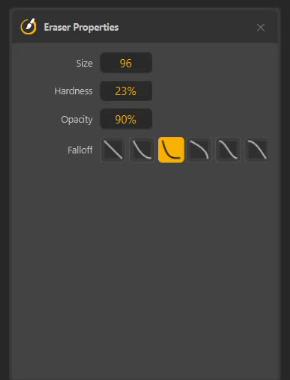
| Setting | Range | Default |
|---|---|---|
| Size | 1 – 512 | 48 |
| Hardness | 0 – 100 % | 90 % |
| Opacity | 1 – 100 % | 100 % — lower values only lighten what they pass over |
| Falloff | six curves | S-curve |
These settings are remembered between sessions.
Shapes and text
Shapes and text are kept as editable objects, not pixels. When the eraser touches one, Am_sketch asks first:
The eraser touched 1 shape(s)/text(s).
| Choice | Result |
|---|---|
| Keep editable (default) | The shape or text is left whole; only strokes are erased. |
| Erase (convert to pixels) | The shape or text becomes pixels and is erased like a stroke. It can no longer be edited as a shape or text. |
Tick Don't ask again to make your choice the rule. Converting and erasing are one undo step, so Ctrl+Shift+Z brings the editable shape back.