The ring
Am_sketch's toolbar is a ring: fourteen tools round a colour wheel, with the current colour in the middle. Everything starts here.
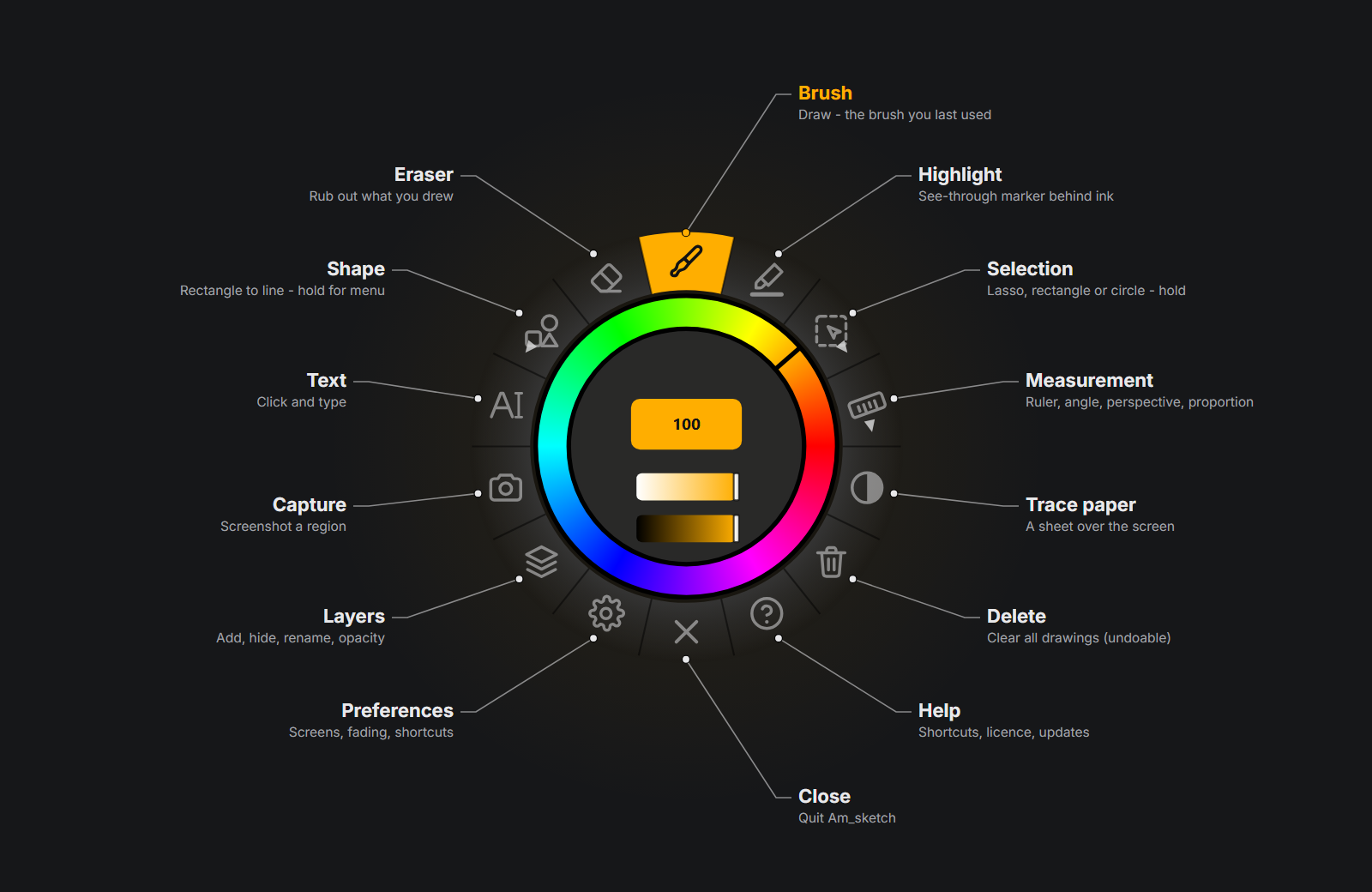
Three ways to use a slot
| Action | What it does |
|---|---|
| Click | Picks the tool and switches drawing on. Click the active tool again to switch drawing off (pass-through). |
| Right-click | Opens that tool's properties panel beside the ring. Right-click again to close it. |
| Hold (press for about half a second) | On Selection, Measurement and Shape — the slots with a small triangle — opens a menu of choices. |
Point at a slot and wait for its tooltip: it names the tool and its shortcut.
The slots
| Slot | Click | Right-click | Hold |
|---|---|---|---|
| Brush (twelve o'clock) | Draw with the brush you used last | Brush Properties | — |
| Highlight | A see-through marker that sits behind ink | Highlight Properties | — |
| Selection | Select strokes, shapes and text in a region | — | Lasso, Rectangle or Circle region |
| Measurement | Show or hide the measuring guide | Measurement properties | Ruler, Angle, Perspective or Proportion |
| Trace paper | Lay a sheet over the screen, or take it away | Trace Paper | — |
| Delete | Clear every drawing (undoable) | — | — |
| Help | Open the Help window | — | — |
| Close (six o'clock) | Quit Am_sketch | — | — |
| Preferences | Open Preferences | — | — |
| Layers | Open the Layers panel | — | — |
| Capture | Take a screenshot of a region | Capture Properties | — |
| Text | Type on the screen | Text Properties | — |
| Shape | Draw the shape you chose last | Shape Properties | Square, Triangle, Circle, Arrow or Line |
| Eraser | Rub out what you drew | Eraser Properties | — |
Each tool has its own page under Drawing and Guides.
Close quits
The ✕ slot quits Am_sketch straight away, without asking. To put the toolbar out of the way instead, double-click the ring's centre (below).
How a slot looks
- Grey, icon half-faded — idle.
- Light amber — the pointer is over it.
- Amber with a dark icon — the tool is switched on. Measurement and Trace paper stay amber while their guide or sheet is showing, whatever tool you draw with.
- Red — the pointer is over Close.
The colour in the middle
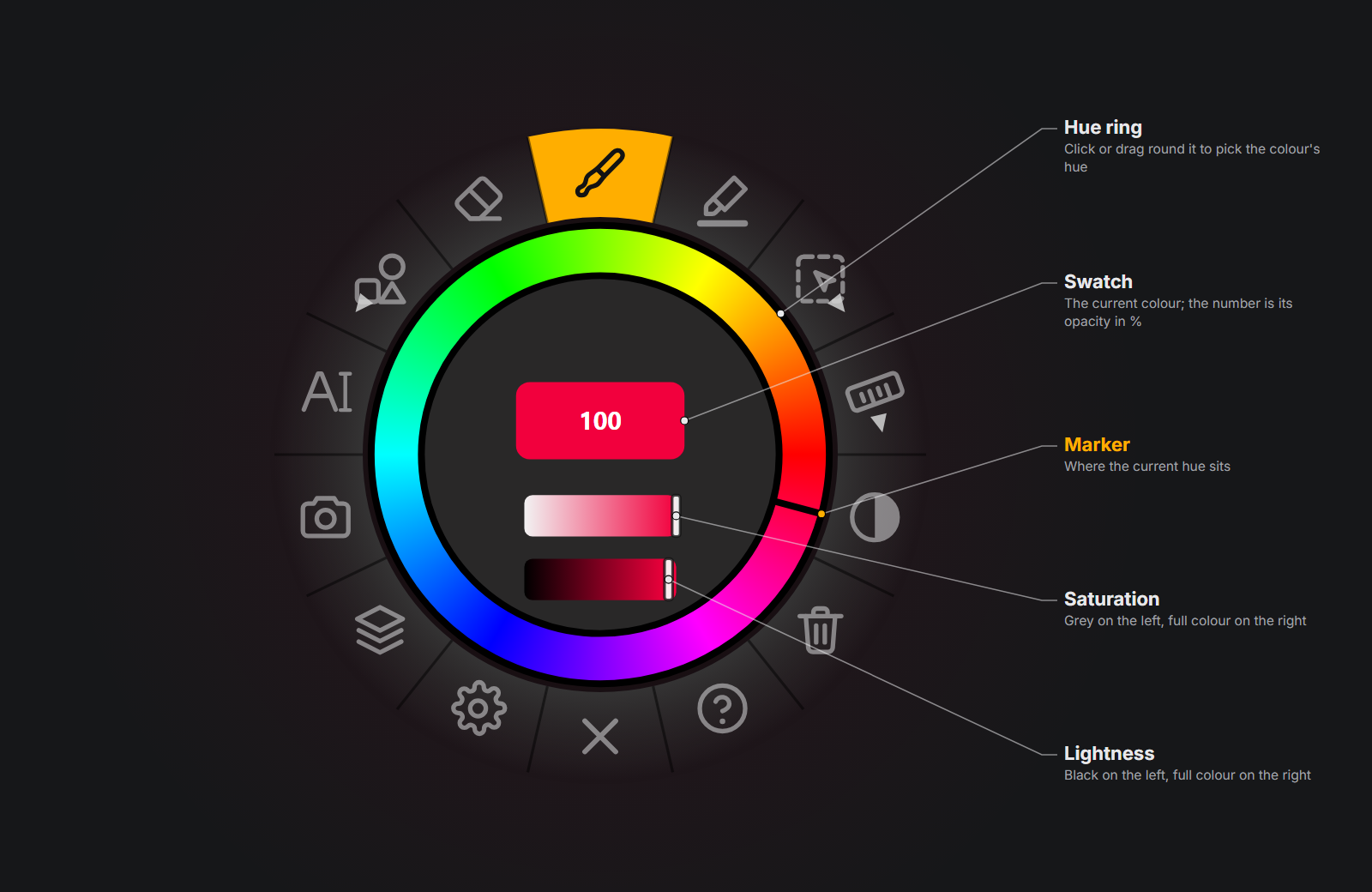
- Hue ring — drag along it to pick a hue. The black marker shows where the current hue sits.
- Swatch — the current colour. The number on it is the colour's opacity in percent; Ctrl + drag left or right on it to change it.
- Saturation slider — grey on the left, full colour on the right.
- Lightness slider — black on the left, full colour on the right.
The ring sets the brush colour. The highlighter, text, shapes and trace paper keep colours of their own, set in their properties panels. With the Selection tool active and something selected, the ring recolours the selection instead.
Two keys work while the pointer is over the ring — no click needed:
- Tab over the colour ring swaps the hue band for the swatches of your current palette; click one to pick it. Tab again brings the hue back.
- Space over the centre hides or shows the outer ring of tools, leaving only the colour.
Moving the ring
- Drag the empty centre (not the swatch or the sliders) and the ring follows.
- Or hold Alt and drag anywhere on it.
- Win+Ctrl+Shift + middle-click anywhere on the screen brings the ring to the pointer.
The ring always starts at the top centre of your main screen; its position is not remembered between sessions.
Hiding the toolbar
Double-click the empty centre of the ring. It shrinks to a small icon with the Am_sketch brush in it, and, while it is tucked away, your drawings and the trace paper are hidden too, every tool is switched off and your clicks go to the programs underneath. Double-click the icon to bring everything back as it was.
The Hide / show toolbar shortcut does the same; it has no key until you give it one in Preferences.
The compact ring
If you untick Keep the ring open at all times in Preferences, the ring shrinks to a small hue wheel three seconds after the pointer leaves it while you draw with the Brush, Eraser, Shape, Text or Highlight tool. The current tool's icon sits in its middle. Point at it to open it again.
Properties panels
A right-click on a slot opens its panel just right of the ring.
- Drag the panel by its header, or hold Alt and drag anywhere on it. It stays where you put it.
- Alt + middle-drag resizes it.
- Number fields have no arrows: type a value, or hold the middle mouse button over the field and drag left or right. Add Ctrl for fine steps or Shift for big ones.
- The ✕ in the header — or a second right-click on the slot — closes it.
Opening Help, Preferences or Layers closes the properties panel.