Shapes
Rectangles, triangles, ellipses, arrows and lines — crisp, and editable for as long as you need them.
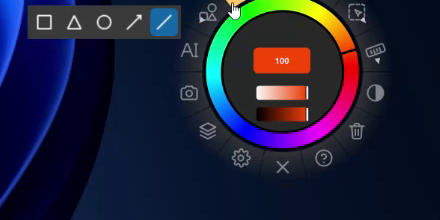
Drawing a shape
- Hold the Shape slot (about half a second) and choose a shape from the strip that opens: Square, Triangle, Circle, Arrow or Line. A plain click on the slot later gives you the shape you chose last.
- Drag from one corner to the opposite one. Letting go without moving creates nothing.
| Shape | How it is drawn | With Shift |
|---|---|---|
| Square | A rectangle from corner to corner | Equal sides |
| Triangle | An isosceles triangle, its apex at the top | Proportional bounds |
| Circle | An ellipse inside the box you drag | A perfect circle |
| Arrow | From where you press to where you let go; the head lands where you let go | Snaps to 45° |
| Line | A straight line | Snaps to 45° |
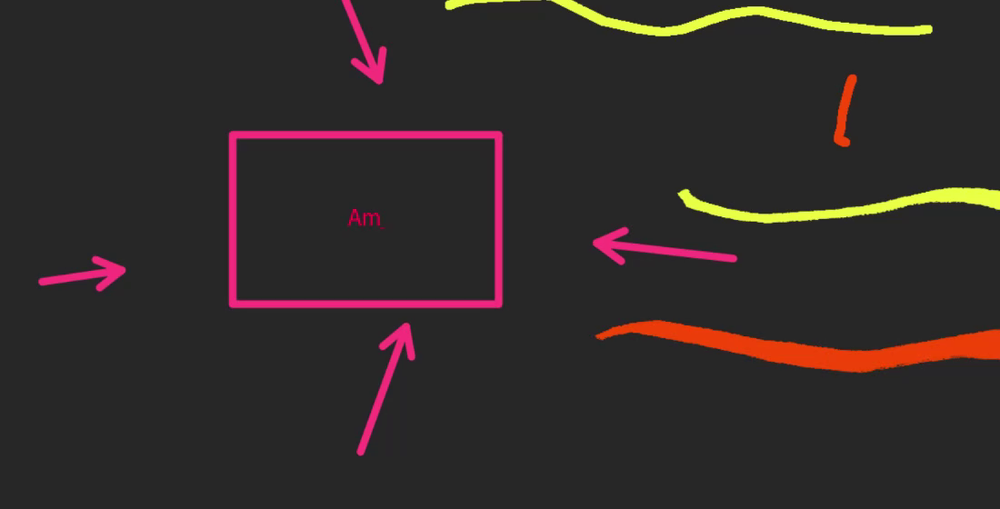
Shape Properties
Right-click the Shape slot.
| Setting | What it does |
|---|---|
| Shape | The five shape buttons, the same as the hold menu. |
| Fill / Fill color | Fill the shape, and with what colour. Lines and arrows have no fill. |
| Stroke / Stroke color | Draw the outline, and in what colour. |
| Thickness | The outline's width, 1 – 32 px. |
Out of the box, shapes have a red 3 px outline and no fill. Shapes keep their own colours — the ring's colour is the brush's.
Changing a shape later
A shape stays an editable object. Select it with the Selection tool to move, scale or rotate it, change its colours, or open its properties again with Edit. The eraser asks before it turns a shape into pixels.