Text
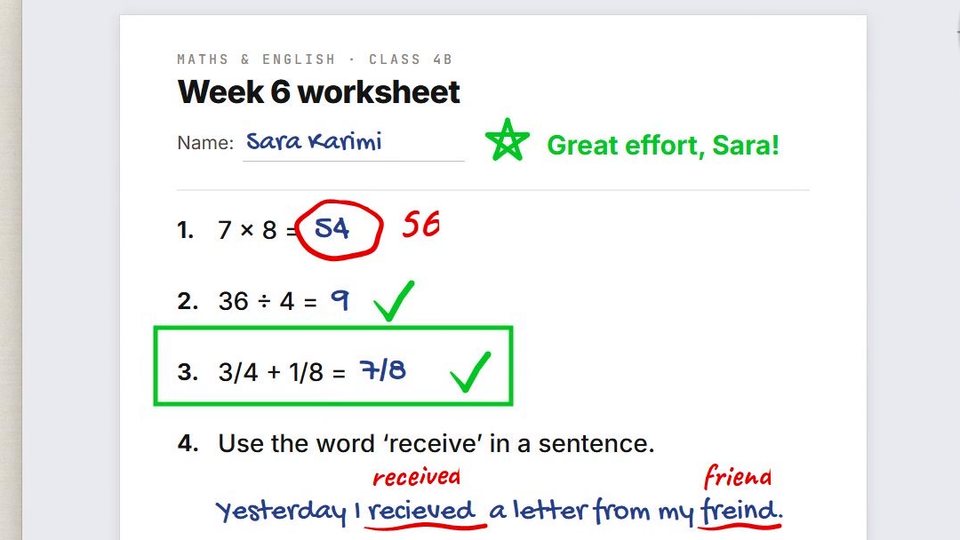
Type straight onto the screen — a note on a worksheet, a label on a diagram — and change it whenever you like.
Typing
- Click the Text slot. The pointer becomes a text cursor.
- Click where the text should start, and type.
- Finish with Enter on the numeric keypad.
| Key | While you type |
|---|---|
| Enter (main keyboard) | A new line |
| Enter on the numeric keypad | Finish — the text is placed |
| Backspace / Delete | Delete a character |
| Esc | Cancel — a new text is discarded, an edited one goes back to how it was |
Keys typed while a text is open go to Am_sketch, whichever program has the focus.
Finish before you change tools
Switching to another tool while a text is still open discards it. Press Enter on the numeric keypad first. The arrow keys do not move the cursor, and Ctrl or Alt combinations — such as paste — are not taken in text.
Editing a text
With the Text tool active, click an existing text on the active layer: it opens again with the cursor at the end. Type, then finish with keypad Enter. The change is one undo step.
To move, resize, rotate or recolour a text, select it with the Selection tool.
Text Properties
Right-click the Text slot.
| Setting | Options | Default |
|---|---|---|
| Font | Any font installed in Windows | — |
| Size | 6 – 256 pt | 24 |
| Style | Bold, Italic | — |
| Color | — | Black |
| Align | Left, Centre, Right | — |
Changes apply live to the text you are typing.