Your first five minutes
A guided tour of the essentials. Do each step once and you know enough to use Am_sketch in front of a class tomorrow.
1. Start it
Start Am_sketch from the Start menu (or let it start with Windows — see Install). With a licence imported:
- The ring — the toolbar — appears at the top centre of your main screen.
- The Help window opens with a table of every shortcut. Close it; untick Show this panel when Am_sketch opens if you do not want it every time.
- An Am_sketch icon sits in the system tray. Right-click it for the tray menu.
You start in drawing mode with the Brush — a plain Pen — selected: the brush slot at twelve o'clock is amber.
2. Draw
Move over any window and drag with the left button (or touch down with the pen). That is a stroke, drawn on a transparent layer above everything. The window underneath is untouched.
Straight lines
Hold Shift and click to draw a straight line from where your last stroke ended. Shift + drag keeps a stroke perfectly horizontal or vertical.
3. Change the colour
The coloured band round the middle of the ring is the hue ring. Drag along it: the swatch in the middle and the two sliders under it follow. The upper slider is saturation (grey → full colour), the lower one lightness (black → full colour). Your next stroke uses the new colour.
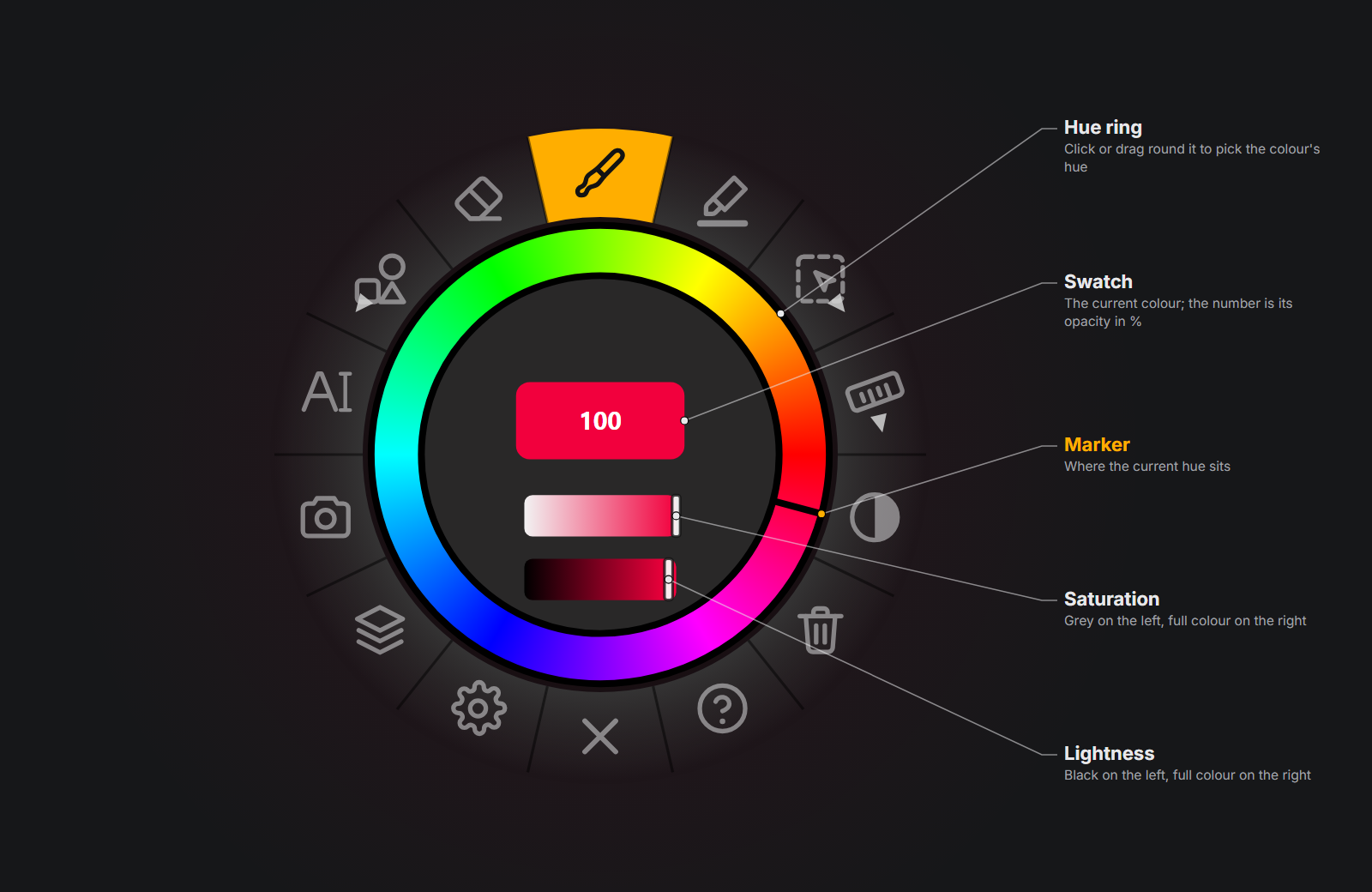
More colour tools: Colour, and the colour library that opens round the pen with Ctrl+Space.
4. Change the size
Hold the middle mouse button over the screen and drag left or right: the brush outline grows and shrinks, and a label shows the size. Let go to keep it.
For every brush setting, right-click the Brush slot: the Brush Properties panel opens beside the ring, with the list of brushes on its right. Click Pencil, Marker or Sumi to try another brush.
5. Undo, redo, clear
- Ctrl+Shift+Z undoes, as many steps as you like; Ctrl+Shift+Y redoes.
- The Delete slot (the bin, lower right on the ring) — or Ctrl+Shift+X — clears every drawing at once. Undo brings it all back.
6. Give the mouse back
Press Ctrl+Shift+C. You are now in pass-through mode: your drawing stays on screen, but every click goes to the program underneath — change the slide, scroll the PDF, click a link. Press it again to draw. Picking any tool on the ring also switches drawing back on.
7. Hide, show, quit
- Ctrl+Shift+D hides everything you drew; press it again to bring it back.
- Double-click the empty centre of the ring to tuck the toolbar away as a small icon (your drawings hide with it); double-click again to restore.
- The Close slot (the ✕ at six o'clock) quits Am_sketch. Drawings are not saved when you quit — capture anything you want to keep first.
Next
- The ring — every slot, right-click and long press.
- Drawing and pass-through — exactly where your clicks go.
- Recipes for teaching and for drawing.