For drawing
Recipes for sketching over references, studying perspective and proportion, and making the brushes your own.
Trace a reference
- Open the photo or the 3D view you want to trace.
- Right-click Trace paper: white, Opacity around 50 %. Click Trace paper to lay it down.
- Pick a brush — Sootline Contour or Pencil — and draw over the shapes you can see through the sheet.
- Lower the opacity to check against the photo; raise it to 100 % to see your drawing on its own.
Block in a street in perspective
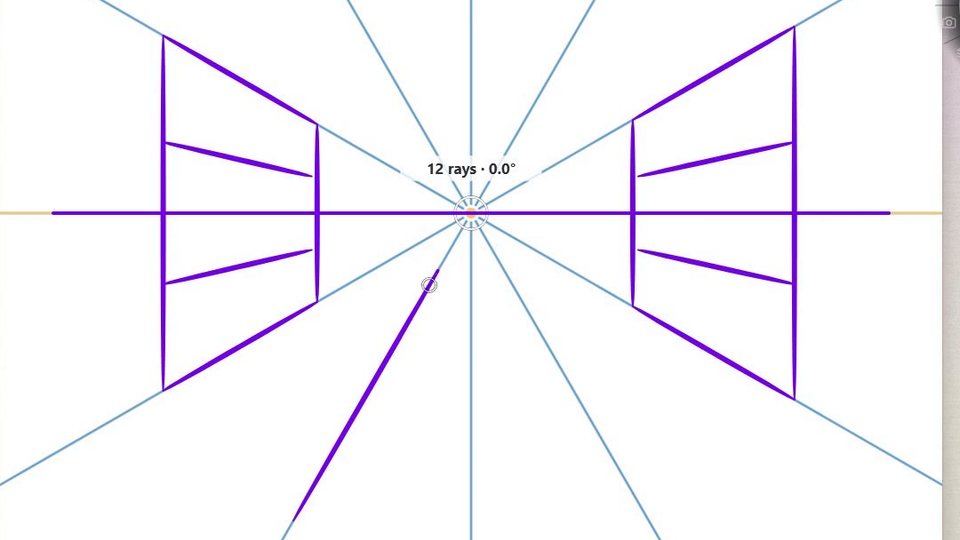
- Hold Measurement → Perspective. Drag the vanishing point onto the horizon of your reference (or where you want it).
- Right-click Measurement and raise Rays to 24 for finer control.
- Draw the main edges with the Brush: near a ray, a stroke snaps along it.
- Click Measurement to hide the guide and add the detail freehand.
For a second vanishing point, drag the point to its new place after the first set of lines: what you drew stays put.
Check proportions
- Hold Measurement → Proportion. Drag the box over the reference's subject: the badge names its ratio and the thirds show the composition.
- Move it over your drawing and Shift + drag a corner to keep the same ratio: you can see at once where your drawing drifts.
A brush of your own
- Right-click Brush → pick the brush closest to what you want.
- Right-click the brush list → Add brush. Your copy, New Brush, is now selected; Rename brush it.
- Change what you like: lower Hardness for a softer edge, raise Pressure → Size for more taper, set a Paper and Depth under Texture for tooth.
- Right-click the list → Save current settings.
To use a texture or tip image of your own, see Your own brushes and textures. For an instant brush from a picture, right-click the list → Import texture...
Ink over a rough sketch
- Sketch loosely on Layer 1 with Pencil.
- Open Layers, press New, and ink on Layer 2 with Sootline Contour or Brush Pen.
- Click the eye of Layer 1 to see the clean line on its own — or lower its opacity to keep a ghost of the sketch.
- Capture the result; with Capture selection from the Selection tool you get just the drawing, without what was behind it.
Colours at hand
- Hold Ctrl+Space while you draw: the colour library opens round the pen. Tap Alt to page through palettes — Warm and Cool for light and shadow, Soft for a quiet underpainting.
- Hold Alt and click to take a colour off the reference.
- Put a character's or a client's colours in the Custom palette (Pick Color → right-click → Add Color).