Keyboard and mouse
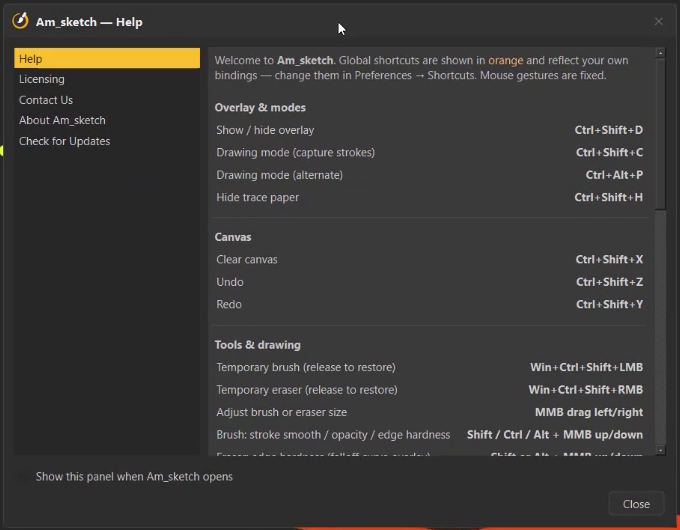
Every key and gesture in Am_sketch. The Help window (the ? on the ring) shows the same list, with your own key bindings in orange.
Shortcuts you can change
These work in any program while Am_sketch is running — even with the overlay hidden. Change them in Preferences → Shortcuts.
| Command | Default key | What it does |
|---|---|---|
| Show / hide overlay | Ctrl+Shift+D | Hide or show everything you drew |
| Drawing mode | Ctrl+Shift+C | Switch between drawing and pass-through |
| Drawing mode (alternate) | Ctrl+Alt+P | The same, for when the first key is taken |
| Hide trace paper | Ctrl+Shift+H | Hide the sheet and the drawings on it; again to show |
| Clear canvas | Ctrl+Shift+X | Remove every stroke, shape and text (undoable) |
| Undo | Ctrl+Shift+Z | Undo the last change |
| Redo | Ctrl+Shift+Y | Redo it |
| Brush | — | Pick the brush |
| Eraser | — | Pick the eraser |
| Highlight | — | Pick the highlighter |
| Shape | — | Pick the shape tool, with the shape chosen last |
| Text | — | Pick the text tool |
| Selection | — | Pick selection, with the region chosen last |
| Measurement | — | Show the guide chosen last |
| Trace paper on / off | — | Lay the sheet down or take it away |
| Screenshot | — | Start a capture |
| Layers panel | — | Open the Layers window |
| Help | — | Open the Help window |
| Preferences | — | Open Preferences |
| Hide / show toolbar | — | Tuck the ring away, or bring it back |
The tool commands have no keys at first, on purpose: a shortcut that works in every program takes that key away from all of them. Give keys only to the commands you use most, and choose keys your other programs do not need.
Keys while Am_sketch is showing
These are fixed. They work while the overlay is visible, whichever program has the focus.
| Key | When | What it does |
|---|---|---|
| Esc | Any time | Cancel a drag, leave free transform, deselect |
| Ctrl+A | Any time | Select everything, on every layer |
| Ctrl+T | Drawing mode | Free transform of the selection |
| Enter | In free transform | Apply it |
| D (hold) | In free transform | Show the pivot, to drag it |
| Delete / Backspace | Selection tool, with a selection | Delete what is selected |
| X | Brush or Eraser active | Swap between them |
| Ctrl+Space (hold) | Brush active | Colour library round the pointer |
| Alt / Shift | Colour library open | Next / previous palette |
| Alt (hold) + click | Brush, drawing mode | Eyedropper |
| Tab | Pointer over the colour ring | Palette swatches on the ring, and back |
| Space | Pointer over the ring's centre | Hide or show the ring of tools |
While you are typing a text, the keys go to the text: Enter starts a new line, keypad Enter finishes, Esc cancels.
Mouse and pen
On the screen
| Gesture | What it does |
|---|---|
| Drag | Draw with the current tool (drawing mode) |
| Middle-drag left / right | Brush, eraser or highlighter size |
| Shift + middle-drag up / down | Brush smoothing (eraser: hardness) |
| Ctrl + middle-drag up / down | Brush opacity |
| Alt + middle-drag up / down | Brush or eraser hardness |
| Shift + click | Brush: straight line from the end of the last stroke |
| Shift + drag | Brush: horizontal or vertical stroke · Shapes: square, circle, 45° |
| Win+Ctrl+Shift + drag | Temporary brush, from any tool and mode |
| Win+Ctrl+Shift + right-drag | Temporary eraser |
| Win+Ctrl+Shift + middle-click | Bring the ring to the pointer |
On the ring
| Gesture | What it does |
|---|---|
| Click a slot | Pick the tool (click the active one again to stop drawing) |
| Right-click a slot | Open its properties panel |
| Hold Selection, Measurement or Shape | Open its menu |
| Drag on the colour ring | Pick a hue |
| Ctrl + drag on the swatch | Change the colour's opacity |
| Drag the empty centre, or Alt + drag | Move the ring |
| Double-click the empty centre | Tuck the toolbar away, or bring it back |
| Close slot | Quit Am_sketch |
On guides, panels and fields
| Gesture | What it does |
|---|---|
| Drag a guide's handle | Adjust the guide |
| Alt + drag, or middle-drag, a guide's body | Move the guide |
| Right-click a guide | Change its units |
| Alt + drag a panel | Move it |
| Alt + middle-drag a panel | Resize it |
| Middle-drag on a number field | Change the value (Ctrl fine, Shift coarse) |
| Ctrl + drag on the brush Color swatch | Change the brush colour's lightness |