Ruler
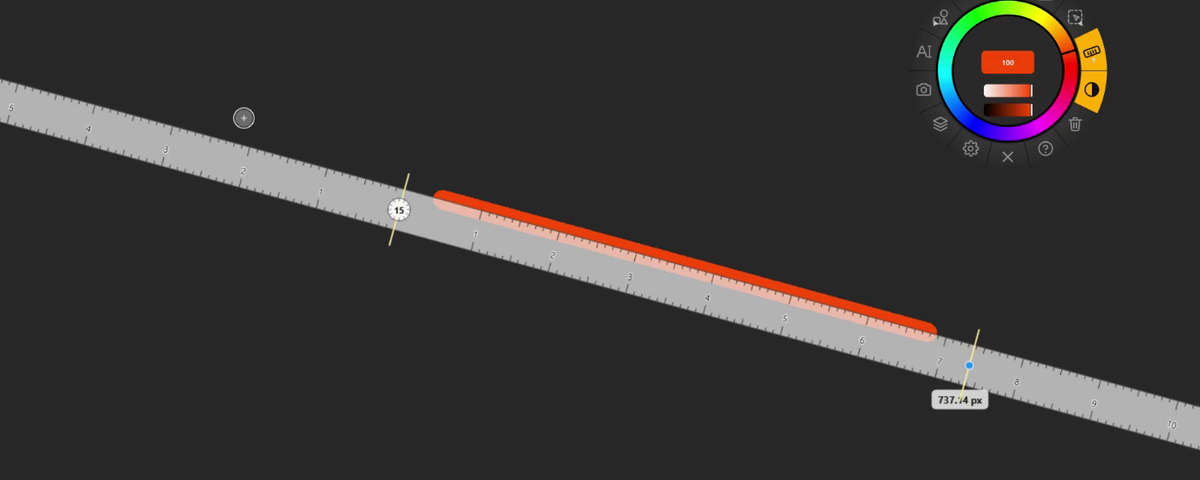
A translucent straight edge you can lay at any angle. It reads its own length, and the brush follows it.
Using it
Hold the Measurement slot and choose Ruler (or right-click the slot and set Mode to Ruler). The ruler appears horizontal, centred on the screen under the pointer.
- The start is a small dial that shows the ruler's angle.
- The end is a blue handle with a length badge — for example
123.45 px— beside it. - Turn or stretch it: drag either end; the ruler pivots on the other one. Shift snaps the angle to 15° steps.
- Move it: Alt + drag the body, or drag it with the middle button.
- Draw along it: with the Brush, stroke near either edge or along the middle — the line snaps to it.
The scale
| Unit | Ticks and labels |
|---|---|
| Pixels | A major tick every 100 px, labelled 1, 2, 3… (hundreds of pixels) |
| Millimeters | A tick every mm, longer every 5 mm, labelled every 10 mm |
| Centimeters | Labelled every cm, with millimetre divisions |
The scale starts at 0 at the dial. Switch units by right-clicking the ruler, or in the measurement properties.
The dial
Right-click the dial at the start of the ruler:
- Reverse direction — swap which end is the start (turns the reading by 180°),
- Angle display: 0° to 360° (default), ±180°, or Folded 0°–180°.
Infinite ruler
Tick Infinite ruler in the measurement properties and the ruler — and its snapping — runs right across the screen in both directions. Use it for long parallel lines, a horizon, or the baseline of a row of text.
In class
Lay the ruler along the side of a diagram, read its length to the class, and draw the missing side along the edge — it comes out dead straight.