For teaching
Recipes for the classroom, the online lesson and the tutorial video. Each one uses only what is on the ring and two or three keys.
Before the lesson
- Tick Start Am_sketch when I sign in when you install, so the keys always work.
- Untick Show Quick help when the app starts once you know your way round (Preferences).
- On a two-screen setup, untick the screen the class does not see in Preferences → Screens, so Am_sketch stays off your notes.
Correct: mark a worksheet
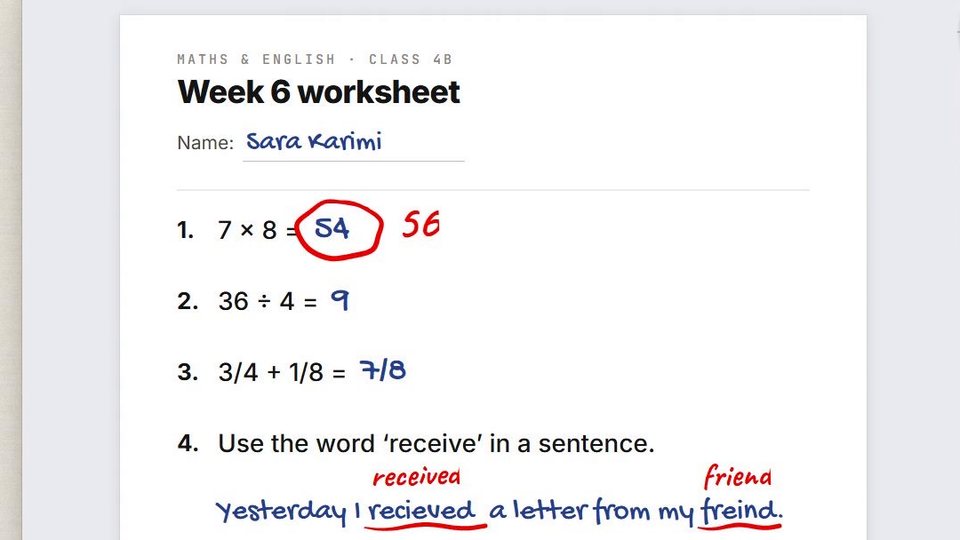
- Open the student's PDF, or any app the work is in.
- Click the Brush; pick red on the hue ring.
- Circle the mistake and write the correction beside it. A pen gives you the feel of a real red pen; with a mouse, Pen or Brush Pen still taper.
- Missed? Ctrl+Shift+Z.
- Capture the page to send back, then Ctrl+Shift+X for the next one.
Highlight: read a text together
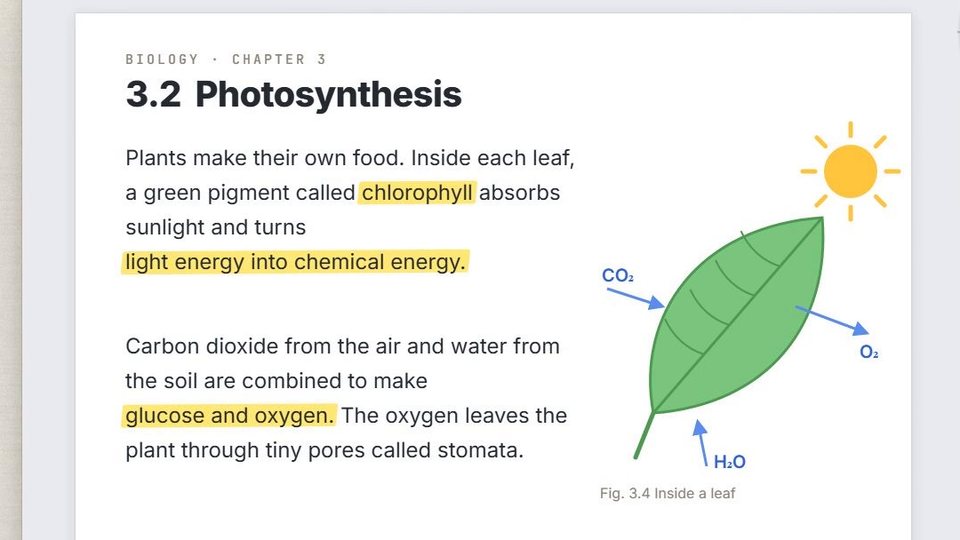
- Click Highlight; right-click it to set a light colour around 50 %.
- Go over the key phrases while you read. Overlaps stay even and the words stay readable.
- Underline in pen on top — highlights always sit behind ink.
Encourage: ticks, stars and a note
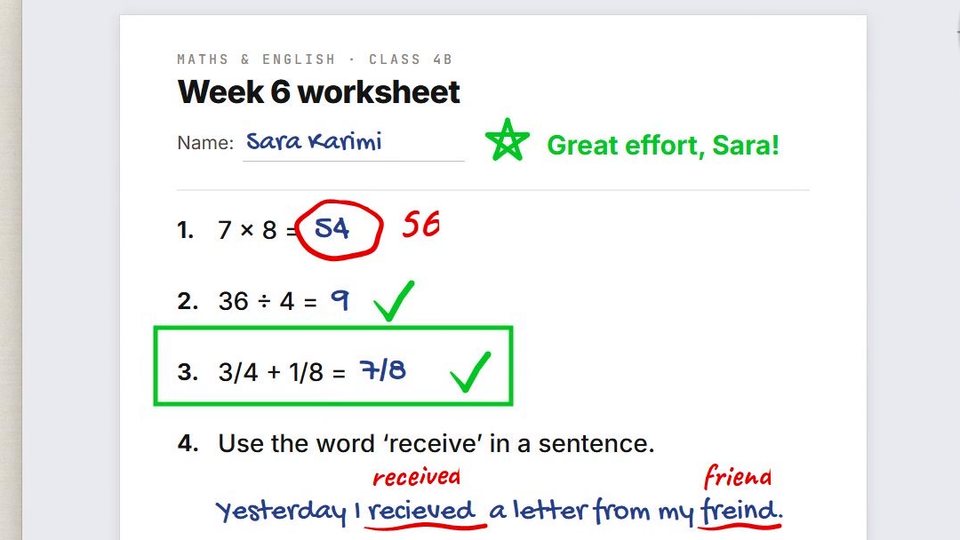
- Pick green on the ring and tick the right answers with the Brush.
- Hold the Shape slot → Square to box a whole answer.
- Click Text, click beside the name, and type Great effort! — finish with Enter on the numeric keypad.
- Changed your mind? Select the box or the note with Selection and move, recolour or delete it. Shapes and text stay editable.
Explain: measure a diagram
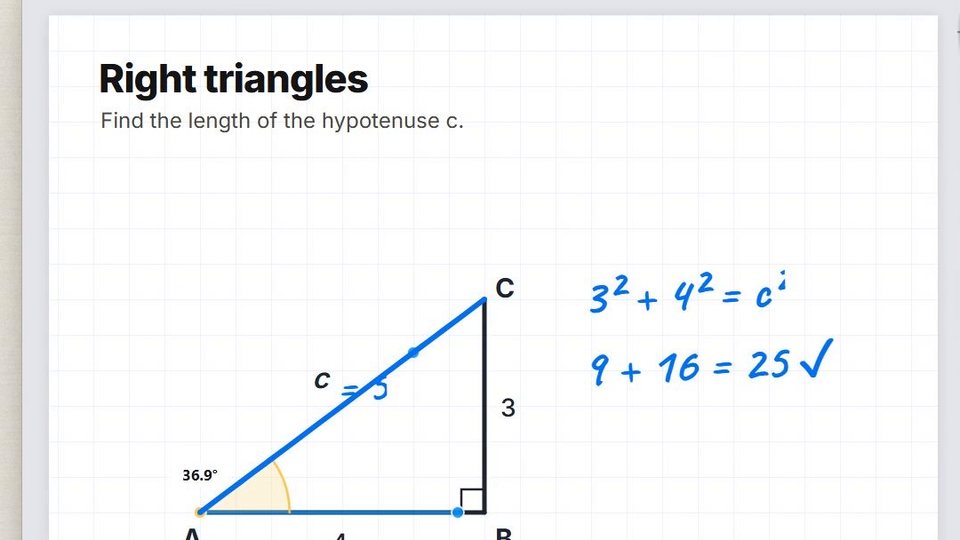
- Hold the Measurement slot → Ruler. Drag its ends onto the side of the diagram and read the length aloud.
- With the Brush, draw the missing side along the ruler's edge — it snaps straight.
- Hold Measurement → Angle; put the corner on the vertex and swing the arms onto the sides. The class sees the angle measured.
- Write the working beside it with the Brush, or type it with Text.
A whiteboard on demand
- Right-click Trace paper: set the colour to white (or chalkboard green) and Opacity to 100 %.
- Click Trace paper — a clean page over whatever you were showing.
- Work the problem. Click Trace paper again to take the page away: the slide is still there underneath — and your working stays on top of it until you clear it.
Live demonstration
Pointing at a live screen — software, a game, a simulation — you never want to stop and wipe.
- Preferences → General → Strokes fade after: 6 seconds.
- Circle, arrow and underline as you talk. Every mark fades away by itself.
- Need to click into the program? Ctrl+Shift+C passes the mouse through; press it again to draw.
- Set the fade back to Off afterwards.
Present: recolour, then send the board home
- Use Selection round a stroke and Change colour to make one part stand out.
- Keep the class's suggestions on a new layer — hide it to compare, delete it to start over.
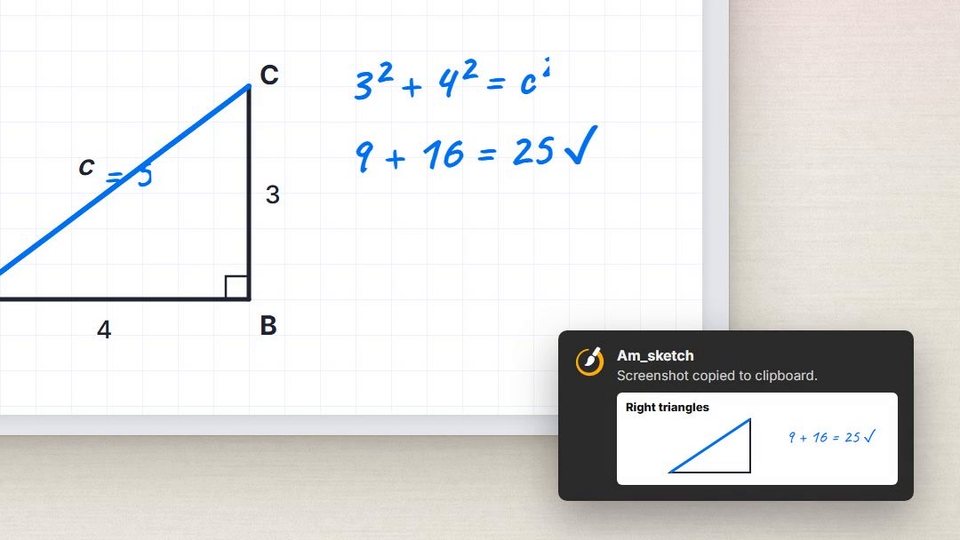
- Right-click Capture → Clipboard. Click Capture, drag round the board, and paste it into the class chat or the notes.
Online lessons and recordings
- Share your whole screen (not a single window) in the video call or the recorder: Am_sketch draws above the windows, so a single-window share does not include it.
- Keep a short fade on for walkthroughs, and pass the mouse through with Ctrl+Shift+C whenever you need to click.