Selection and transform
Draw round strokes, shapes and text to move them, resize and rotate them, change their colour, copy them or delete them.
Selecting
- Hold the Selection slot and choose the region: Lasso (freehand), Rectangle or Circle. A plain click on the slot later uses the region you chose last — Rectangle at first.
- Drag round what you want. Anything that the region touches is selected, on every layer.
| While you finish the drag | Result |
|---|---|
| no key | Replace the selection |
| Ctrl or Shift | Add to it |
| Alt | Take away from it |
Ctrl+A selects everything on every layer. A click outside the selection, or Esc, deselects. There is no click-to-select on a single item: always drag a region.
Moving
Drag inside the selection — with the left or the middle button — to move it.
The action bar
A small bar floats above the selection (or below it, when there is no room).
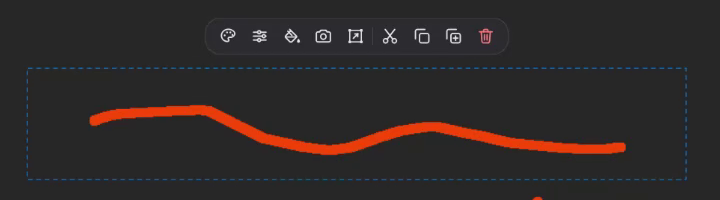
| Button | What it does |
|---|---|
| Change colour | Recolour everything selected. |
| Edit properties | Open Edit Selection, with the settings of the selected strokes, shapes and text — change several at once. |
| Fill selection | Fill the region with the brush colour, as a new stroke. |
| Capture selection | Save what you drew inside the region as an image (your drawing only, not the screen underneath) — see Capture. |
| Free transform | Scale and rotate — see below. |
| Cut / Copy | Keep a copy for Paste. (Am_sketch's own clipboard, not Windows'.) |
| Paste | Appears once something is cut or copied; pastes it centred on the region. |
| Duplicate | A copy, slightly offset. |
| Delete | Remove what is selected. Delete or Backspace does the same. |
Restyle what you drew
With strokes selected, choosing another brush or changing brush settings in Brush Properties restyles those strokes. Turn a quick pen sketch into ink, or thicken every line at once.
Free transform
Press Ctrl+T, or the Free transform button. Eight handles appear round the selection.
| To | Do this |
|---|---|
| Scale | Drag a handle. The opposite handle stays put. Dragging past it flips the selection. |
| Scale evenly | Shift + drag a handle |
| Scale from the pivot | Ctrl + drag a handle |
| Move | Drag inside the box |
| Rotate | Drag outside the box; Shift snaps to 15° steps |
| Move the pivot | Hold D to show it, and drag it |
| Finish | Enter |
| Leave and deselect | Esc |
Ctrl+T with nothing selected selects everything on the active layer and starts the transform.
Every move, transform, recolour, duplicate, paste and delete is one undo step.