Using a picker
Click the shape, get the control. Everything else on this page is a refinement of that.
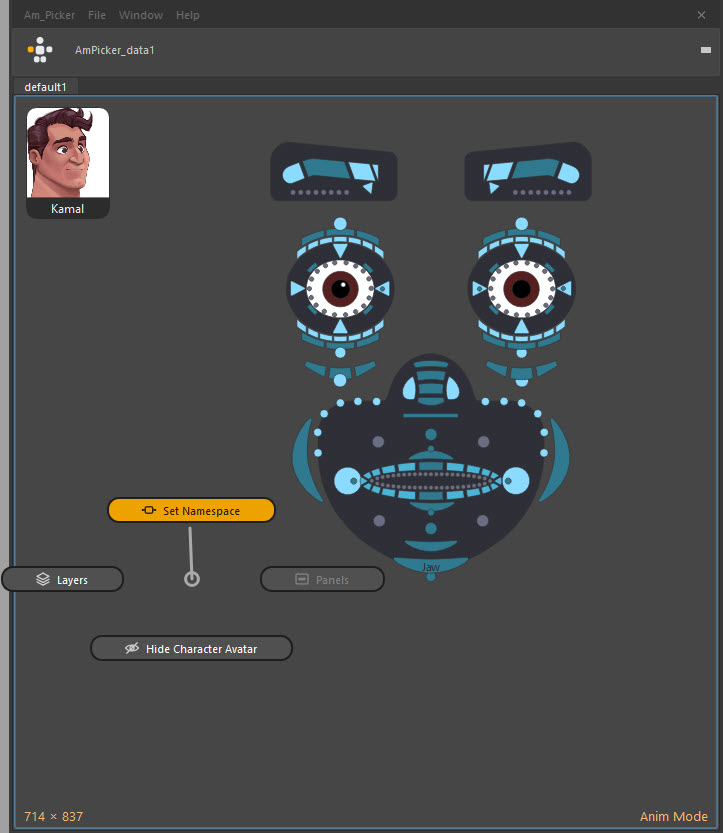
Opening one
If the picker was built into the rig or the shot, it is already in the scene — open the window from your shelf button and choose Anim Picker. The character bar's selector lists every picker in the scene, so a shot with three characters gives you three entries.
If somebody sent you an .ampkr file instead, use File → Open Data…
(Ctrl+O) and load it into the scene.
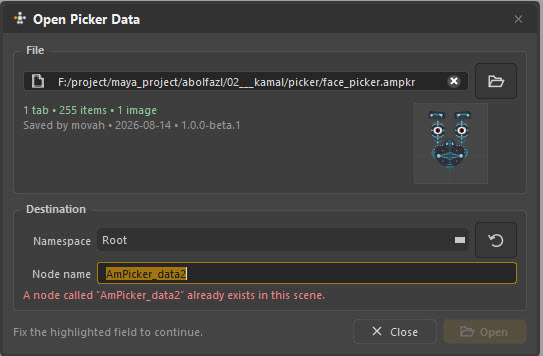
The dialog previews what is in the file before you commit — how many tabs and items, who saved it and when, and a thumbnail of the layout. If a node of that name already exists it says so rather than quietly making a second one.
Selecting
| Click | Selection |
|---|---|
| LMB | Replace the Maya selection |
| Shift + LMB | Toggle — add if absent, remove if present |
| Ctrl + LMB | Remove from the selection |
| Ctrl+Shift + LMB | Add to the selection |
| LMB drag on empty canvas | Marquee — select everything the box touches |
One shape can carry several controls; clicking it selects all of them. A rigger uses this for things like "the whole left hand" or "every finger tip".
It works in both directions
Selecting a control in the Maya viewport highlights its shape in the picker. This is live — the picker follows your Maya selection whether that selection came from the picker, the viewport, the Outliner or a script.
That makes the picker useful as a read-out even when you are not clicking it: select a control the usual way and glance at the picker to see where you are on the character.
Marquee-only items
Some items are set up to respond to marquee selection but not to a direct click. Riggers use this for large background shapes that would otherwise swallow clicks meant for the small buttons on top of them. If a shape ignores your click but gets picked up by a drag, that is deliberate.
Items that are not selectors
Not every shape selects something. An item can be built to drive an attribute directly:
| Kind | How you use it |
|---|---|
| Slider | Drag along the shape to scrub the value — IK/FK blends, space-switch weights, 0–1 face controls |
| Toggle | Click to flip between two values |
| Enum | Click to pop up the attribute's list of names and choose one |
These show their current value on the shape, and the read-out stays true while you scrub the timeline. You are editing the rig attribute directly — the same as typing in the Channel Box, and it undoes the same way.
A picker item can also just run a script when clicked, and can offer extra commands on right-click. Both are the rigger's choice; if a shape does something surprising, right-click it to see what else it offers.
Getting around the canvas
| Input | Does |
|---|---|
| MMB drag | Pan |
| Wheel, or Alt + RMB drag | Zoom |
| F | Frame the selection — or reset the view if nothing is selected |
| 0 | Reset the camera to the tab's own framing |
| Space | Hide the character bar for a minimal window |
| Esc | Collapse the whole window to a small floating square, and back |
0 is the reliable way home. If you have zoomed into a corner and lost the layout, press it.
Tabs
Tabs across the top are separate pages of the same picker — commonly body, face, hands, or one per character in a two-hander.
Ctrl+Tab opens a quick switcher overlay for tabs and camera bookmarks together, so you can jump between pages without going for the mouse.
Making room
Real pickers get crowded. Three things are always available in Anim mode from the canvas right-click:
- Layers — turn off a whole group of items at once
- Panels — collapse a sub-page that is in your way
- Show / Hide Character Avatar — put the corner portrait away
All three are covered in Controlling what you see.
When clicking does nothing
Work down this list:
- Is the rig actually in the scene? A picker cannot select what is not there.
- Namespace. By far the most common cause — see Rigs and namespaces. Open Set Namespace and look at the "n of n objects found" line.
- Are you in Anim mode? The bottom-right corner says. In Edit mode a click selects the shape, not the control.
- Is the item bound at all? An unfinished picker can have shapes nobody bound yet. Ask whoever built it.
The full list is in Troubleshooting.