Attribute control
An item that edits a rig attribute instead of selecting a control. Sliders for IK/FK, toggles for switches, enums for spaces.
Every other picker item is a selector: click it, its controls get selected.
An item with attribute control attached is a widget: in Anim mode a plain
click no longer selects, it writes to node.attribute on the rig.
Start from the Widgets panel
The Widgets panel drops ready-made sliders, dials, switches, 2D sliders and more, already set to the right kind — you only fill in the attribute.
The three kinds
| Kind | Interaction | Built for |
|---|---|---|
| Slider | Drag along the item's local X or Y axis to scrub between a minimum and a maximum | IK/FK blends, space-switch weights, 0–1 face controls |
| Toggle | Click to flip between two values | Booleans and two-state switches |
| Enum | Click to open a popup of the attribute's names | Space switches authored as an enum |
Why this is a mode, not a new kind of item
A slider is an ordinary picker item with a different click behaviour. That means it keeps everything else for free: colours, transforms, layers, its Outliner row, undo, copy and paste, the channel box, mirroring.
The precedent was already there — an item with a click script is likewise "an ordinary item that does something other than select". Making sliders a mode rather than a type meant no other part of the tool had to learn a new concept, and a slider you built last year still behaves like an item today.
Setting one up
Open Picker Behavior — select the item and press I — and use the Attribute Control section.
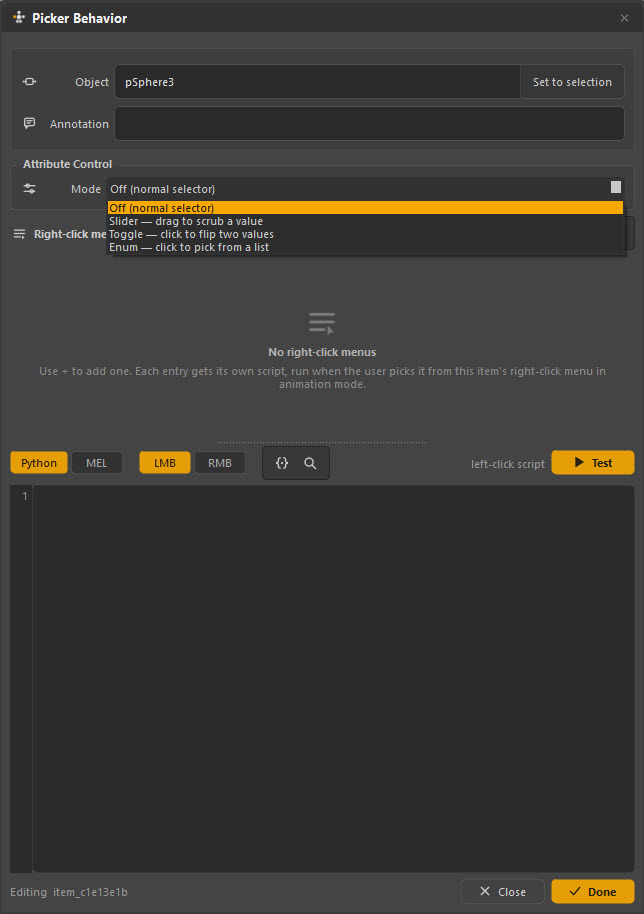
Mode chooses the kind:
- Off (normal selector) — an ordinary item
- Slider — drag to scrub a value
- Toggle — click to flip two values
- Enum — click to pick from a list
Then name the node and the attribute it drives.
Slider settings
| Setting | What it does |
|---|---|
| Auto range | Take the minimum and maximum from the attribute's own limits. Leave this on when the rig declares them |
| Min / Max | The range, when auto range is off |
| Axis | Which of the item's local axes the drag follows — x or y |
| Step | Snap increment. 0 is continuous |
Toggle settings
Off value and On value — the two numbers the click flips between.
Usually 0 and 1, but a rig that uses 0 and 10 works just as well.
Shared settings
| Setting | What it does |
|---|---|
| Label | A prefix on the read-out, e.g. IK/FK |
| Show value | Draw the current value on the item |
| Decimals | How many decimal places the read-out shows |
| Key on change | Set a keyframe after every write |
The node name has no namespace
Like a bound control, the node is stored without its namespace, and the picker's current namespace is added at read and write time. One picker file drives any referenced copy of the rig — the same rule as everywhere else in the tool. See Rigs and namespaces.
Behaviour worth knowing
The read-out stays true while you scrub. The value shown on the item updates as the timeline moves, so a slider reads the current animated value rather than whatever it was when the picker opened.
Undo works normally. A drag is one undo step, not one per pixel.
It is exactly equivalent to typing in the Channel Box. No constraint, no
extra node, nothing added to the scene — the item calls setAttr, and the result
is the same as if you had typed the number.
Designing with them
-
Make sliders look like sliders
A long thin rectangle reads as draggable; a circle does not. Give it a label and turn the value read-out on so its state is visible without touching it.
-
Put the switch next to what it switches
The IK/FK slider belongs on the arm it drives, not in a control panel at the edge of the canvas.
-
Toggle beats slider for two states
If a value is only ever 0 or 1, a toggle is one click and cannot land on 0.37 by accident.
-
Enum for named things
A space switch with four named spaces is far clearer as a popup of names than as a slider from 0 to 3.
When it does not respond
| Symptom | Cause |
|---|---|
| Clicking selects instead of scrubbing | The mode is still Off, or you are in Edit mode |
| The read-out shows nothing | The node or attribute name is wrong, or the namespace is not set |
| The drag goes the wrong way | Wrong axis — the drag follows the item's local axis, so a rotated item's x is not the screen's |
| The value jumps to an end | Auto range is on but the attribute declares no limits — turn it off and set min and max by hand |