Layers and layer transforms
A layer is a group — and like a Maya group, it can be moved, rotated and scaled as one thing, around one pivot.
Ctrl+G New layer from selection Page Up Select parent Page Down Select children O Picker Outliner
Making layers
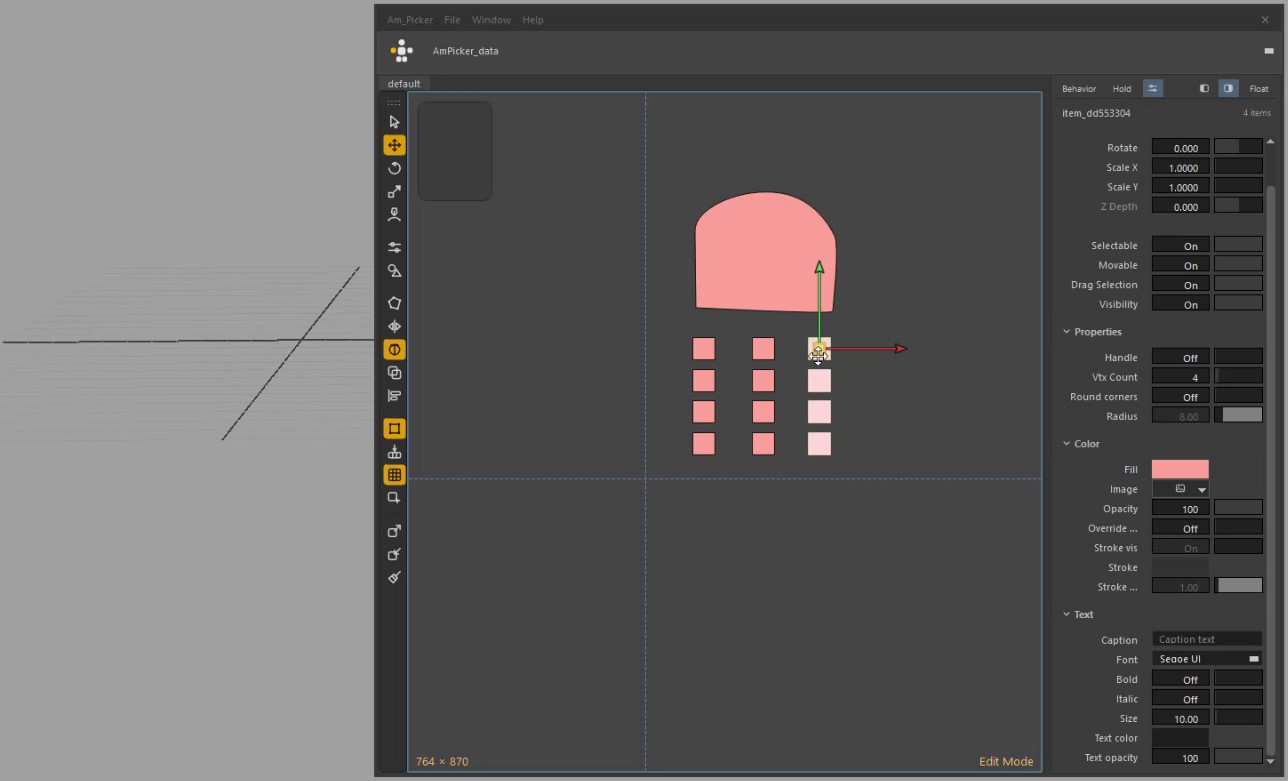
Ctrl+G: the selected finger buttons go into a new, named layer.
Select items and press Ctrl+G — or right-click them ▸ New Layer from Selection — to move them into a new layer in one step, as Maya's Ctrl+G does.
- If they already share a layer, the new one is nested inside it.
- If they all sit in one panel, the layer belongs to that panel.
- Layers nest freely in the Picker Outliner: drag one onto another. A hand layer with pinky, middle and index layers inside it is the typical shape.
- Each grid lists only its own layers. Drag a layer onto another grid's header to move it, and everything nested in it, to that grid.
Moving a whole layer
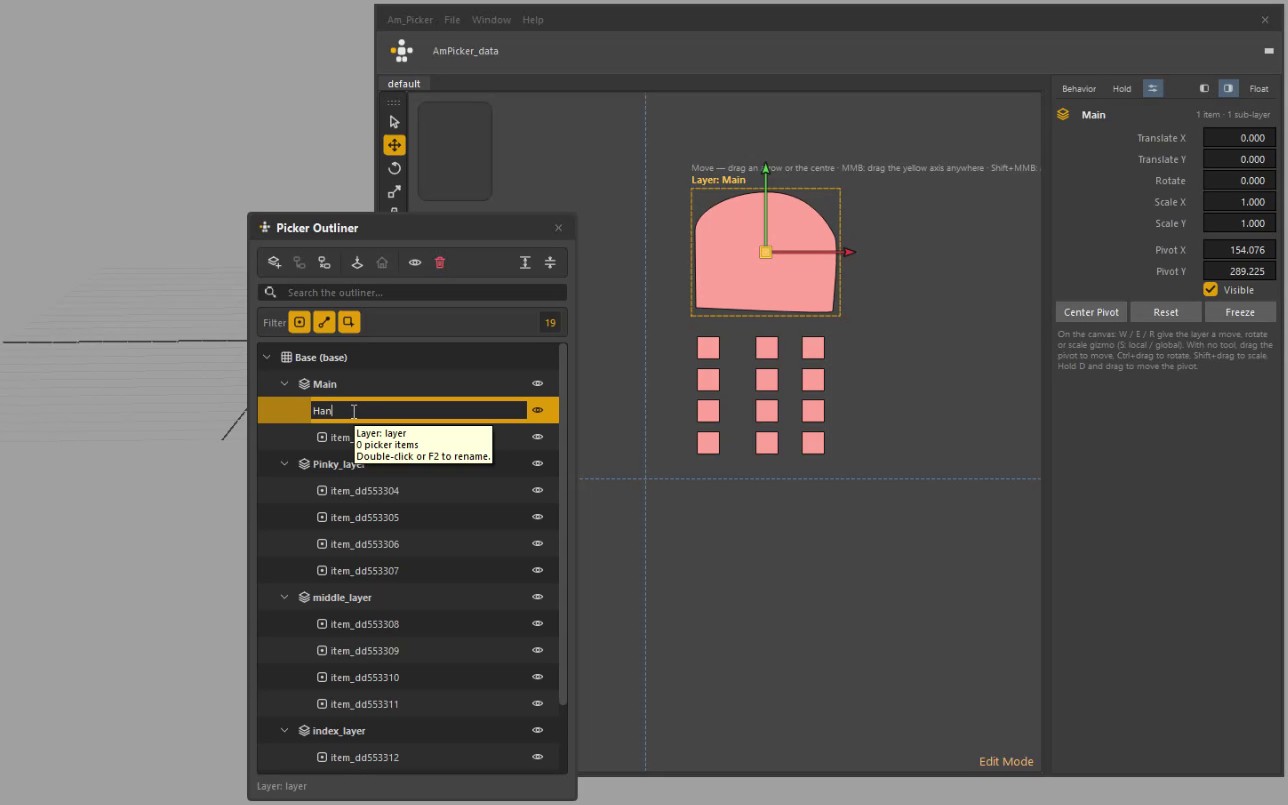
Select a layer in the Outliner: the Channel Box shows the layer's own channels.
Select a layer in the Picker Outliner and the Channel Box shows its own Translate, Rotate, Scale, Pivot and Visibility. Every item in the layer — and in the layers nested under it — moves around one pivot, the way children move under a Maya group. Each item keeps its own channels.
On the canvas the layer gets a frame, a pivot and its own move, rotate and scale gizmos:
| Input | Does |
|---|---|
| W / E / R | The layer's move, rotate and scale gizmos — the same arrows, ring and arms as an item's, with live read-outs |
| MMB drag anywhere | Drive the last-clicked axis (shown yellow) |
| Shift + MMB drag | Choose the axis from the drag direction |
| S | Switch move between the layer's own axes and the canvas axes |
| Shift while rotating | Snap the angle |
| No tool active: drag the pivot | Move the layer |
| Ctrl + drag the pivot | Rotate |
| Shift + drag the pivot | Scale |
| Hold D | Move the pivot itself, with any tool |
A negative scale mirrors the whole layer.
Center Pivot, Reset and Freeze are in the Channel Box and on the layer's right-click menu, next to Select Layer Items. Every change is one undo step, and the values are saved with the picker.
Selecting through the hierarchy
| Key | Does |
|---|---|
| Page Up | One step up: the item's picker parent, else its layer; from a layer, its parent layer |
| Page Down | One step down: an item's picker children; from a layer, its items (or its first child layer) |
Channels, many at once
A layer's channels behave like an item's. Click a channel name to select it, Ctrl + click to add or remove one, Shift + click for a range, or drag across the names. Then MMB drag — on a name, a value or empty space — to change every selected channel at once, as one undo step.