Menus
Every menu in the tool, and which mode each entry appears in.
Title bar
Am_Picker
| Entry | Key | Mode |
|---|---|---|
| Refresh | F5 | Both |
| Preferences | K | Both |
File
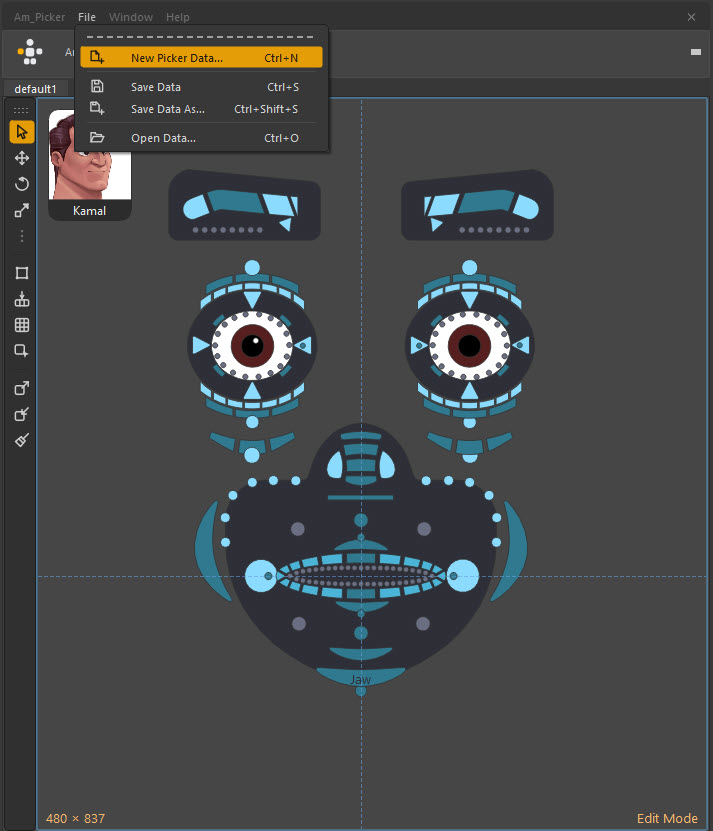
| Entry | Key | Mode |
|---|---|---|
| New Picker Data… | Ctrl+N | Edit |
| Save Data | Ctrl+S | Edit |
| Save Data As… | Ctrl+Shift+S | Edit |
| Open Data… | Ctrl+O | Both |
Window
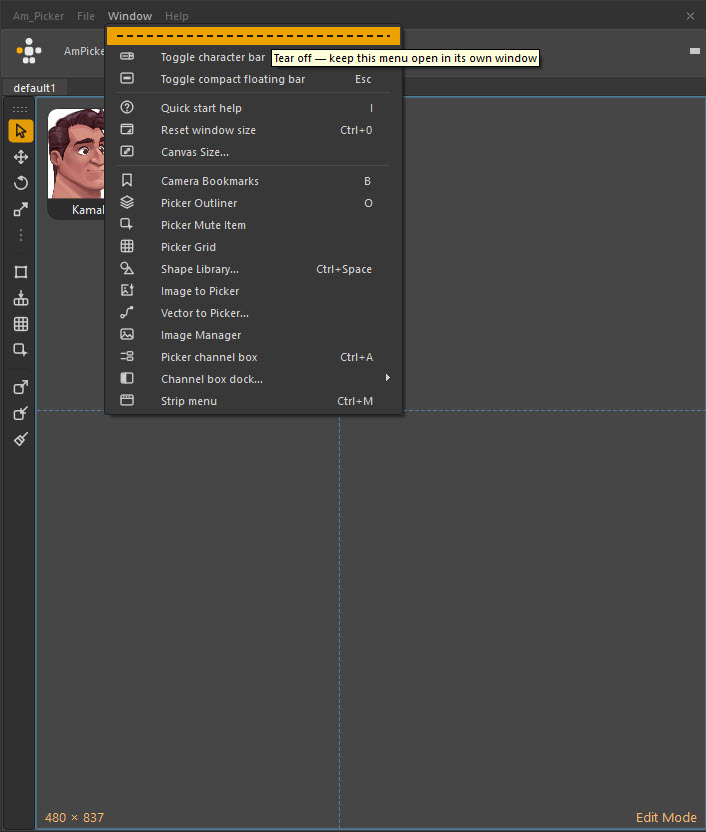
The dashed strip at the top tears the menu off into a floating panel, so it stays open while you work.
| Entry | Key | Mode | Page |
|---|---|---|---|
| Toggle character bar | Space | Both | Interface |
| Toggle compact floating bar | Esc | Both | Interface |
| Quick start help | Both | Your first picker | |
| Reset window size | Ctrl+0 | Both | |
| Canvas Size… | Edit | Edit mode | |
| Camera Bookmarks | B | Edit | Camera bookmarks |
| Picker Outliner | O | Edit | Picker Outliner |
| Picker Mute Item | Edit | Mute shapes | |
| Picker Grid | Edit | Grids | |
| Shape Library… | Ctrl+Space | Edit | Shape library |
| Image to Picker | Edit | Generating items | |
| Vector to Picker… | Edit | Generating items | |
| Image Manager | Edit | Images | |
| Picker channel box | Ctrl+A | Edit | Channel Box |
| Channel box dock… | Edit | Channel Box | |
| Strip menu | Ctrl+M | Edit | Edit mode |
Help
| Entry | Does |
|---|---|
| Quick start | Start here — seven numbered steps from an empty canvas to a saved picker, then every key from your own keymap. A Yours / Defaults switch shows the shipped keys |
| Documentation | This site |
| Report a Bug or Suggestion | The contact form on movahhedi.com |
| About Am_Picker | Version and channel, the Maya / Python / Qt / install-path block a bug report needs (one button copies it), and the way to the docs, licence and donation panel |
| License | The MIT terms in plain language, the full notice, and every third-party component |
Am_Picker ▸ Check for Updates… opens the update window.
Canvas menu — Anim mode
Right-click empty canvas.
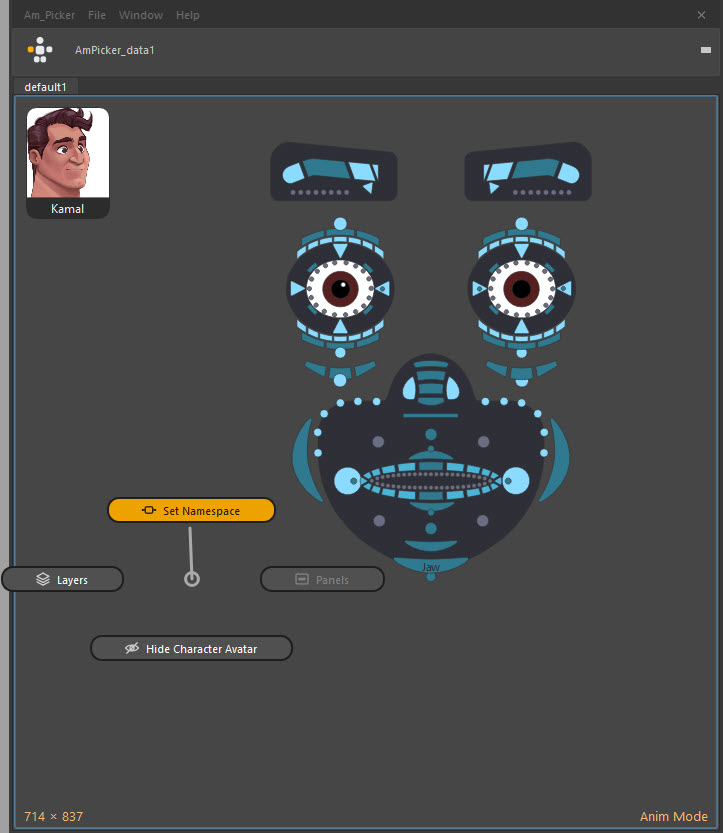
| Entry | Does |
|---|---|
| Set Namespace… | Point the picker at a referenced rig — namespaces |
| Layers ▸ | Every layer in the tab, each a toggle |
| Panels ▸ | Every panel, each a toggle, with its layers indented |
| Show / Hide Character Avatar | The corner portrait |
All four are always present — a tab with no panels greys that entry rather than removing it. With marking menus on they sit one per direction: up Set Namespace, left Layers, right Panels, down Avatar.
Canvas menu — Edit mode
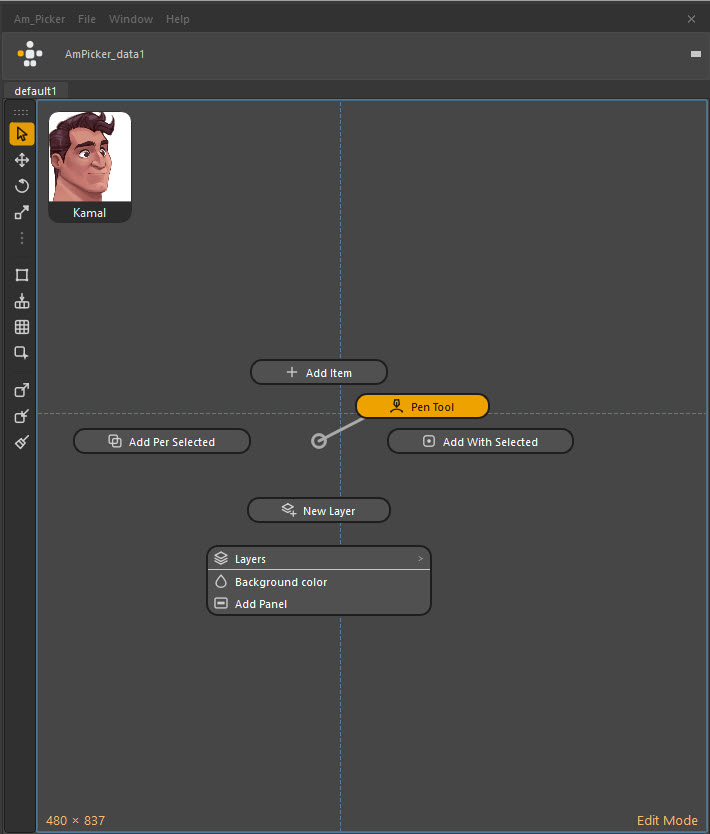
| Entry | Does |
|---|---|
| Add Item | A new picker item |
| Pen Tool | Arm the pen |
| Add Per Selected | One item per selected Maya object, bound |
| Add With Selected | One item bound to all selected Maya objects |
| New Layer | A new layer in this tab |
| Layers ▸ | Layer visibility and assignment |
| Background color | The canvas background colour |
| Add Panel | A new panel |
Item menu — Edit mode
Right-click an item.
| Entry | Does |
|---|---|
| Behavior | Picker Behavior — I |
| Shape ▸ Combine as holes | Fold the other selected items in as holes |
| Shape ▸ Release holes | Split a compound shape back into items |
| Colour | Set the item's colour — C |
| Create mute shape from selection | A backdrop fitted to the selection |
| Z depth | Stacking order |
| Parent / Unparent | Item hierarchy |
Item menu — Anim mode
Whatever the rigger put there. An item with right-click menus configured offers them here; an item without one has no menu of its own.
Tab bar — Edit mode
Right-click the tab bar.
| Entry | Does |
|---|---|
| Add Tab | A new page |
| Rename Tab | Rename it |
| Remove Tab | Delete it and everything on it |
| Move Tab ‹‹‹ / ››› | Reorder |
Tool strip
Right-click the strip to move it to another edge or float it. Its buttons are the same commands as the align, transform and mode keys — see keyboard shortcuts.