Mute shapes
Decoration that groups without selecting. The frames, backdrops and dividers that make a layout readable.
Window → Picker Mute Item
What they are
A mute shape is a shape on the canvas that is not a picker item. It has no controls, selects nothing, and is invisible to a click in Anim mode.
Use them for:
- a soft box behind the face controls, so the face reads as one region
- a divider between the IK column and the FK column
- a backdrop that groups the fingers of one hand
- an arrow, a bracket, anything that explains the layout
Why a separate kind of object
You could draw a big background rectangle as an ordinary picker item bound to nothing. It would look the same — and then swallow every click meant for the buttons sitting on top of it, and clutter the Outliner, and get picked up by every marquee drag.
Mute shapes exist so decoration can be decoration: drawn, arranged and styled like everything else, but transparent to the selection machinery.
Nothing is muted
The name is historical and misleading. Mute shapes have nothing to do with muting, with Maya's mute channels, or with layer visibility. They are non-selectable decoration.
Making one
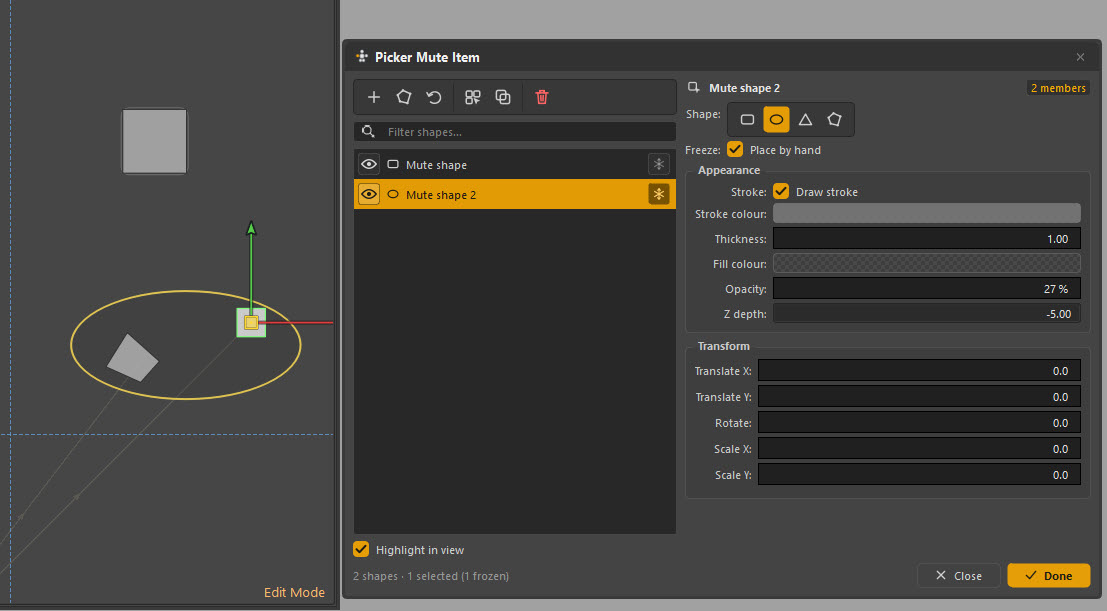
The + button, or the shape buttons beside it. Four shapes are built in — rectangle, ellipse, triangle, polygon — chosen from the Shape row in the properties panel.
You can also create one from a selection of items, via the item right-click menu, to get a backdrop that already fits what it is grouping.
Properties
| Group | Setting | What it does |
|---|---|---|
| Freeze | Place by hand | Lock it so it cannot be dragged while you work on top of it |
| Appearance | Draw stroke, Stroke colour, Thickness | The outline |
| Fill colour, Opacity | The fill — keep opacity low | |
| Z depth | Stacking. Negative pushes it behind the items, which is nearly always what you want | |
| Transform | Translate, Rotate, Scale | Numeric placement |
Highlight in view marks the selected mute shape on the canvas so you can find it among a dozen similar backdrops.
The counter at the bottom — "2 shapes · 1 selected (1 frozen)" — is how you tell at a glance whether the one you cannot drag is frozen rather than broken.
Working with them
Mute shapes have their own selection mode, because they are deliberately hard to click by accident:
- The M button on the tool strip switches to mute-shape selection
- The Picker Outliner's filter toggles show or hide them in the tree
- Highlight in view finds the selected one on a crowded canvas
Getting the look right
Low opacity. 15–30% is usually right. The screenshot's example sits at 27%. A backdrop you notice is a backdrop that is too strong.
Negative Z depth. Push them behind the items — -5 in the screenshot. A
mute shape drawn on top of your buttons will not block clicks, but it will
obscure them.
Freeze them when done. Once a backdrop is placed, tick Place by hand off so you stop dragging it while trying to grab the buttons on top of it.
Fewer than you think. Three or four regions on a picker is legible. A frame around every group is a picker made of frames.
Mute shapes, layers and items
Three things that sound similar and are not:
| What it is | |
|---|---|
| Mute shape | Decoration. Never selectable, never bound |
| Layer | A visibility group. Contains items, and can be switched off wholesale |
| Item with no controls | A real picker item that happens to be unbound — still clickable, still in the way |
If you want decoration, use a mute shape. If you want a group you can hide, use a layer. An unbound item is almost never what you want.