Sculpting outlines in Maya
Turn picker items into real Maya polygons, shape them with any Maya tool you like, and push the result back.
Some outlines are easier to get right with Maya's own modelling tools — extrude an edge, soft-select a curve of vertices, or run Mesh ▸ Mirror on a half-drawn shape. The three mesh buttons at the end of the edit toolbar make that a round trip.
| Button | Does |
|---|---|
| Convert To Mesh | Builds a Maya poly mesh from each selected picker item |
| Convert To PickerItem | Pushes the selected meshes back onto their picker items as new outlines |
| Delete convert data | Removes the Maya group that holds this tab's conversion meshes |
The round trip
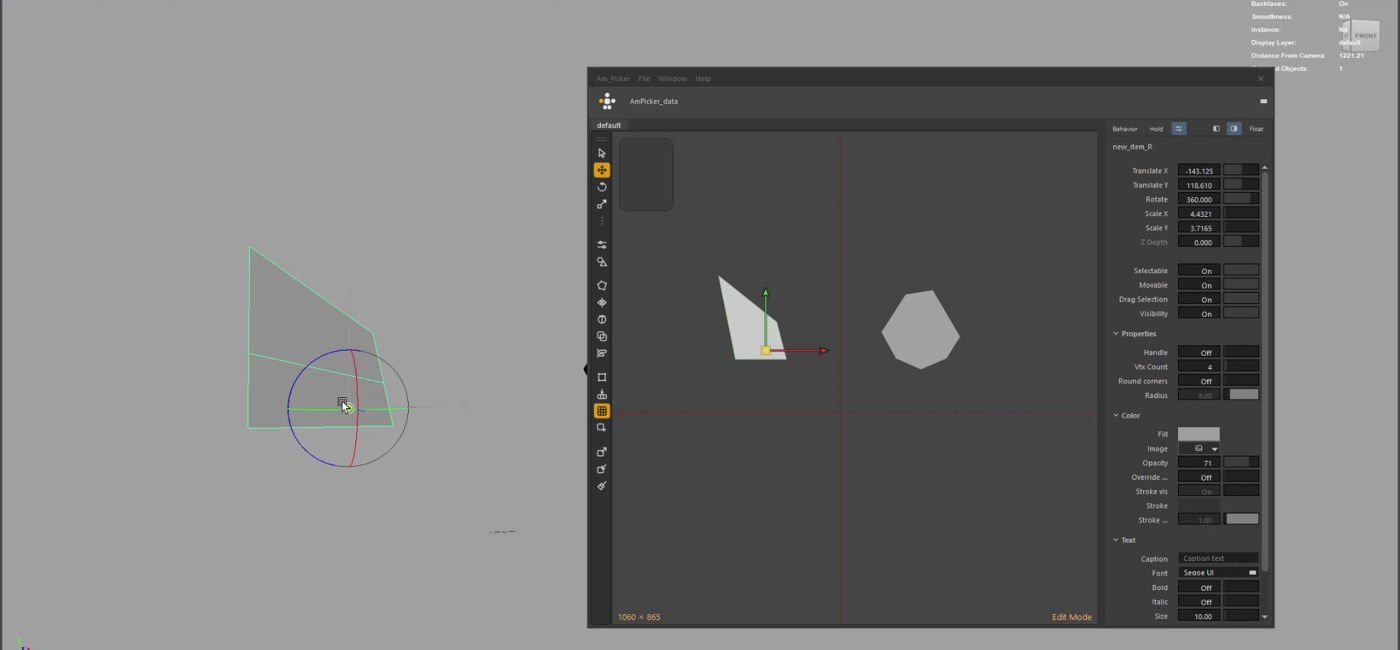
Left: the picker item as a Maya mesh, being reshaped. Right: the picker.
- Select the items in the picker and press Convert To Mesh. A mesh appears
in the viewport for each one, named after its item and grouped under
pickerData_extraction. - Edit the meshes with anything — move vertices, extrude, soft-select, Mesh ▸ Mirror. Keep each one a single flat piece with a border.
- Select the meshes in Maya and press Convert To PickerItem. Each picker item takes its mesh's border as its new outline.
- Press Delete convert data when you are finished.
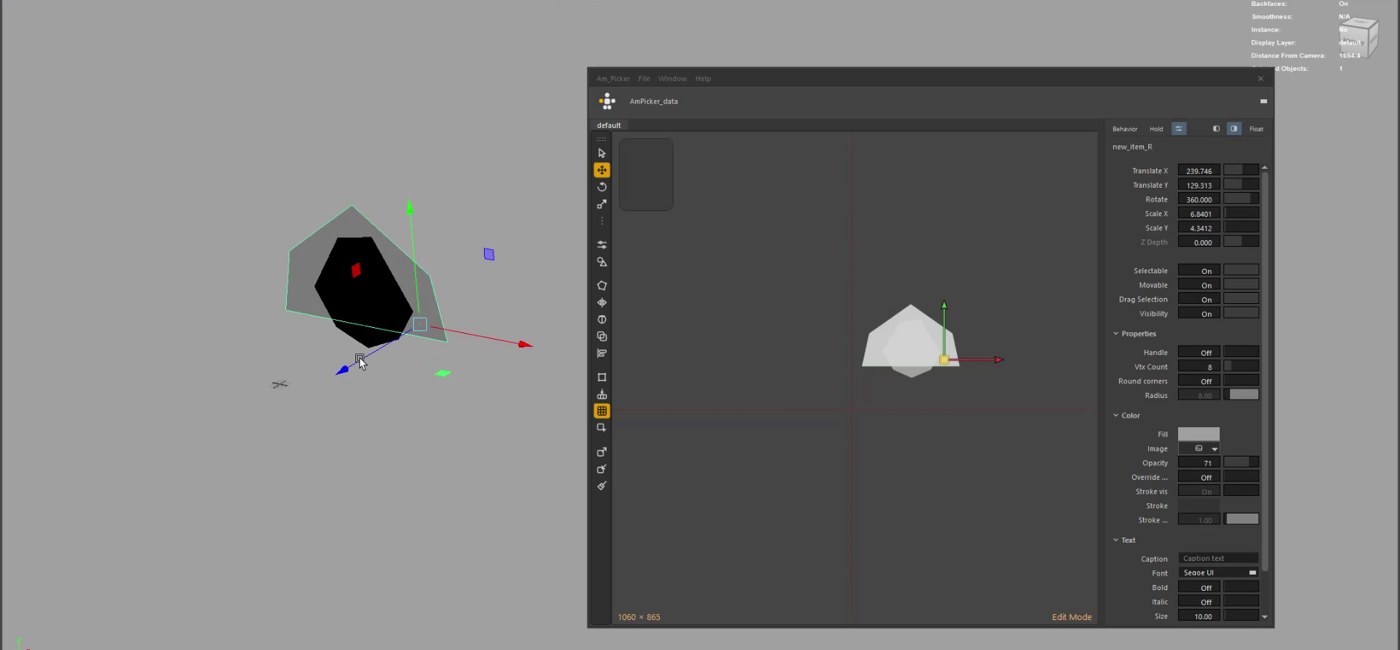
The reshaped outline, back on the picker item.
Which item gets which mesh
Each mesh is named after its picker item, and Convert To PickerItem matches them by that name — so keep the names. With exactly one mesh selected in Maya and one item selected in the picker, the mesh goes onto that item whatever it is called. With no mesh selected, every mesh under the tab's conversion group is matched by name.