Generating items from art
Two tools that make picker items out of pictures, so you draw the character once — or not at all.
| Tool | Input | Output |
|---|---|---|
| Image to Picker | A bitmap — concept art, a viewport capture | Items traced from the silhouette |
| Vector to Picker | An SVG | One item per outline, curves and holes intact |
If you have the choice, use Vector to Picker. Tracing a bitmap is a guess at where the edges are; an SVG already knows.
Image to Picker
Window → Image to Picker
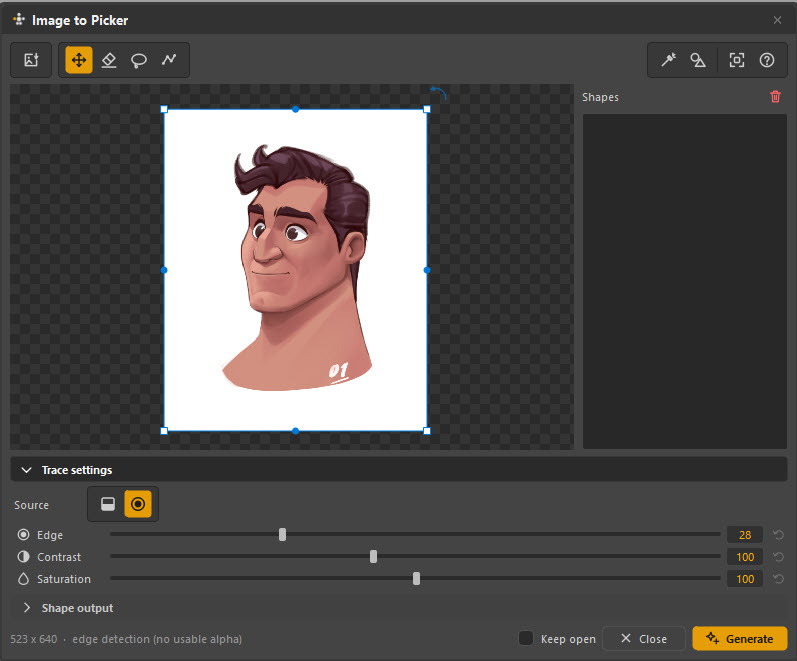
Point it at a bitmap and it finds outlines in the image, then turns them into picker items.
The toolbar
| Tool | Does |
|---|---|
| Import | Load an image |
| Transform | Move, scale and rotate the image before tracing |
| Eraser | Rub out parts you do not want traced |
| Lasso | Restrict tracing to a region |
| Curve | Draw a line to cut the silhouette |
The eraser and lasso matter more than they look. A trace of a whole model sheet is unusable; a trace of one arm, with the background rubbed out, is a picker.
Source and trace settings
Source picks what the trace reads: the image's alpha if it has a usable
one, or edge detection if it does not. The status line tells you which it
settled on — edge detection (no usable alpha) in the screenshot.
| Slider | What it changes |
|---|---|
| Edge | How aggressively edges are found. Low finds only strong outlines; high finds texture and noise |
| Contrast | Applied before tracing — push it up on a flat drawing |
| Saturation | The same, for a colour image where hue carries the shape |
Shape output controls what the found outlines become — how many anchors each shape gets, and how much they are smoothed.
Press Generate to make the items. Keep open leaves the window up so you can adjust and generate again — which you will, two or three times, before the settings are right.
Trace parts, not characters
Load the image, erase everything but one region, generate, then undo-adjust -regenerate until that region is right. Repeat per region. It is slower to describe than to do, and it is the difference between usable output and a thousand-vertex blob.
NumPy and OpenCV are both optional but both help here — NumPy speeds the trace up, OpenCV adds better edge-detection modes.
Vector to Picker
Window → Vector to Picker…
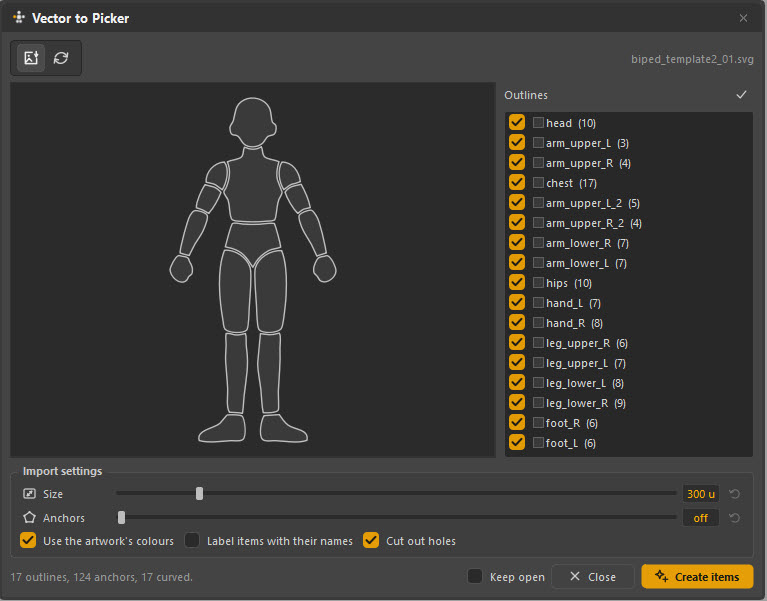
Import an SVG and get one picker item per outline, with real Bézier curves, holes cut out, and the artwork's own colours.
This is the highest-quality route into the tool by a distance. Draw the picker in Illustrator, Inkscape or Figma — where you have proper drawing tools — name the layers after what they are, and import.
The outline list
Every outline in the file, with its anchor count, each individually tickable. The
names come from the SVG, which is why naming your layers in the drawing
program is worth doing: arm_upper_L arrives as an item called arm_upper_L,
and the mirror commands will understand it later.
Import settings
| Setting | What it does |
|---|---|
| Size | Scale on import, in canvas units |
| Anchors | The anchor budget per outline. off keeps the SVG's own points; raising it simplifies |
| Use the artwork's colours | Take each item's fill from the SVG |
| Label items with their names | Draw the outline's name on the item |
| Cut out holes | Inner rings become holes rather than separate solid shapes |
The status line reports what it found — 17 outlines, 124 anchors, 17 curved — before you commit.
The shipped templates
Am_Picker ships biped template SVGs, which is what the screenshot is showing. They are a complete humanoid outline set, correctly named and split. Import one, bind it to your rig, and you have a body picker in an afternoon without drawing anything.
Which to use
-
You have a designer, or you can draw vectors
Vector to Picker. Draw it properly, name the layers, import once. Everything downstream — mirroring, colour, holes — works better.
-
You have concept art and no vector version
Image to Picker, region by region, with the eraser doing most of the work.
-
You have neither
Capture the Maya viewport from the Image Manager with only Mesh enabled and a transparent background, then trace that.
-
You just need it working today
Skip both. Ctrl+Shift+A gives you a bound square per control in one keystroke; a plain picker that works beats a beautiful one that is not finished.