The interface
Every part of the window, named. The rest of this documentation points at these things without describing them again.
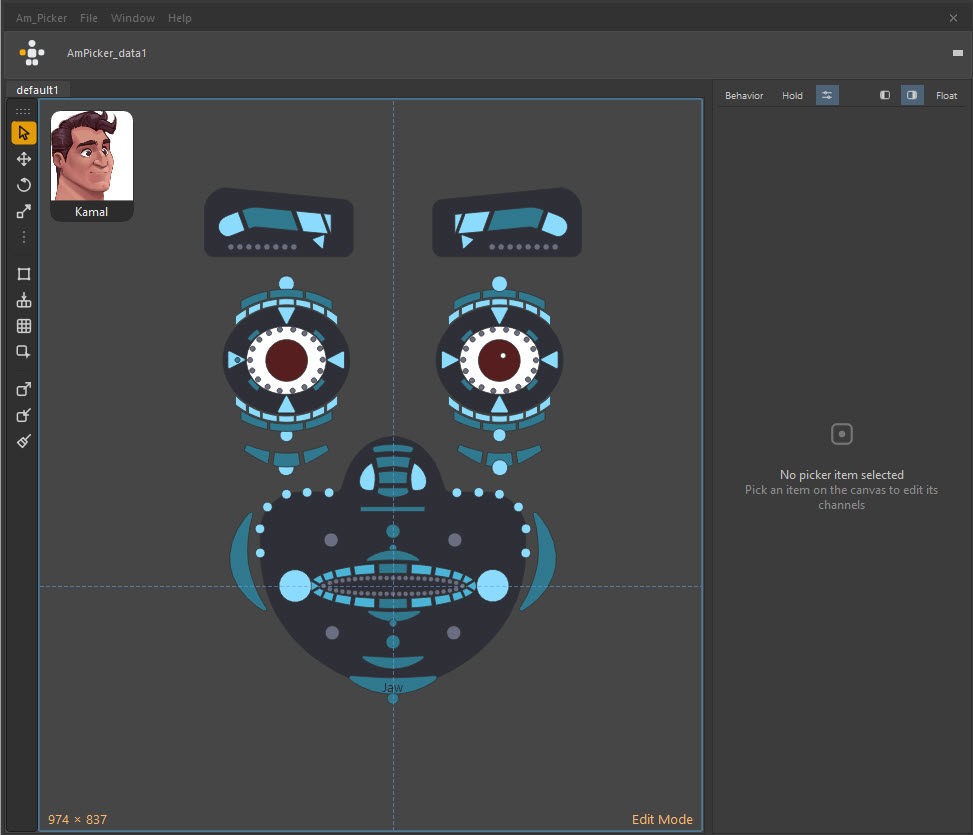
Edit mode, with the character bar at the top, one tab, the tool strip down the left, and the Picker Channel Box docked on the right.
The window itself
Am_Picker draws its own title bar rather than using the operating system's, so it looks the same on Windows, macOS and Linux and can carry the menus and the character name in one strip.
| Part | What it is |
|---|---|
| Title bar | The Am_Picker / File / Window / Help menus. Drag any empty part of it to move the window. |
| Character bar | The row under the title bar: the character avatar, the picker-node selector, and quick New / Save / Refresh buttons in Edit mode. Hide it with Space for a minimal window. |
| Tab bar | One tab per picker page. Right-click it in Edit mode to add, rename, remove or reorder. |
| Canvas | Where the picker items live. This is the part that matters. |
| Tool strip | Edit mode only — the vertical toolbar of drawing and manipulation tools. Toggle with Ctrl+M. See the edit toolbar. |
| Corner read-outs | Bottom left: canvas size. Bottom right: Edit Mode / Anim Mode. Both can be turned off in Preferences. |
Moving and sizing the window works from anywhere inside it, not just its edges:
| Input | Does |
|---|---|
| Alt + LMB drag | Move the window |
| Ctrl+Alt + LMB drag | Resize the window |
| Ctrl+0 | Reset the window to the picker's own canvas size |
| Esc | Collapse to the compact floating bar, and back |
The two modes
Alt+W swaps between them — so does one click on the Am_Picker mark in the main window, left of the character list — and the bottom-right corner always says which one you are in.
-
Anim mode
The everyday mode. Clicking a shape selects its controls; selecting a control in Maya highlights its shape. No grid, no tool strip, nothing draggable.
The canvas right-click menu has four entries: Set Namespace, Layers, Panels, and the avatar toggle.
-
Edit mode
The authoring mode. Gizmos, drawing tools, alignment, grids, the outliner, the channel box, and the whole Window menu.
A faint frame can be drawn around the canvas as a reminder you are in it — Preferences → General → Edit mode frame.
Menus
Am_Picker
Refresh (F5) and Preferences (K).
File
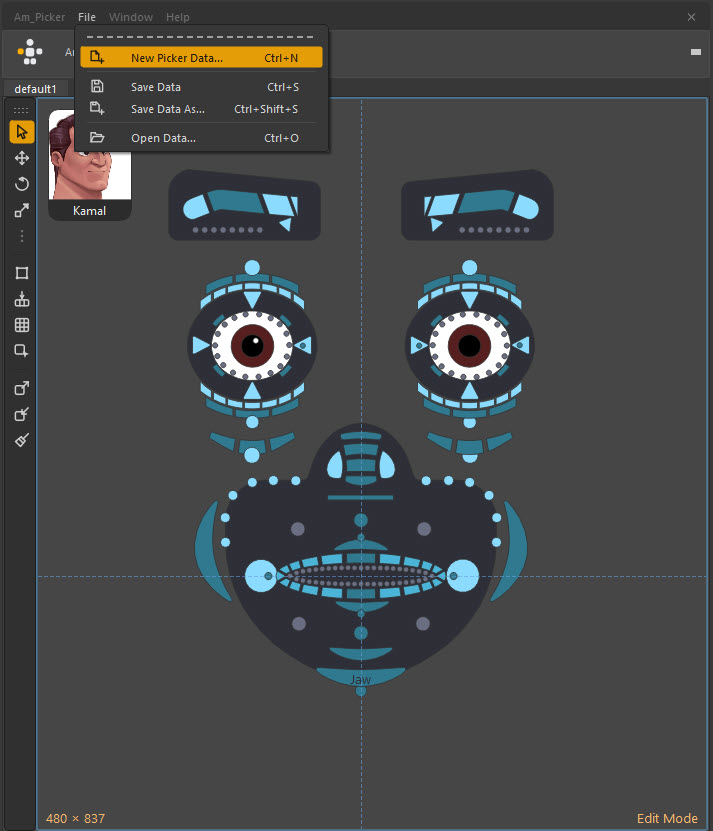
| Entry | Key | Does |
|---|---|---|
| New Picker Data… | Ctrl+N | Create a picker data node in this scene |
| Save Data | Ctrl+S | Write the picker to its node, and to its linked file if it has one |
| Save Data As… | Ctrl+Shift+S | Write it somewhere new |
| Open Data… | Ctrl+O | Load an .ampkr file into this scene |
Window
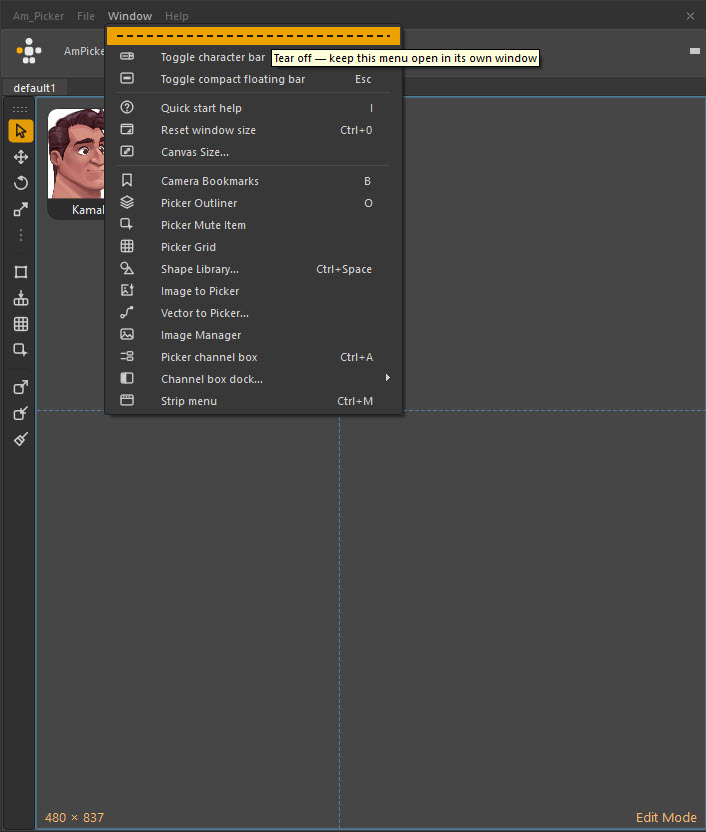
Everything the tool can open. The dashed line at the top tears the menu off into its own floating window — useful while building, when you are opening the outliner and the shape library over and over.
| Entry | Key | Page |
|---|---|---|
| Toggle character bar | Space | Hides the avatar row for a minimal window |
| Toggle compact floating bar | Esc | Collapses the whole window to a small floating square |
| Quick start help | The in-tool version of Your first picker | |
| Reset window size | Ctrl+0 | Back to the picker's own canvas size |
| Canvas Size… | Resize the canvas | |
| Camera Bookmarks | B | Camera bookmarks |
| Picker Outliner | O | Picker Outliner |
| Picker Mute Item | Mute shapes | |
| Picker Grid | Grids | |
| Shape Library… | Ctrl+Space | Shape library |
| Image to Picker | Generating items from art | |
| Vector to Picker… | Generating items from art | |
| Image Manager | Images and backgrounds | |
| Picker channel box | Ctrl+A | Channel Box |
| Channel box dock… | Dock it left, right, or float it | |
| Strip menu | Ctrl+M | Show or hide the tool strip |
Most of these are Edit-mode only. In Anim mode the Window menu is short on purpose.
Help
Quick start, this documentation, Report a Bug or Suggestion, About and License — see Menus.
The canvas
The canvas is a scrollable, zoomable page. It is not a fixed image — the canvas size is the window's base size, and you can pan and zoom around inside it freely.
| Input | Does |
|---|---|
| MMB drag | Pan |
| Wheel, or Alt + RMB drag | Zoom |
| F | Frame the selected items, or reset the view if nothing is selected |
| 0 | Reset the camera to this tab's framing |
| RMB | The canvas menu — radial by default, a plain list if you prefer |
Marking menus
By default every context menu is a radial marking menu: press RMB and flick toward the entry you want. The menu appears if you hesitate, and does not if you do not — so it teaches you the directions and then gets out of the way.
If you would rather have plain lists, turn them off in Preferences → General → Context menus → Use radial marking menus.
The edit toolbar
The tool strip is more than drawing tools. Read top to bottom, it carries:
| Button | Does |
|---|---|
| Select, Move, Rotate, Scale | The gizmos — W E R |
| Shape · Mirror · Duplicate · Align | Icon menus with the same commands as the right-click submenus. Every one tears off into its own window — Toolbar menus |
| Shape symmetry | Lit amber while on — Shape symmetry |
| Widgets | Ready-made sliders, dials and switches — Widgets |
| Shape Library | Ctrl+Space — Shape library |
| Convert To Mesh · Convert To PickerItem · Delete convert data | Sculpting outlines in Maya |
Hover any button for its name and its key.
F1 shows the shortcuts of the tool in your hand — pen, move, rotate, scale, free transform, add item or vertex editing — under the character avatar, and follows you as you switch tools.
Long operations, such as deleting many items at once, show Am_Picker's own progress circle over the canvas: the logo figure, with its amber walking round the body as the work runs.
Overlays you can turn off
Several things drawn on the canvas are conveniences rather than content, and all of them can be switched off in Preferences → General:
| Overlay | Default | What it is |
|---|---|---|
| Canvas size read-out | On | 714 × 837 in the bottom-left corner |
| Edit / Anim read-out | On | The mode name in the bottom-right corner |
| Tool name when you pick one | Off | Names the active tool as you switch |
| Edit mode frame | Off | A coloured border around the canvas while editing |
Panels, docking and floating
The Picker Channel Box can sit left of the tabs, right of the tabs, or float in its own window — Window → Channel box dock…. Where you put it is remembered between sessions.
The tool strip starts docked to the left edge of the canvas. Right-click it to move it to any edge, or to float it free of the window.
The compact floating bar (Esc) shrinks the entire picker to a small square you can park anywhere on screen, with one button to bring it back. It is for the moment you need the screen space but do not want to close the picker and lose your place.