Mirroring
Build one side. Am_Picker builds the other — and, if you let it, keeps the two in step while you keep working.
Ctrl+Shift+D Duplicate + mirror Ctrl+Alt+Shift+D Mirror options M Live mirror link Shift+M Unlink
There are three kinds of mirroring, and they answer three different questions:
| Use it when | Lasts | |
|---|---|---|
| Duplicate + mirror | The right side does not exist yet | One step |
| Live mirror | Both sides exist and should stay matched while you edit | Until you unlink |
| Shape symmetry | One item should be symmetric in itself — a jaw, a chest | While it is switched on |
All three are on the Mirror button of the edit toolbar and on the item's right-click menu ▸ Mirror. Every one of them is a single Ctrl+Z.
Duplicate + mirror
Select the left-side items and press Ctrl+Shift+D. You get mirrored copies
on the other side of the grid, with their names and their bound Maya controls
swapped to the opposite side — L_hand_ctrl becomes R_hand_ctrl.
Duplicate + Mirror Options — Ctrl+Alt+Shift+D
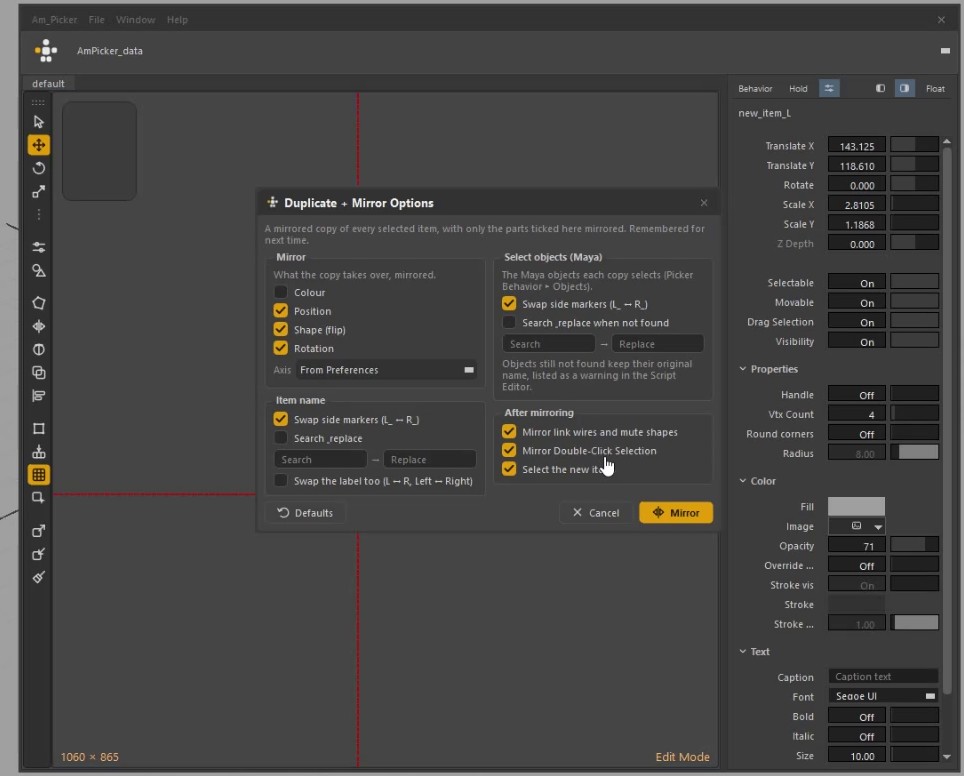
Duplicate + Mirror Options — what gets mirrored, and how names are swapped.
The same command with a window first, in the manner of Maya's Paste Options. Choose what is mirrored:
| Section | Option | Does |
|---|---|---|
| Mirror | Colour · Position · Shape (flip) · Rotation | Which properties of the item are mirrored. Colour swaps red ↔ blue, the usual left/right convention |
| Item name | Swap side markers · Search / replace | L_ ↔ R_ (and the other pairs you define) in the item's own name, or your own search-and-replace |
| Select objects (Maya) | Swap side markers · Search / replace when not found | The same swap on every bound control. A control is only renamed when the opposite one actually exists |
| After mirroring | Mirror link wires and mute shapes | Wires and decorative frames come along |
| Mirror Double-Click Selection | Each entry of the copy's double-click list points at its counterpart instead of the original | |
| Select the new items | Leave the copies selected, ready to move | |
| Axis | From Preferences | Mirror across the grid line set in Preferences |
The settings are remembered, so after the first time Ctrl+Shift+D is all you need.
Side markers match whole words only
L_shoulder_ctrl becomes R_shoulder_ctrl — not R_shouldeR_ctrl. When an
opposite object cannot be found, Am_Picker tries the other plausible
spellings and lists anything it had to leave unchanged in the Script Editor.
The marker pairs are in Preferences → General → Mirror.
Mirroring items that already exist
When both sides are already drawn, mirror one onto the other instead:
| Key | Does |
|---|---|
| ++num-7++ / ++num-9++ | Find each item's counterpart by its side identifier and move it into place, preferring L → R / R → L |
| ++ctrl+num-7++ / ++ctrl+num-9++ | The same, and copy the shape and rotation too |
| ++num-1++ / ++num-3++ | Exactly two items: mirror one onto the other by X position |
| ++ctrl+num-1++ / ++ctrl+num-3++ | The same, with shape and rotation |
| ++alt+num-1++ / ++alt+num-3++ | Colour only |
Mirror ▸ Flip has Flip shape, Flip colour and Flip position, which flip the whole selection in place.
Mirroring happens across the active grid's vertical line, not the window's centre — a face board mirrors about the face. See Grids.
Live mirror
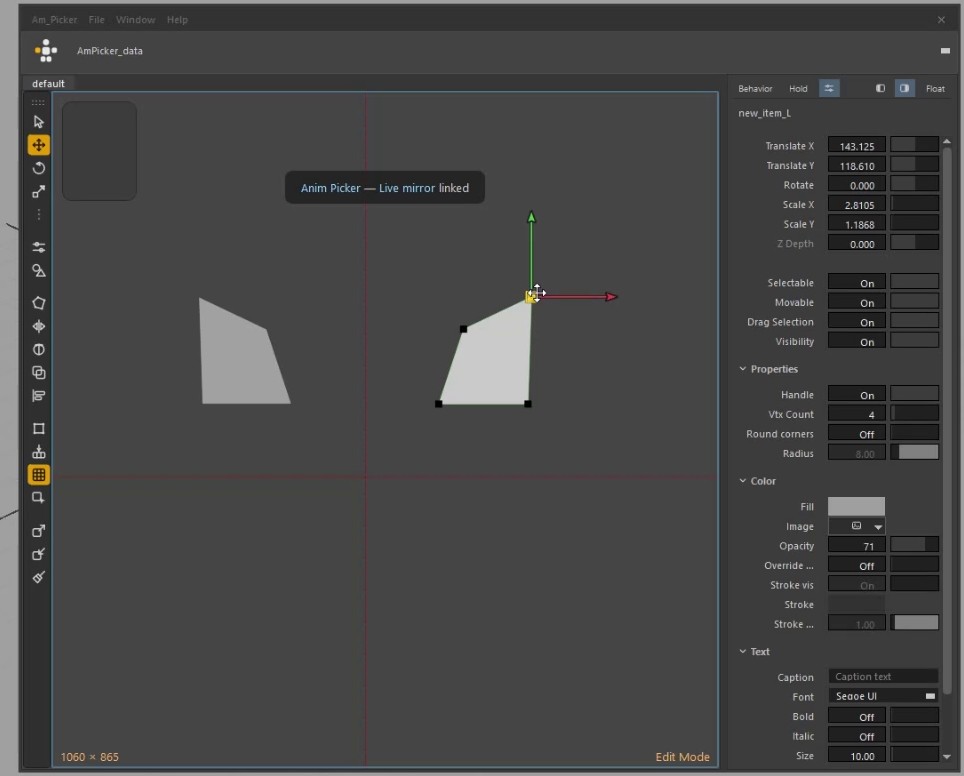
"Live mirror linked": move, rotate, scale or reshape one side and the other follows.
Link a left and right item as a pair, and they stay mirrored while you work. Move, rotate or scale one side — or drag its vertices and tangents — and the other follows in real time, across its own grid's mirror axis (Preferences → General → Mirror axis).
Colours are deliberately left alone, so your side colours stay what you set.
| To | Do |
|---|---|
| Link pairs automatically | Mirror ▸ Auto live mirror on. Duplicate + mirror, Mirror by X and Mirror ID then link every pair they make |
| Link two items that were never paired | Select one, hold M, click the other, release M |
| Unlink one item | Select it and tap M. Tap again to link the same pair back |
| Unlink everything selected | Shift+M |
| Jump to the other side | Mirror ▸ Live mirror: select partner |
| Even out a pair that drifted | Mirror ▸ Live mirror: make symmetric now |
One Ctrl+Z undoes both sides, and links are saved with the picker.
Shape symmetry
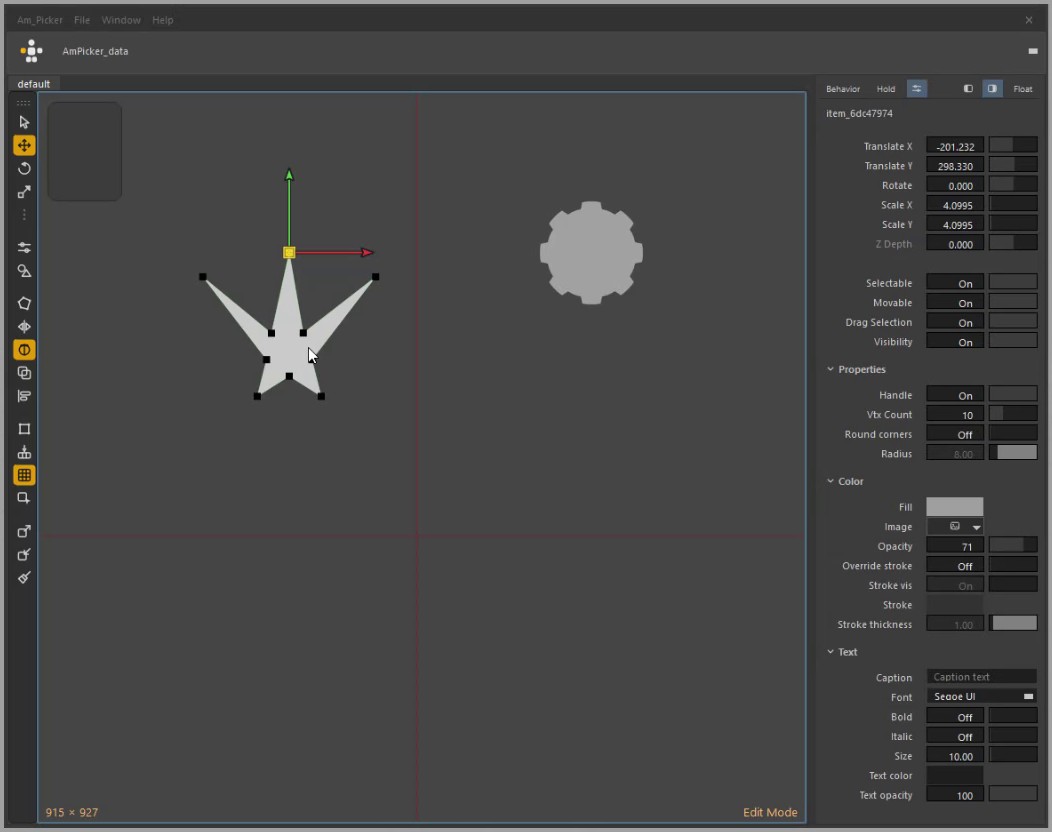
Shape symmetry: drag a vertex and its mirror vertex on the same item follows.
Live mirror for a single item. Turn on Mirror ▸ Shape symmetry — or the symmetry button next to Mirror on the toolbar, which stays lit amber while it is on — and edit the item's vertices or tangents: the matching vertex on the other side follows, so the shape stays symmetric.
| Setting | Does |
|---|---|
| Shape symmetry about: Grid | Mirrors about the line through the item's local grid, on the Mirror-axis preference |
| Shape symmetry about: Pivot | Mirrors about the line through the item's edit pivot, which moves and turns with the item |
| Shape symmetry: make symmetric now | Evens out a shape that was drawn freehand |
Vertices that sit on the mirror line stay on it, two matching holes (a pair of eyes) mirror each other, and if you move both sides at once they meet halfway.
Learn it on video
Part 1 of the video tutorials builds a mirrored pair from scratch, live mirror included.