Saving and sharing
Where a picker lives, how to export one, and how to hand it over so it still works on somebody else's shot.
Two places a picker can live
| What it is | Good for | |
|---|---|---|
| The data node | A node inside the Maya scene holding the picker as data | Pickers that belong to one scene or ship inside a rig |
An .ampkr file |
A self-contained package on disk | Sharing between scenes, artists and shots |
They are not alternatives — most pickers use both. The node is where the picker is; the file is how it travels.
Saving
Ctrl+S, or File → Save Data.
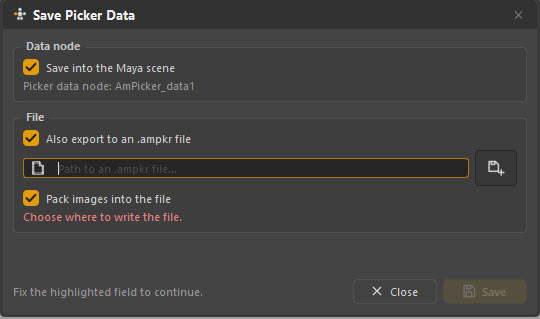
| Option | What it does |
|---|---|
| Save into the Maya scene | Write the picker onto its data node |
Also export to an .ampkr file |
Write a package to disk as well |
| Pack images into the file | Copy the images inside the package, so it is self-contained |
Once a picker has a linked file, Ctrl+S writes both places at once — the node and the file stay in step without you thinking about it.
Saving the picker is not saving the scene
Writing the picker onto the node changes the Maya scene in memory. That node only reaches disk when Maya's file is saved. Do both.
Pack images or not
Pack them when the picker is going anywhere — another artist, another machine, a client. The package carries its own art and works everywhere.
Leave them unpacked when the picker lives inside a pipeline where the image paths are stable for everyone. The file stays small and the art stays in one place.
When in doubt, pack. A picker that opens with grey boxes where the character should be is the most common thing to go wrong in a hand-off.
Opening
Ctrl+O, or File → Open Data…
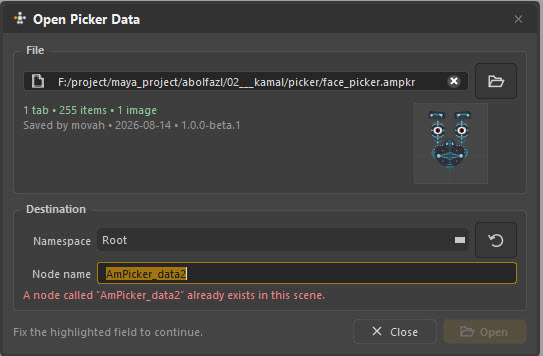
The dialog previews the file before loading — tabs, item count, images, who saved it, when, and with which version — plus a thumbnail of the layout. You can tell whether it is the file you meant before it is in your scene.
| Field | What it is for |
|---|---|
| Namespace | Which rig the loaded picker should drive. Can be changed later — see Rigs and namespaces |
| Node name | What the new data node is called. It warns you if the name is taken rather than silently making a second one |
Several pickers in one scene
A scene can hold as many picker nodes as you like — one per character. The character bar's selector switches between them, and each has its own tabs, layout, images and namespace assignment.
Name the nodes after the characters. AmPicker_data1, AmPicker_data2 and
AmPicker_data3 in a three-hander is a puzzle nobody enjoys.
Handing a picker over
A checklist that catches most of what goes wrong:
- Every item is bound. Select the whole rig in Maya and check that every item highlights. Anything dark is unbound.
- Set Namespace reads n of n. Open it and read the count.
- It works from a clean scene. Open a fresh scene, reference the rig, load the picker, set the namespace, click things. This catches everything that only worked because of state in your scene.
- Images are packed, if the file is leaving your machine.
- The window is a usable size with the channel box undocked — canvas size does not include it.
- Layers make sense to somebody else. Names like
Main,IK,Tweakers— notlayer2. - Annotations on anything unobvious. Especially face controls.
- Ten minutes in Anim mode. Use it as an animator would. Everything wrong with a picker shows up in the first ten minutes of real use.
Referenced picker nodes
If the picker node arrives through a reference, Maya will not let anything write to it. The picker still works — it just cannot be saved to, and the namespace assignment holds for the session only.
This is the normal situation for a picker built into a rig, and it is fine. To change such a picker, edit it in the rig file and republish, the same as any other rig change.
Version and compatibility
.ampkr files record the version that wrote them, shown in the Open dialog.
Older .ampkr files keep loading and are migrated on the way in, and saving
always writes the current format — so a round trip through a new version
upgrades the file.
Old .pkr files are a different matter: there is a converter, but what it
produces is not guaranteed to be correct and normally needs fixing by hand.
What to check