Edit mode
The authoring half of the window. Everything that can change a picker lives behind ++alt+w++.
Alt+W Edit / Anim Ctrl+M Tool strip Ctrl+Z Undo F5 Refresh K Preferences
Getting in and out
Alt+W. The bottom-right corner reads Edit Mode, the canvas grows a grid, and the tool strip appears down the left edge.
Why the split exists
An animator using a face picker for eight hours will click thousands of times. Without a mode, some of those clicks are drags, and a drag on a live layout moves an eyebrow button two pixels. Nobody notices until the picker is subtly wrong for everyone.
The mode is also what keeps the everyday surface small. In Anim mode there is nothing to learn: click the shape. All the gizmos, grids, snapping and ordering — the things that make a picker buildable — would otherwise be permanent clutter for the people who never need them.
An optional coloured frame can be drawn around the canvas while you are in Edit mode — Preferences → General → Edit mode frame. Worth turning on if you keep catching yourself editing when you meant to animate.
The tool strip
The vertical toolbar down the left of the canvas. Ctrl+M toggles it, and right-clicking it lets you move it to any edge or float it free of the window.
| Group | What is in it |
|---|---|
| Selection and transform | Select, move, rotate, scale, and free transform |
| Creation | Add item, add panel, grid, marquee-shape tools |
| Modes | Manipulator space, grid snapping, mute-shape selection |
| Align | Left / right / top / bottom, and match-last |
Everything on it has a keyboard equivalent, and once a picker is underway the keyboard is faster. The strip is there so you do not have to learn the keys before you can start.
Canvas size
Window → Canvas Size…
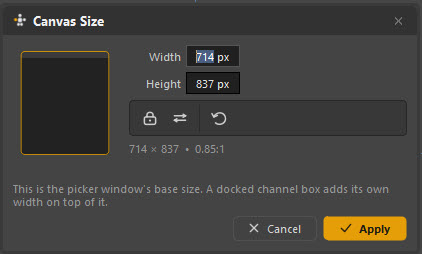
This is the picker window's base size — how big the window opens for whoever uses it. It is not a crop and not a resolution; items outside it are not lost, you just have to pan to reach them.
| Control | Does |
|---|---|
| Width / Height | The size in pixels |
| Lock | Keep the aspect ratio while you type |
| Swap | Flip width and height — portrait to landscape |
| Reset | Back to the size the picker was created at |
The note in the dialog is worth heeding: a docked channel box adds its own width on top of this. If you build with the channel box docked, the window an animator gets will be narrower than the one you are looking at.
Build at the size it will be used
Most pickers live in a strip beside the Maya viewport, not fullscreen. Set the canvas to roughly that strip, and design inside it. Ctrl+0 snaps the window back to the canvas size at any time, so you can check.
Undo
Ctrl+Z / Ctrl+Y.
Edit mode keeps its own undo stack, separate from Maya's. Moving an item, deleting one, reordering the outliner, dragging a vertex — all of that undoes inside the picker without touching your scene's undo queue.
Maya's undo is not the picker's undo
Pressing Ctrl+Z with the Maya viewport focused undoes in Maya. Pressing it with the picker focused undoes in the picker. If an undo seems to have gone to the wrong place, click the thing you meant to undo in first.
Refresh
F5 rebuilds the picker window from the data node. Use it when the scene has changed underneath the picker — a rig was reloaded, a reference swapped, a namespace changed outside the picker's knowledge.
What is Edit-mode only
Almost the whole Window menu, and every tool that changes the layout:
- Camera Bookmarks, Picker Outliner, Picker Grid, Picker Mute Item
- Shape Library, Image Manager, Image to Picker, Vector to Picker
- The Picker Channel Box and its docking
- The tool strip, all gizmos, all alignment and mirror commands
- Tab management — add, rename, remove, reorder
Anim mode keeps: the canvas, the tabs, the character bar, the four-entry canvas menu, and camera bookmark shortcuts.
While you work
| Key | Does |
|---|---|
| F | Frame the selection, or reset the view |
| 0 | Reset the camera to the tab's framing |
| Q | Hide all manipulator gizmos |
| H | Toggle the selected items' visibility |
| P | Toggle vertex handles |
| Shift+H | Toggle vertex index labels |
| O | Picker Outliner |
| I | Picker Behavior for the selected item |
| C | Set the selected items' colour |
| Ctrl+A | Picker Channel Box |
| Ctrl+Space | Shape Library |
The complete list — all 88 actions, with what each one does — is in the keyboard reference.