Preferences
Five pages, setting by setting. Open with ++k++, or Am_Picker → Preferences.
Preferences are stored in Maya's own optionVars, prefixed AP_am_picker_. They
belong to you, not to a picker — opening somebody else's picker never
changes your setup, and reinstalling the tool does not lose them.
The dialog is modeless: leave it open while you work. Apply commits without closing, OK commits and closes, Cancel discards.
General
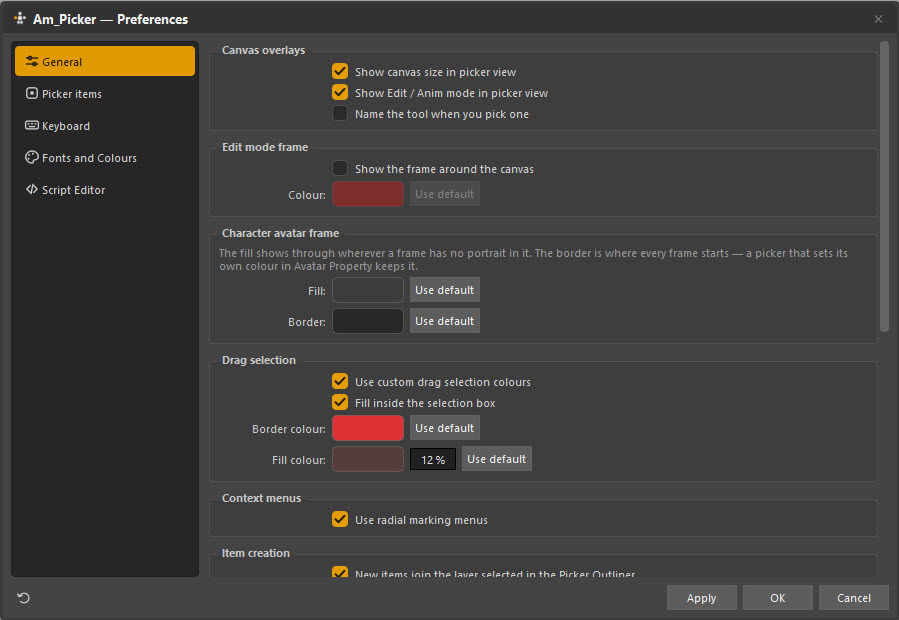
Canvas overlays
| Setting | Default | What it does |
|---|---|---|
| Show canvas size in picker view | On | The 714 × 837 read-out in the bottom-left corner |
| Show Edit / Anim mode in picker view | On | The mode name in the bottom-right corner |
| Name the tool when you pick one | Off | Briefly names the active tool as you switch |
Edit mode frame
| Setting | Default | What it does |
|---|---|---|
| Show the frame around the canvas | Off | Draws a coloured border while in Edit mode |
| Colour | Red | Its colour |
Worth turning on if you keep catching yourself editing when you meant to animate.
Character avatar frame
The defaults behind the corner portrait. The Fill shows through wherever a frame has no picture in it; the Border is where every frame starts.
A picker that sets its own colours in Image Manager → Avatar Property keeps them — these are only the fallback.
Drag selection
| Setting | Default | What it does |
|---|---|---|
| Use custom drag selection colours | On | Otherwise Maya's defaults |
| Fill inside the selection box | On | Fill as well as outline |
| Border colour | Red | The marquee outline |
| Fill colour and opacity | Red, 12% | The marquee fill |
Context menus
| Setting | Default | What it does |
|---|---|---|
| Use radial marking menus | On | Right-click menus are radial. Off gives plain lists |
Item creation
| Setting | Default | What it does |
|---|---|---|
| New items join the layer selected in the Picker Outliner | On | Where a new item lands |
If the highlighted layer is hidden the item is still created there, and the canvas says so — it will be waiting in the Outliner when you turn the layer back on.
Manipulators
| Setting | Default | What it does |
|---|---|---|
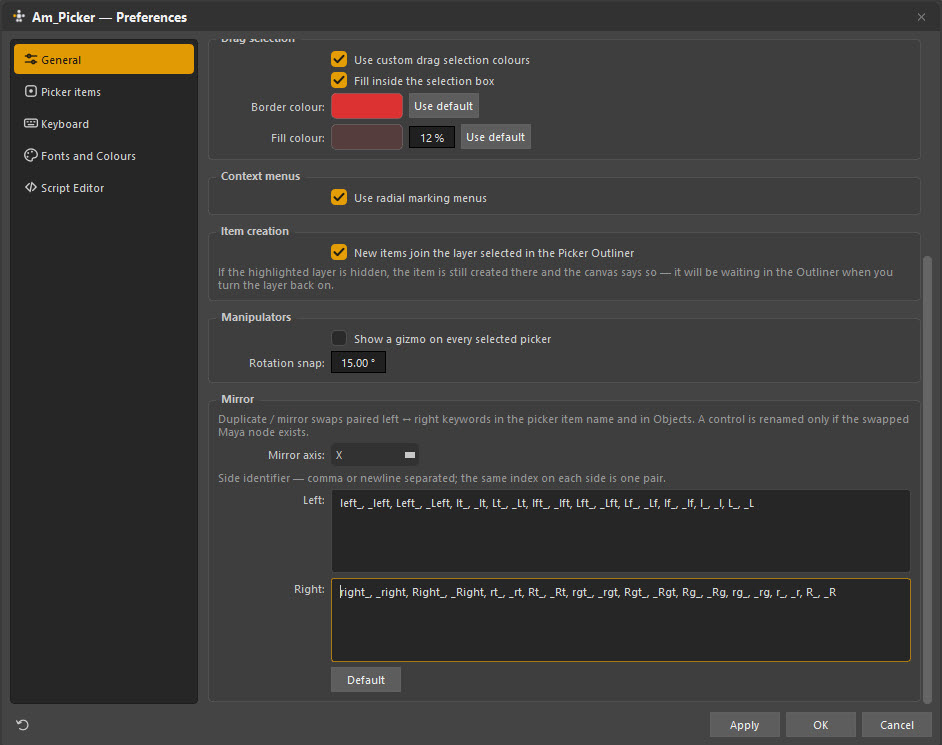
| Show a gizmo on every selected picker | Off | Off shows one gizmo on the anchor item only |
| Rotation snap | 15° | The increment rotation snaps to |
Mirror
| Setting | Default | What it does |
|---|---|---|
| Mirror axis | X | Which axis mirroring works across |
| Left | left_, _left, Left_, _Left, lt_, _lt, Lt_, _Lt, lft_, _lft, Lft_, _Lft, Lf_, _Lf, lf_, _lf, l_, _l, L_, _L |
Left-side keywords |
| Right | right_, _right, Right_, _Right, rt_, _rt, Rt_, _Rt, rgt_, _rgt, Rgt_, _Rgt, Rg_, _Rg, rg_, _rg, r_, _r, R_, _R |
Right-side keywords |
The two lists are positional: the nth entry on the left pairs with the nth on the right. Add your studio's convention if it is not covered, keeping the pairs aligned.
Duplicate-and-mirror swaps these keywords in the item name and in the bound control names — and only renames a control if the swapped Maya node actually exists, so a mismatch leaves the binding alone rather than breaking it.
Picker items
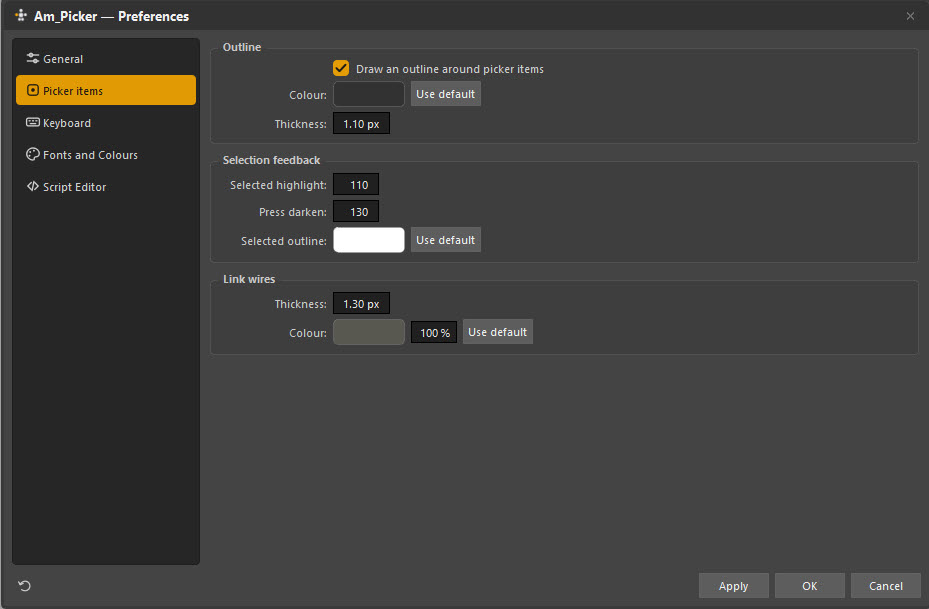
Outline
| Setting | Default | What it does |
|---|---|---|
| Draw an outline around picker items | On | The stroke around every item |
| Colour | White | Its colour |
| Thickness | 1.10 px | Its width |
Selection feedback
| Setting | Default | What it does |
|---|---|---|
| Selected highlight | 110 | How much brighter a selected item goes |
| Press darken | 130 | How much it darkens while the mouse is down |
| Selected outline | White | The outline colour of a selected item |
| Last selected outline | Green | Edit mode: the item you selected last, which align and match commands take as the anchor |
| Selected outline thickness | 0.50 px | The width of both selected outlines |
Link wires
| Setting | Default | What it does |
|---|---|---|
| Thickness | 1.30 px | The wires drawn between linked items |
| Colour and opacity | Grey, 100% | Their colour |
Per-item overrides for the outline live in the Channel Box; these are the picker-wide defaults.
Keyboard
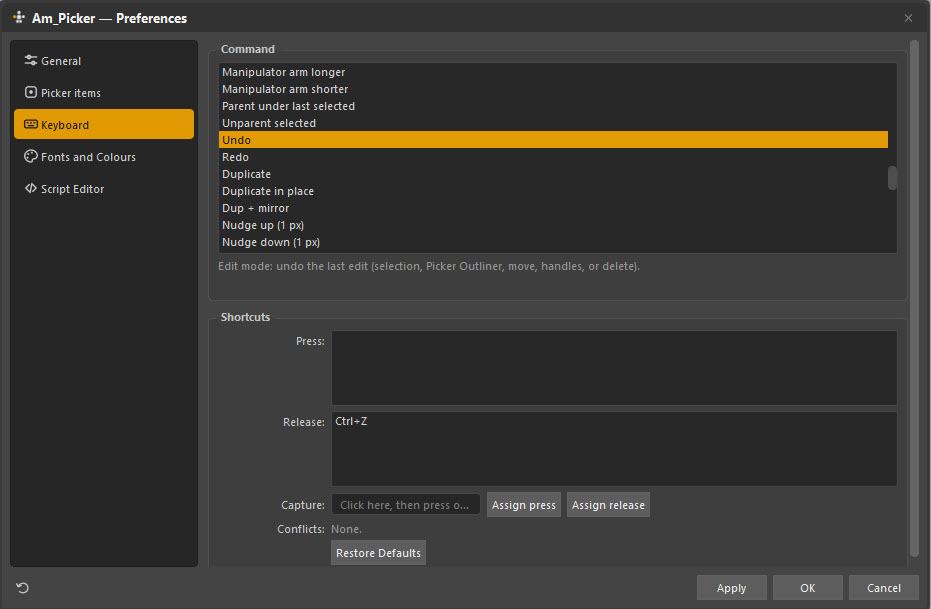
Rebind any of the 88 actions. Select a command, use Capture, then Assign press or Assign release.
The description under the list explains what the selected command does. The Conflicts line warns you before you commit a chord that is already taken, and Restore Defaults puts everything back.
Full list of actions and their defaults: Keyboard shortcuts.
Fonts and Colours
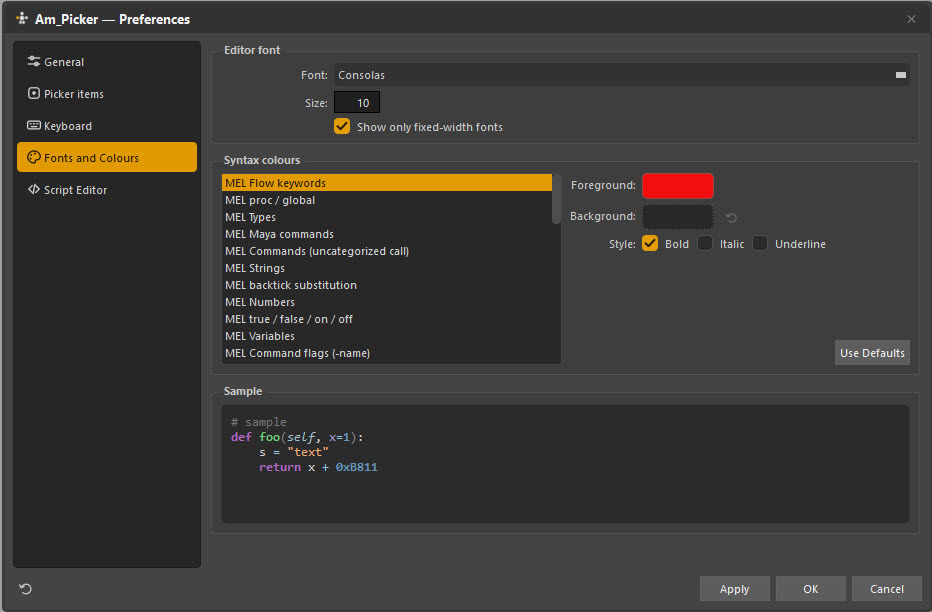
The look of the embedded script editor.
| Setting | Default | What it does |
|---|---|---|
| Font | Consolas | The editor typeface |
| Size | 10 | Its size |
| Show only fixed-width fonts | On | Filters the font list to monospaced ones |
Syntax colours sets foreground, background, bold, italic and underline for every token type in both Python and MEL — MEL flow keywords, Maya commands, strings, backtick substitution, numbers, variables, command flags, and the Python equivalents. The Sample pane previews as you go.
Script Editor
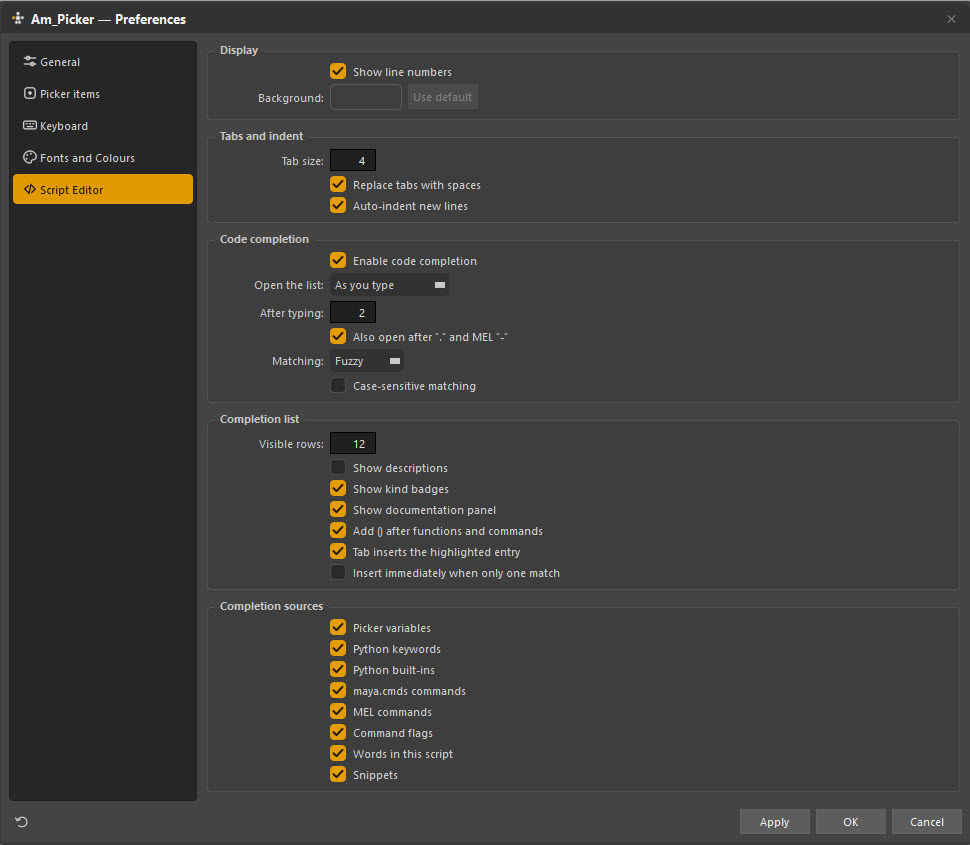
Display
| Setting | Default |
|---|---|
| Show line numbers | On |
| Background | Editor default |
Tabs and indent
| Setting | Default |
|---|---|
| Tab size | 4 |
| Replace tabs with spaces | On |
| Auto-indent new lines | On |
Code completion
| Setting | Default | What it does |
|---|---|---|
| Enable code completion | On | |
| Open the list | As you type | Or only on demand |
| After typing | 2 | Characters before the list appears |
| Also open after "." and MEL "-" | On | Attribute and flag completion |
| Matching | Fuzzy | Or prefix matching |
| Case-sensitive matching | Off |
Completion list
| Setting | Default |
|---|---|
| Visible rows | 12 |
| Show descriptions | Off |
| Show kind badges | On |
| Show documentation panel | On |
| Add () after functions and commands | On |
| Tab inserts the highlighted entry | On |
| Insert immediately when only one match | Off |
Completion sources
Each toggleable: Picker variables (__CONTROLS__ and friends), Python
keywords, Python built-ins, maya.cmds commands, MEL commands,
command flags, words in this script, and snippets.
Turning Picker variables off is rarely a good idea — those names are the whole point of an item script.
Resetting
The circular arrow in the bottom-left corner of the dialog restores that page's defaults.