Controlling what you see
Real pickers get crowded. Three controls let you put parts of one away without editing it.
Everything on this page is in Anim mode's canvas right-click menu, and all of it is non-destructive — you are changing what is drawn, not what exists.
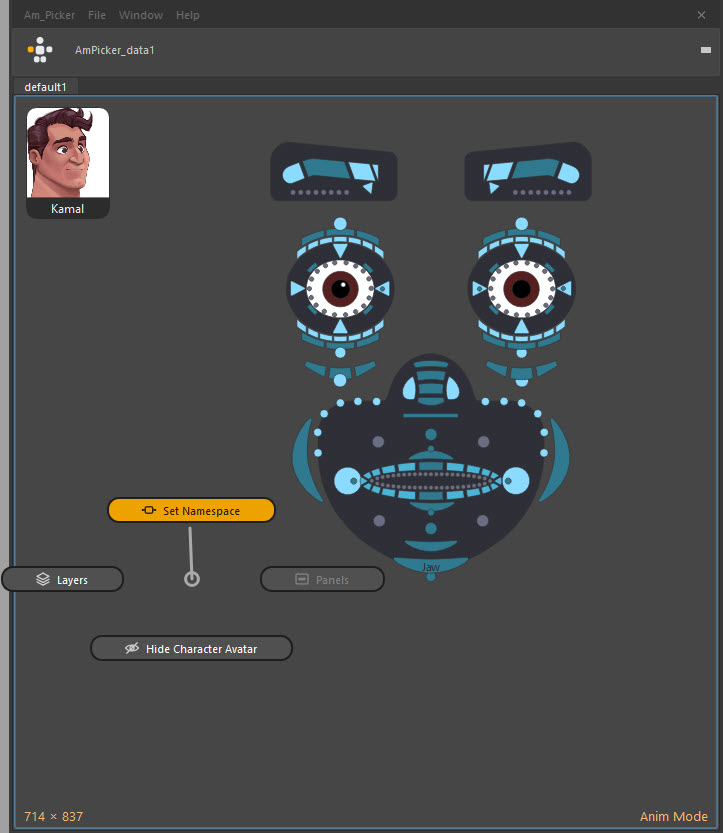
The four entries are always present, in the same places, on every picker. With marking menus on they sit one per direction — up, left, right, down.
Why the menu never changes shape
All four rows are always there, even when a tab has no panels — that entry is simply greyed out. A menu whose contents move between tabs is a menu you have to read every time. This one you can learn once and flick at thereafter.
For the same reason Layers and Panels are fold-outs rather than loose rows: the menu is the same length whether the tab has three layers or thirty.
Layers
Right-click → Layers ▸
Every layer in the tab, each one a toggle. Turning a layer off hides every item on it at once.
Riggers use layers to separate things that are useful at different times — IK controls, FK controls, tweakers, face detail. If you are blocking and the two hundred tweaker buttons are in the way, turn that layer off and get them all back later with one click.
Right-clicking inside a panel lists that panel's own layers instead of the tab's, so a panel with its own structure is manageable from where you are looking.
Panels
Right-click → Panels ▸
A panel is a sub-page floating on the canvas — a face board on top of a body picker, a hand board beside an arm. Each one is a toggle here, with its own layers indented underneath.
This menu is your way out of a panel that is in the way, including one the rigger gave no collapse tab. If a picker has no panels the entry is greyed out rather than missing.
The character portrait
Right-click → Show / Hide Character Avatar
The portrait pinned to the canvas's top-left corner. It is per tab.
This is the only way to put the avatar away in Anim mode, and it is always available — a tab whose rigger never set a picture still shows the empty frame, so you can still switch it off. Choosing the picture is the Image Manager, in Edit mode.
The character bar
Space hides the whole strip under the title bar — the avatar, the picker selector and the buttons — leaving the canvas and nothing else.
Use it when the picker is parked beside a viewport and every pixel counts. Press Space again to bring it back.
The compact floating bar
Esc collapses the entire window to a small floating square with one button on it. Press the button, or Esc again, and the picker comes back exactly as you left it — same tab, same framing, same selection.
This is for the moment you need the screen but do not want to close the picker and lose your place.
What none of this changes
Hiding a layer, a panel or the avatar changes your view. It does not:
- change the picker file,
- change what anybody else sees,
- change the rig or the scene in any way.
The picker's own visibility state is remembered while the window is open. If you want a layer to start hidden for everybody, that is a rigger's decision made in the Picker Outliner.