Binding controls
Attaching a shape to the things it should select — and the dialog where everything else about an item lives.
U Bind selection to item I Picker Behavior
Binding by hand — U
- Select the control in Maya.
- Select the item on the canvas.
- Press U.
Select several controls in Maya first and the item is bound to all of them.
The item stores each control's name without its namespace — bind to
kamal:L_hand_ctrl and what is saved is L_hand_ctrl. That is what lets one
picker drive every referenced copy of the character; see
Rigs and namespaces.
Picker Behavior
Select an item and press I, or right-click it → Behavior.
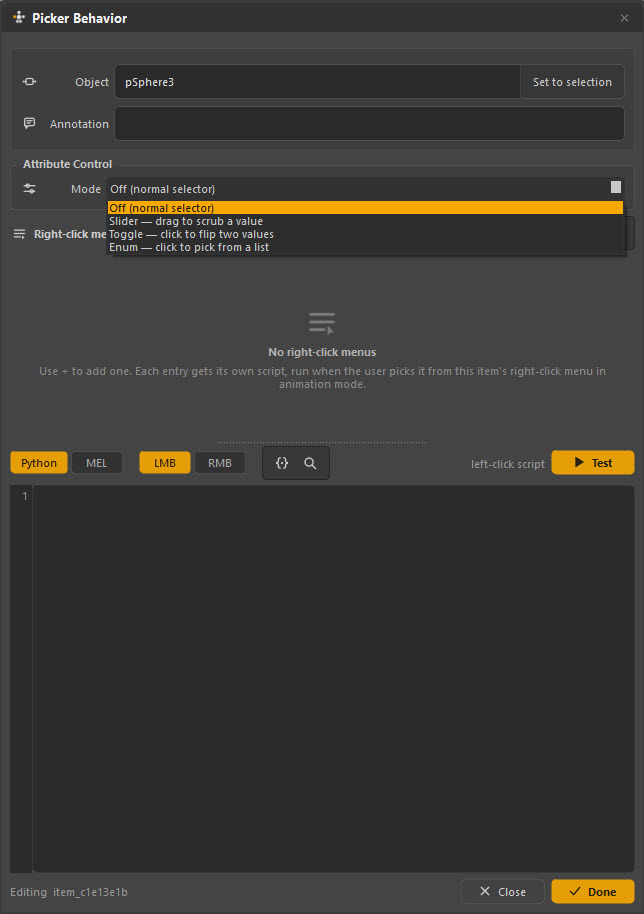
This is the whole of an item's non-visual configuration. It is a single shared window — selecting a different item retargets it rather than opening a second one.
| Section | What it is for |
|---|---|
| Object | The Maya nodes this item selects. Set to selection fills it from your current Maya selection — the same as U. |
| Annotation | A tooltip. Shown on hover, so an animator can find out what an unlabelled button is without clicking it. |
| Attribute Control | Turns the item from a selector into a slider, toggle or enum. See Attribute control. |
| Right-click menus | Extra commands on this item's right-click menu in Anim mode, each with its own script. |
| Script | Python or MEL run when the item is clicked. See Item scripts. |
Annotations are worth the two minutes
An annotation is the cheapest usability work in the whole tool. A picker with sixty unlabelled face buttons is a guessing game; the same picker with annotations is self-teaching. Write them as you bind — "jaw open / close", "L brow inner" — and the picker stops needing you to explain it.
Binding several items at once
The efficient path is not to bind one at a time at all:
- Ctrl+Shift+A with controls selected in Maya creates one item per object, already bound and named. Start here.
- Ctrl+Shift+D duplicates an item and mirrors it — the shape flips and
the bound control's
L_/R_keyword swaps with it, so a finished left arm becomes a finished right arm in one keystroke.
Together these two cover most of a body picker's binding without U ever being pressed.
Checking your work
Three ways, cheapest first:
Click it in Anim mode. Alt+W, click, look at Maya. This is the real test and it takes a second.
Watch the highlight. Select controls in the Maya viewport and their items light up in the picker. Select the whole rig and every bound item should light: anything that stays dark is unbound or bound to the wrong thing. This is the fastest way to find the gaps in a big picker.
Set Namespace's count. Open Set Namespace and read the "n of n objects found" line. It counts every object across the picker's items, so it catches controls that were renamed or deleted since you bound them.
Rebinding after a rig change
If controls get renamed, the picker keeps looking for the old names. There is no magic repair — you rebind. The practical routine:
- Open Set Namespace and read which objects were not found. That list is your work.
- Select the items concerned, select the new controls in Maya, press U.
- Save, and re-check the count.
Name items after their controls
Ctrl+Shift+A names each item after the object it was made from, and it is
worth keeping that convention when you draw by hand. When a rig changes, an
item called L_hand_ctrl tells you what it was for; one called item_3034e191
does not.
What binding is not
Not a constraint. The item does not follow the control, and moving the control in Maya does not move the shape. A picker is a map, not a rig.
Not a namespace. Do not type namespaces into the Object field. The picker adds the current one at click time.
Not exclusive. Several items can bind the same control — a common, useful thing: a small precise button on the face board and a big obvious one on the body board, both selecting the same jaw control.